Modifying a schedule
This section outlines the following procedures for modifying a schedule:
- Adding a switching point
- Using the expanded modification controls
- Modifying the time
- Deleting a switching point
- Changing the current value or setting
- Returning an object to the Schedule default
Adding a switching point
Use this procedure to add a new change of value or setting to the schedule.
- While in Edit mode, click on the day and time where the switching point is needed.
- A new switching point displays.
- Enter or select the value of the switching point.
- Click Save to save the new switching point.
NOTE: Cancel discards all changes since the last save.
Modifying a switching point
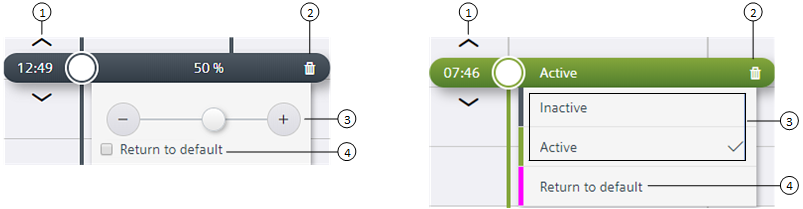
① | Modify the time |
② | Delete the switching point |
③ | Command controls |
④ | Return to default |
 to remove the current switching point.