Installing ABT Pro and ABT Site
Complete the following steps to install ABT Pro and ABT Site along with its required libraries:
- In the ABT Installer’s Welcome dialog box, select the language for installation. You can change the default selected English language, by selecting Deutsch language and click Next.
Note: The language you select here is for ABT Installer only and not the ABT Pro or Site product language. 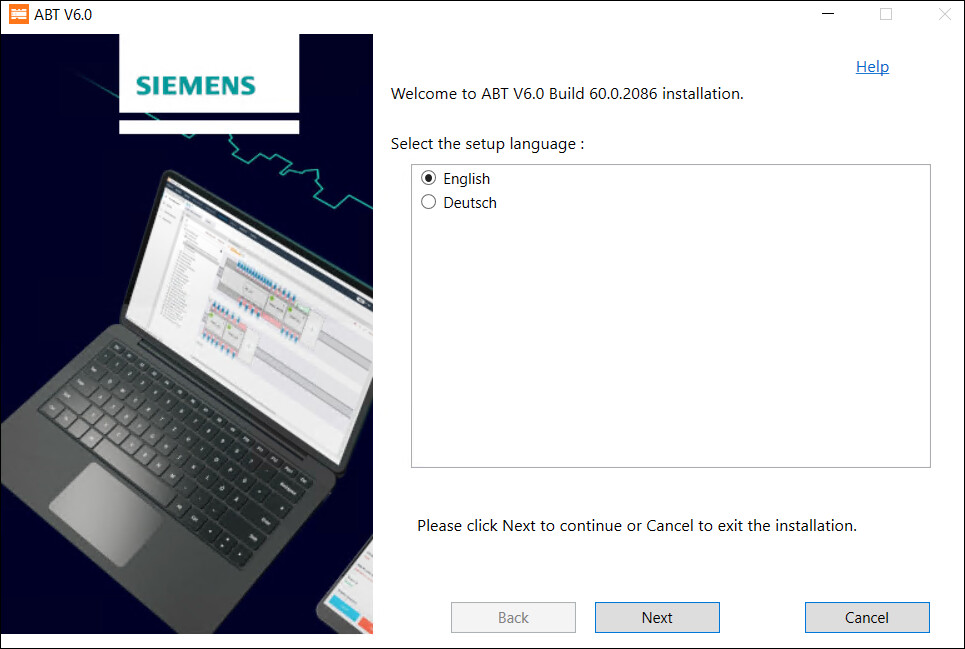
- Select the I accept the terms and conditions of the EULA for ABT checkbox after reading the License agreement and then click Next. Upon accepting the terms and conditions, the status of the Readme file displays as green tick.
- To install ABT Pro and Site together, select ABT Pro and ABT Site and click Next.
- Select the libraries or features you want to install by expanding the ABTPro SI Library, ABTPro US Library, ABTPro CA Library, ABTPro IM Library and ABTSite Library clusters and click Next.
Note: If higher version of any of the listed library is available on your machine, then you cannot modify the selected options. Some of the libraries from ABTPro SI Library and ABTSite Library cluster are selected by default. 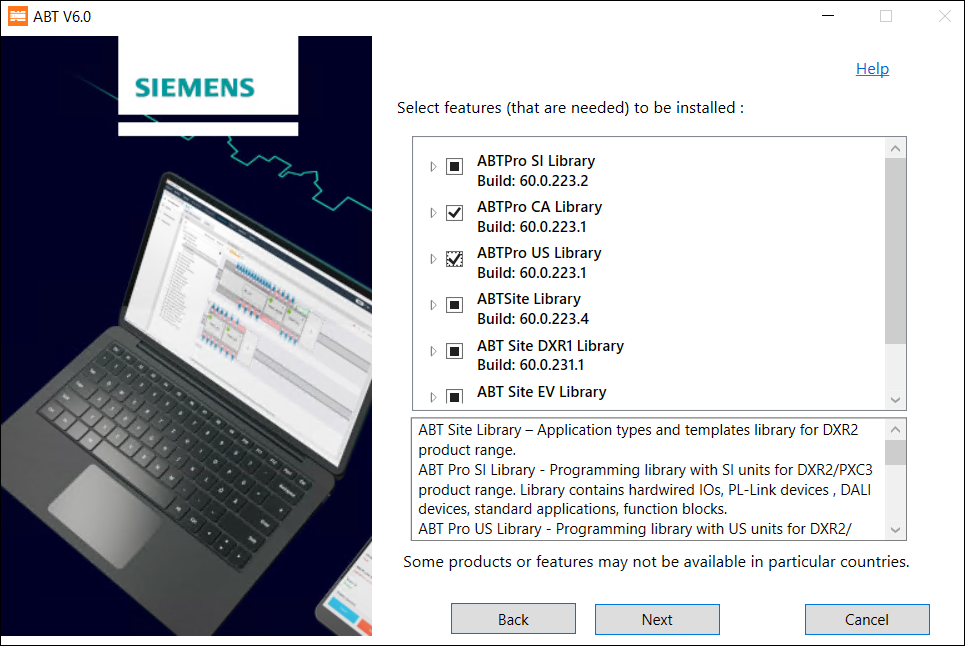
- For the Tool installation field, you can use the default path or to change the default path click Browse and select the path where you want to install ABT and click Next.
Note: Check that your machine’s hard drive has space that is specified in the Required column of Hard drive space table. To reload the hard drive space check after creating the required space in your machine, click Back and then click Next. You can now see the updated Hard drive space table. - Click Install to install ABT Pro and ABT Site. The list of libraries and its content are displayed in the Summary of selection dialog box.
- Select Restart Now and click Restart to restart your machine. You must restart your machine after you install the tool.
- The ABT Pro and ABT Site is installed on your machine.