Configuring Modbus gateway routing
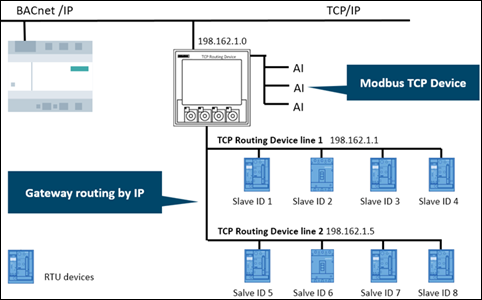
TCP networks now support Modbus gateways. Thus, you can make RTU devices accessible through IP routing in a TCP network.

Only devices from version 1.1 support the Modbus gateway routing. Check for updates.
Updating application templates and graphics libraries
Once you have configured the Modbus gateway routing you can drag and drop the whole Modbus gateway to your Custom library. From the Custom library you can reuse the Modbus gateway or share it with other users.
- Go to Building > Building structure.
- Right-click a device and select Go to engineering.
- Open the Modbus task.
- Click Add network to add a TCP network. Info: Depending on the used device, up to 5 networks for Modbus, M-bus, KNX PL-Link are supported.
- Click Add gateway to add a Modbus gateway.
- In the Add gateway window, enter the IP address of the gateway line.
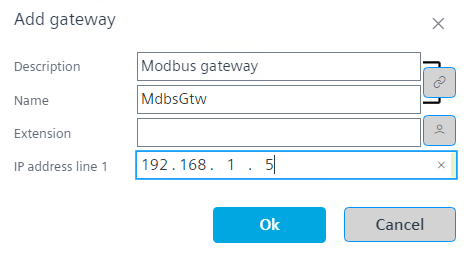
- Click OK.
- One Modbus gateway line is automatically added to the gateway.
- Select the gateway line and click Add device to create a new RTU device or drag and drop a device from the library.
- Add a client address to your RTU device.
- The gateway defines the communication settings.
- The client address of the device and the IP address of the Modbus gateway line make the device accessible.
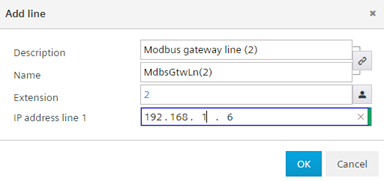
- To add more lines to the gateway, right-click the gateway and select Add line.
- In the Add line dialog box, enter the IP address of the additional gateway line.
- Repeat steps 8 and 9 to add devices to the lines.
Some devices such as energy metering devices act as a gateway by IP to other RTU devices. These devices carry data points to other devices. They are IP devices with a client RTU address. Add this type of device directly under the Modbus gateway without a gateway line.
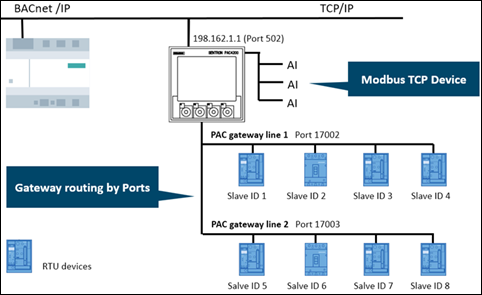
The configuration of Modbus gateway TCP to RTU by port needs expert Modbus know-how. However, with the help of the Custom Library it is possible to share TCP gateway line structures with other users.
- The configured device needs to support more than one TCP network. Consult the data sheet to check whether the device supports more than one Modbus TCP network.
- Go to Building > Building structure.
- Right-click a device and select Go to engineering.
- Open the Modbus task.
- Click Add network to add a TCP network for the physical network. You can add additional TCP devices (not part of gateway) to the physical network.
- Repeat the last step and repeat the steps below for each gateway line.
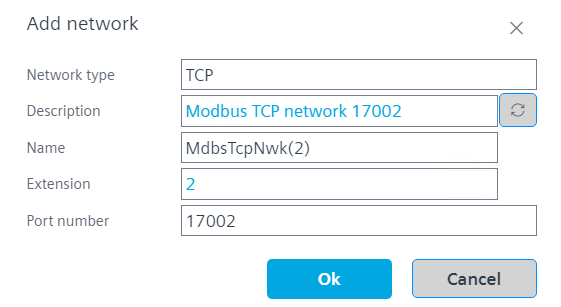
- In the Add network dialog box, enter the port number of the gateway line.
- Click Add gateway to add a Modbus gateway for each TCP network.
- In the Add gateway dialog box, enter the IP address of the gateway.
- Click OK.
- One Modbus gateway line is automatically added to the gateway.
- Do not add more lines. Port routing supports only one line per gateway/network.
- Right-click the gateway line and select Add device to create a new RTU device or drag and drop a device from the library.
- Add a client address to your RTU device.
- The TCP network together with the gateway define the communication settings.
- The client address of the device and the IP address of the Modbus gateway line make the device accessible.
Some devices act as a gateway by port to other RTU devices. These devices carry data points to other devices. They are IP devices with a client RTU address. Add this type of device to the TCP network which contains the physical network (Step 4).