Working with the Room programming editor
In Programming editor, you can program and customize function blocks, inputs and outputs.
Adjust the size of the Programming editor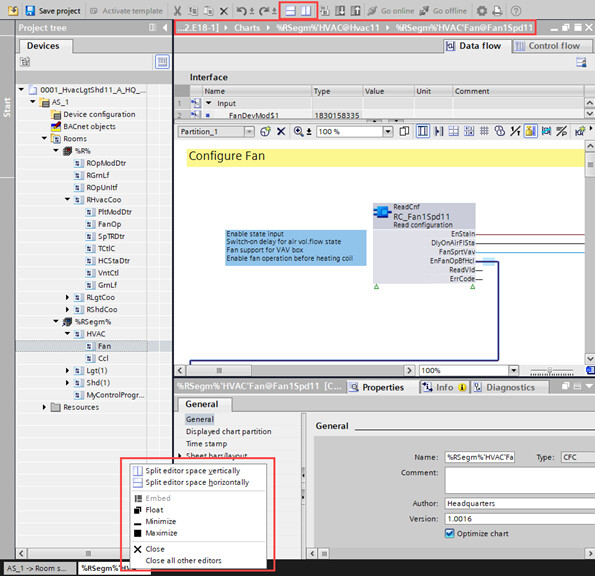
- Click the Split editor space horizontally icon in the toolbar of the Programming editor to display two individual editors aligned horizontally.
- Click the Split editor space vertically icon in the toolbar to display two individual editors aligned vertically.
- Double-click the header of the chart to maximize it. Double-click the header again to return the Programming editor to its original size.
- Right-click an open chart at the bottom of the Programming editor and select an entry.
Zoom in on a chart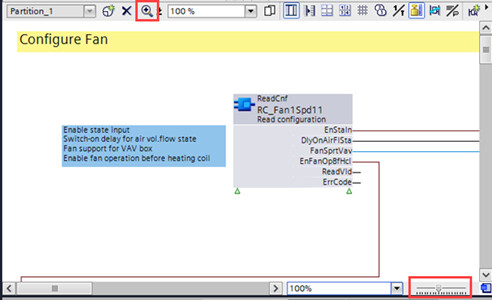
There are two ways to zoom in on a chart:
- In the Programming editor, select the zoom control, hold and move it to the right to zoom in on the chart and to the left to zoom out of the chart.
- In the Programming editor, use the
 icon to zoom in on the chart.
Add a programming sheet
- In the Programming editor, drag a block across the sheet border.
- A new sheet is added to the chart.
Add one or more programming sheets
- Open the Properties tab.
- Click Interface and enter the number of sheets in the Vertical sheets and Horizontal sheets fields.
- (Optional) Select the size of the sheets in the Sheet size field.
- The number of sheets you entered are added to the chart.
Add a subchart
- In the Programming editor, right-click in an empty space and select Insert new subchart.
- A new subchart is added to the chart.
Add a text box to the chart
- In the Programming editor, right-click in an empty space and select Insert new text box.
- A new text box is added to the chart. You can write text into the text box.

You can change the properties of the text box, e.g., text color, border width, in the Properties tab.
Connect blocks
- In the Programming editor, do one of the following:
- Drag the output pin of a block to the input pin of the target block.
- Double-click the output pin of a block, and then click the input pin of the target block.
- Press the Ctrl+C keys on the output pin of a block, then select the pin of the target block and press the Ctrl+V keys.
- The block connects to the target block.
If you hover over the input pins of a target block, the input pins with matching data type are highlighted in green.
Follow the data flow across multiple sheets
- In the Programming editor, double-click a connector on the side of a sheet.
- The connected block or pin is shown.
Follow the data flow on one sheet
- In the Programming editor, click or hover over a line that connects two blocks.
- The line is highlighted in blue.
- Handles for adjusting connections on the line are shown.