Create a BACnet reference from an EDE file import
You can create BACnet reference objects from EDE files from other BACnet devices. You can also use the context menu to create a BACnet reference object. This way the required BACnet referencing function is set in one-step. The object is created on the top level of the favorite plant in the Plants navigation view on the left.
- Go to Engineering > BACnet references.
- Select the EDE import tab.
- Click Import EDE.
- This opens a generic explorer browser for the user to select the desired EDE file from the PC.
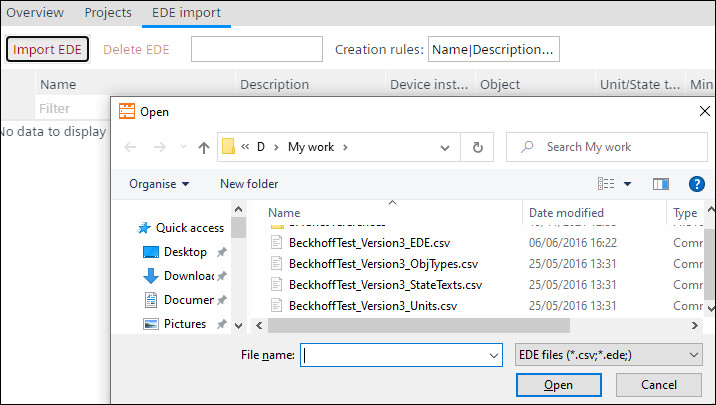
- Select the required EDE file and click Open.
- The CSV file information will appear in the EDE import window.
- You can delete the imported EDE file by clicking on Delete EDE.
- The EDE file is deleted.
- The file drop down menu shows the currently opened EDE file, with the naming string: Controller name where the file is saves” > “EDE file name”. The drop-down menu allows the user to select any of the previously used EDE files in the project, stored also in other controllers.
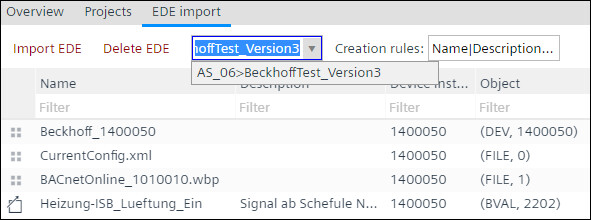
- The Creation rules drop down is a menu with multiple selection. It will allow the user to select which parameters can be reused from the EDE file when creating the BACnet reference object.
- Drag and drop an object from the EDE import window to create a BACnet reference object in the desired folder to the Plants navigation view on the left.
- You have created a BACnet reference object.
- Repeat step 8 to add more objects.