Auto-connect and auto-create association of I/O data points and other BACnet objects to function blocks
Performs two-stage logic to associate the I/O data points and other BACnet objects with function blocks, that are missing an association. In the first step, check whether the matching I/O data points or BACnet objects are available in the control program and can be linked to these function blocks. If no association can be created, attempt in a second step to instantiate the I/O data points from the library.
- A control program exists, but the BACnet objects are not assigned to the I/O data points. In the Project tree, only few BACnet objects are available.
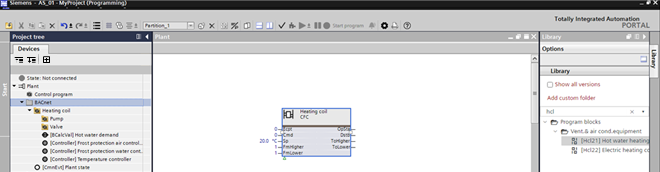
- Click Check
 .
. - The objects without BACnet objects are listed.

- (Optional) Select a row and click Go to
 .
. - The control program opens. The I/O data point displays without a BACnet object information.
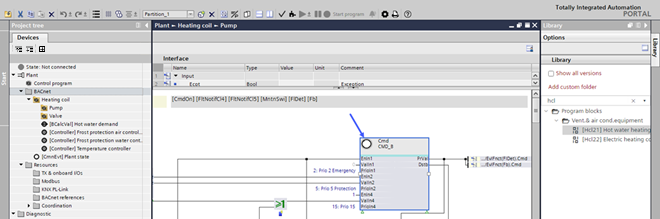
- Click Auto-connect and auto-create BACnet objects
 .
. - The I/O data points in the Project tree are assigned to BACnet objects. The assignment is based on the two-stage logic.
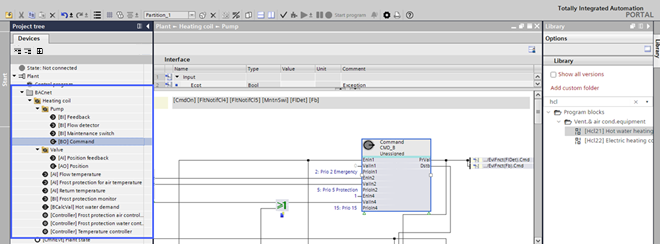
- Click Check .
- The remaining objects without BACnet objects are listed.
- Rework the unassigned objects with library objects.
Manually assign remaining I/O data points
- In the Library tab, enter the filter name predef.
- Drag a corresponding library object to the I/O data point in the control program.
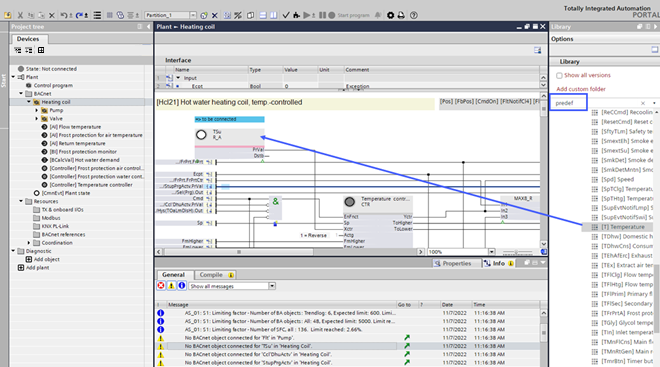
- Open the Properties tab.
- Rework the original library information with the current project information of that data point.
Note: The BACnet object (property Name) and the I/O data point in the control program are assigned via the property Preferred object. The algorithm searches the entire project tree to assign the corresponding object, so that the object does not necessarily have to be on the same hierarchy level.
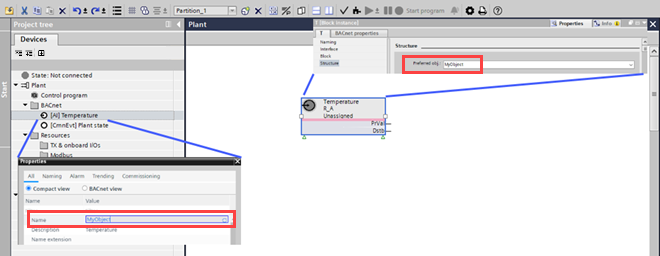
Support auto-connect and auto-create with naming extension
Auto-connect and auto-create BACnet objects takes any provided object extension into account and:
- Connects an xFB to a matching BACnet object with the provided object extension.
- Creates a matching BACnet object with the provided extension, if there is no BACnet object available to connect.
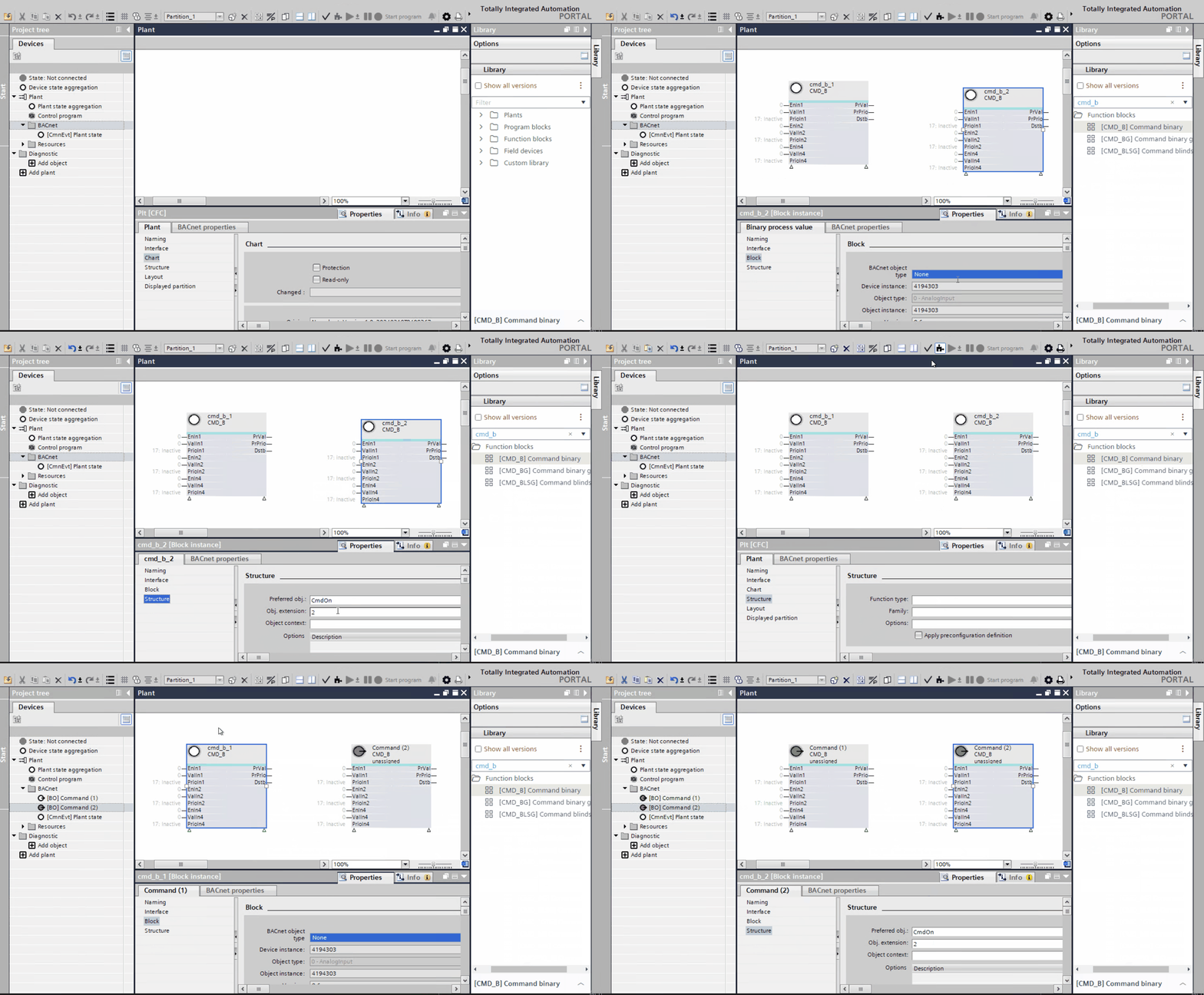
- From the Library, drag two Field devices (xFBs) to the chart.
- To detach the XFBs, go to Properties > Block.
In the BACnet object type field, select None.
Or
Go to the Project tree and right-click the BA object and select Delete. - Select the xFBs and go to Properties > Structure.
- In the Obj. extension field, for example, enter the extension as 1 and 2 respectively.
In the Project tree, select the BA objects and give the same extension as of the xFBs. - Click Auto-connect and auto-create BACnet objects .
- The preferred objects in the chart is connected to the BA objects in the Project tree.
- If the preferred objects do not match with the BA object in the Project tree, a new BA object is created in the Project tree with similar properties of the preferred object.
- In the Project tree, select the object in the BACnet folder.
- Right-click and select Properties.
- The Name, Description and Name extension matches with that of the xFB properties.
- Right-click the xFBs and select Show in plant structure.
- The xFBs takes you to the connected BA object in the Project tree.