3. Setting up the devices for BACnet/SC

Before a conversion to BACnet/SC can take place, each device must first have been set up with IP communication. A direct configuration to BACnet/SC is not possible.
1. Establish network connection
- In the Common toolbar, select the arrow next to the Connect
 icon.
icon. - Select the Ethernet tab.
- Select the Target selection option IP.
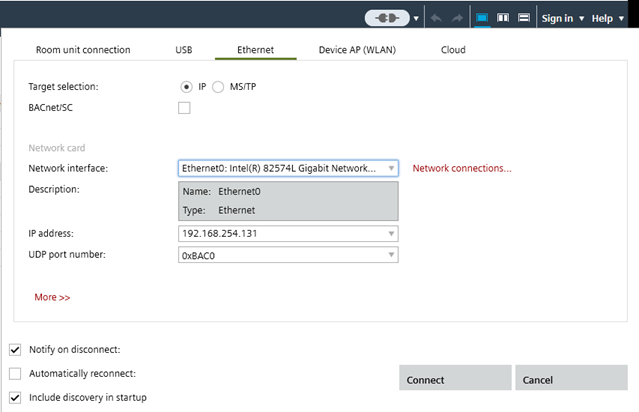
- Click Connect.
- The IP communication is established and operational.
2. Upload of the device data
To ensure that no changed parameters are lost, an upload must be carried out first.
Note: If BACnet/SC is commissioned directly, this step can be skipped.
- A network connection is established
 .
.
- Go to Startup.
- Open the Configure and download task.
- In the Engineered devices area, select the device.
- Right-click the device and select Upload.
- The current device data are uploaded and stored in the project data.
Any parameter changes made between the upload of the device data and the clear device procedure will be lost.
3. Assign the device a second time for BACnet/SC communication
- A network connection is established .
- Go to Startup.
- Open the Configure and download task.
- In the Engineered devices area, select the device.
- Right-click the device and select Find matching device type.
- The devices are listed in the Discovered devices tab.
- Select the device and click Assign.
- The device type is assigned to the device.
4. Download data to the device
- A network connection is established .
- Go to Startup.
- Open the Configure and download task.
- In the Engineered devices area, select the device.
- Right-click the device and select Load > Full (device may restart).
Note:
- Each hub and failover hub must be loaded individually. Multi-selection is not allowed.
- Multi-selection for nodes is supported.
- The current device data is downloaded.
- The device is BACnet/SC configured and operational.
Shared BACnet objects, for example, outside air temperature may not work until the referenced device is upgraded to a BACnet/SC configuration.
5. Disable the BACnet/IP communication
The BACnet/IP communication must be disabled for all devices to ensure a secure communication through BACnet/SC.
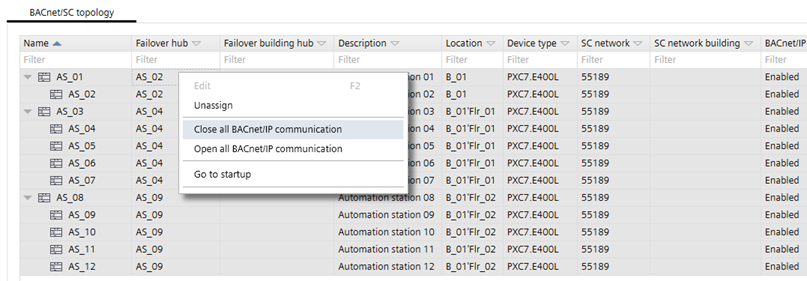
- In the BACnet/SC topology tab, select the devices.
- Right-click and select Close all BACnet/IP communication.
- Right-click the device and select Load > Full (device may restart).
Note:
- Each hub and failover hub must be loaded individually. Multi-selection is not allowed.
- Multi-selection for nodes is supported.
- The current device data is downloaded.
- The BACnet/IP communication is disabled for all devices connected to the hub.
- The BACnet/SC communication is operational and save.
6. Disconnect the network and reconnect as BACnet/SC connection
- In the Common toolbar, select the arrow next to the Connect icon.
- The IP communication is interrupted.
- In the Common toolbar, select the arrow next to the Connect icon.
- Select the Ethernet tab.
- Select the Target selection option IP.
- Select the BACnet/SC check box.
- In the Hub address drop-down list, select the hub or failover hub.
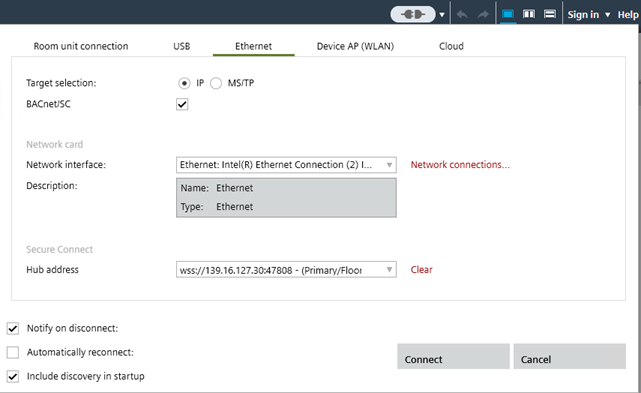
- Click Connect.
- The BACnet/SC communication is established.
- The communication icon changed to
 .
.