First time configuration of HVAC module
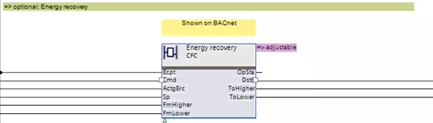
The Function configurator allows a highly flexible adaptation of a compatible HVAC module within a plant, for example, an energy recovery module:
- Within a chart, exchangeable modules are marked "adjustable.
- Only compatible variants are displayed in the Function configurator.

Behavior of the Undo  function in the Function configurator:
- When switching between the Function configurator editor and an ABT Site editor, the respective work steps are deleted. This means, that Undo can no longer be carried out when returning to the Function configurator editor.
- A performed user action in the Function configurator editor is saved in the program as several performed steps. Depending on the application, several Undo steps must be carried out to achieve the original state.
1. Replace a module
- The selected plant is created with nested modules.
- In the Plants navigation view, select the module to be changed.
- Right-click the module and select Function configurator. Alternatively, right-click the empty space in the chart and click Function configurator.
- The Function configurator dialog box opens.
- Clear the unused function from the selected module
or
select an alternative in the list box.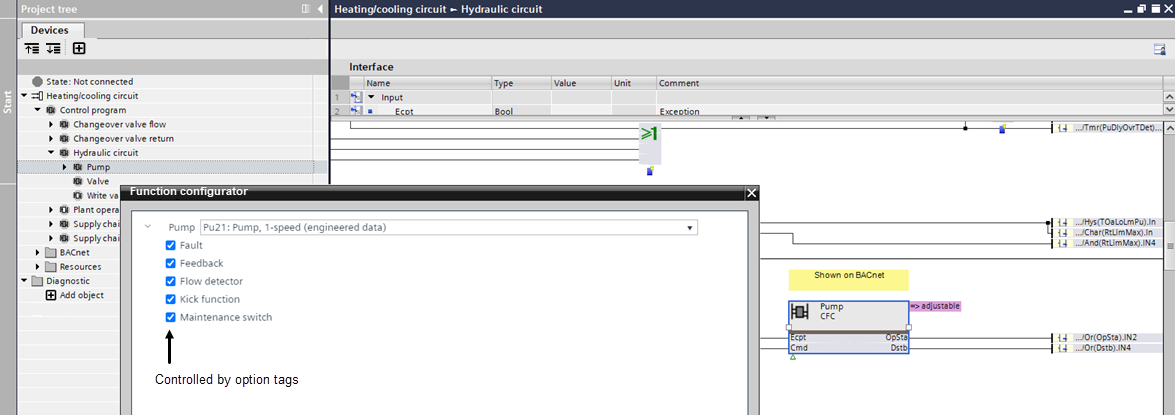
- If a function is selected that contains other interchangeable modules, these are also displayed.
Note: Assigned I/O data points are removed when a function is deselected. - Adapt the functionality according to the system specification.
- Click OK.
Note: Cleared options can no longer be activated at later time. If an option has to be activated again, the module must be selected again from the library.
- The modules are replaced.
- The deselected options are removed.
- The chart connections are updated.
I /O data points must be reassigned according to the new functionality.
2. Reassign I/O data points
When replacing a module, program data are copied from the library and existing I/O data points are reused as they fit. Additional I/O data points might be copied from the library, but they should be checked and completed manually.
- In the Project tree, go to the BACnet folder.
- Open the folder structure of the previous module that was replaced.
- Select the new module in the folder structure and verify the data points in the respective module in the Programming editor.
- Add missing I/O data points from the library to the control program as needed.
- Delete existing I/Os that are not required in the new program block.
- The hardware data are replaced.