Creating a trend log object - Plants navigation view
There are three options available in the Plants navigation view to add a trend log object.
- Go to Engineering > BACnet references.
- There are three options available in the Plants navigation view to add a trend log object. Go to the Plants navigation view:
- Click Add data point and from the drop down select Add trendlog.
OR - Select the Plant, right-click and select Add data point > Add trendlog.
OR - Select the Folder under the Plant, right-click and select Add data point > Add trendlog.
- The Add trendlog dialog box displays.
- Enter the details in the required fields and click OK.
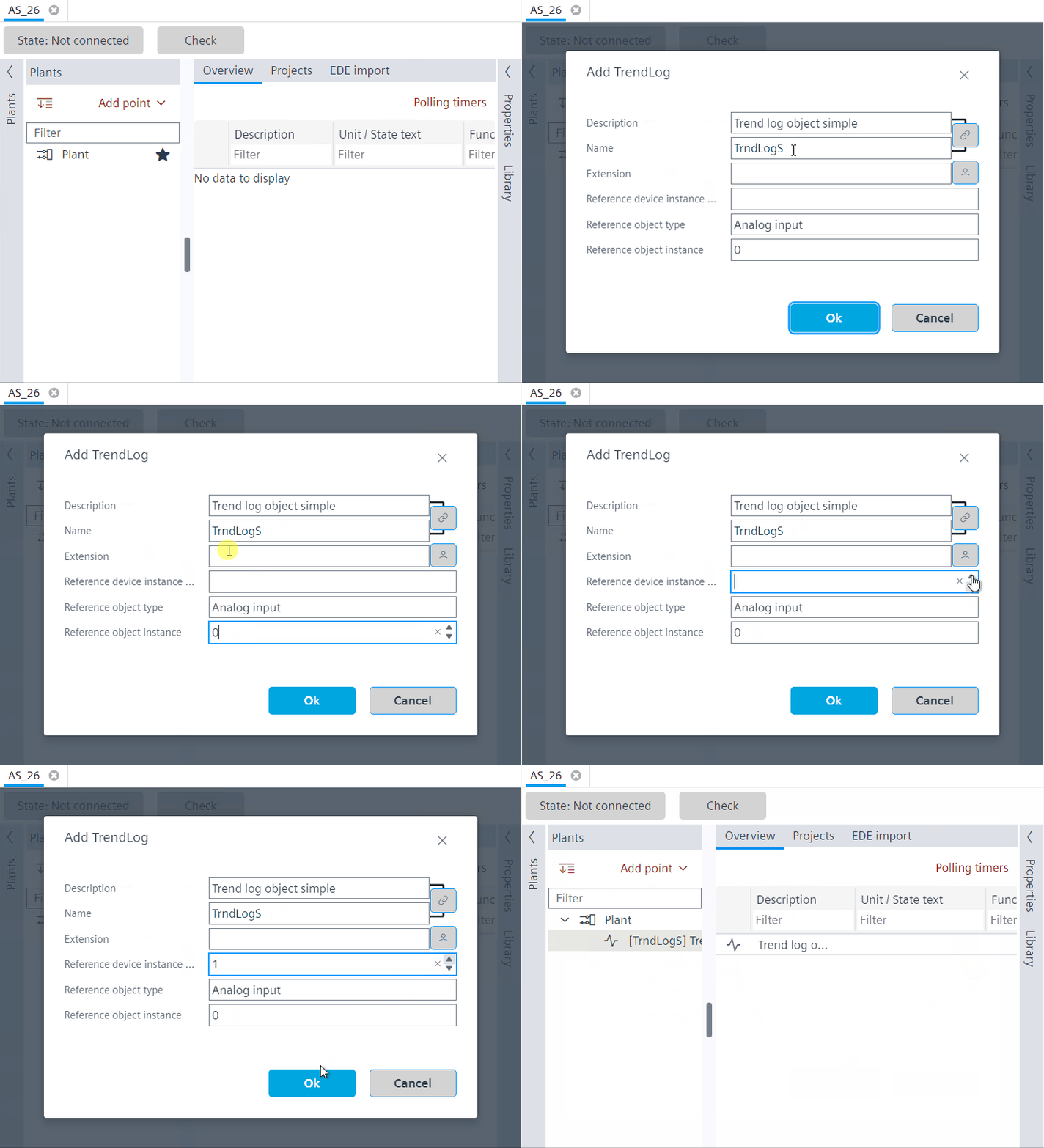
- The trend log object is created in the Plants navigation view.
The following properties can be edited:
- Description
- Name
- Reference device instance
- Reference object type
- Reference object instance
The device name, device instance number, object type and object instance number information can be seen in the Log device object properties property in the Properties tab.