Setting table filters in the Engineering tab
- Go to Building > Building structure.
- Right-click the device and select Go to engineering.
- Open the I/O Configuration/Modbus/M-bus/PL-Link/BACnet References/BACnet objects task.

All the following filters can be combined.
Using multiple filters
Finding objects or data points quickly and efficiently is supported by multiple filters. By using additional filter criteria, the search results are narrowed down even more.
- Using Plants navigation view filter
- In the Plants navigation view, select the plant or folder to narrow down the search for objects.
- The object list shows all data points of the selected folder.
- The displayed objects are counted at the bottom.
- In the BACnet objects tab, under Plants navigation view, select All objects to show all BACnet objects again.
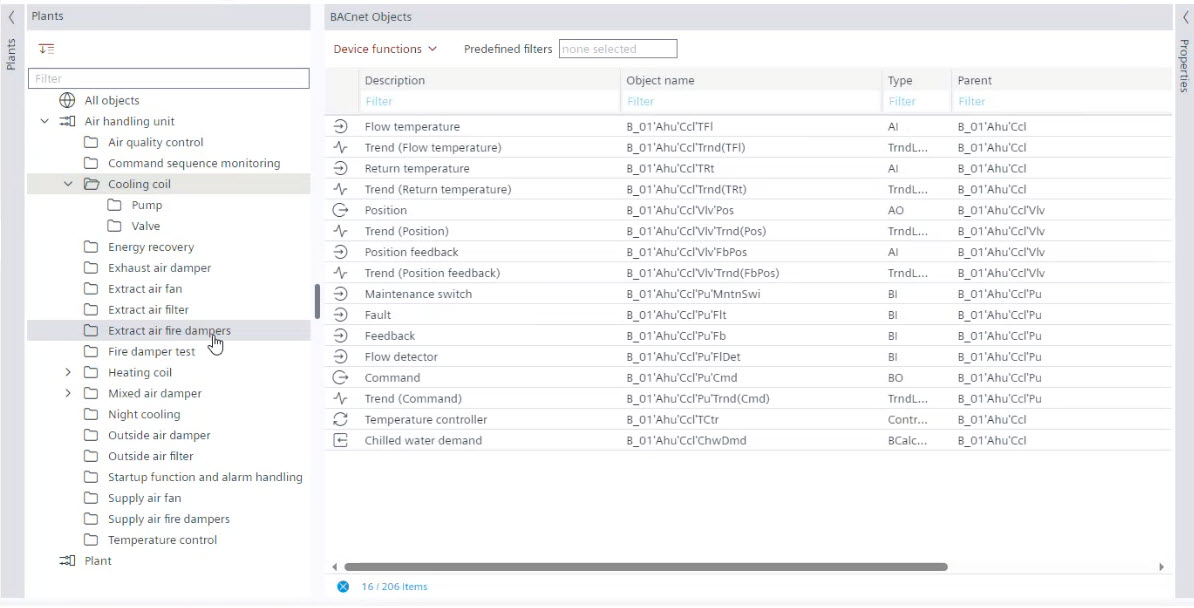
Filter criteria are not case-sensitive.
Filter settings are not saved with the project. When a project is closed and reopened, the filter returns to the default.
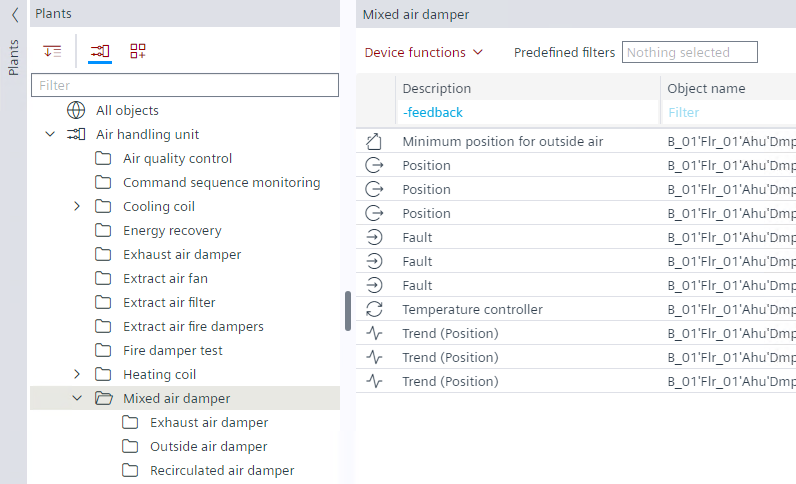
- Using column fields filter
- Enter a text in one or more column fields.
- The filter is immediately active.
- The active filter entries are colored blue.
- Use – to reduce the displayed objects, for example, -feedback in the Description field.
Filter rules within a text field | |
Filter | Description |
feedback | Objects with word "feedback" are displayed. |
feedback trend | Objects with the words "feedback" or " trend" are displayed. |
+feedback trend | Objects with the words "feedback" and "trend" are displayed. |
-feedback trend | Objects with the words neither "feedback" nor "trend" are displayed.. |
- | Only empty fields are displayed. |
+ | Values existing in that particular column will be displayed. |
The filters are applicable to the table columns in the Properties view too.
Order of the words does not affect the displayed results. For example, you can type as"feedback trend" or "trend feedback".
Clearing all filters
- Select
 .
.
This option is enabled only for table filters and not for tree views, for example, the network tree in Modbus editor or in the Plants navigation view.
This option is not enabled for filters in Properties view.
This option is applicable only in BACnet objects tab.
Online engineering filters
- Go to Engineering.
- For example, open the BACnet objects task and go online.
- Set filters in the following columns:
- Value/Unit
- Commissioning