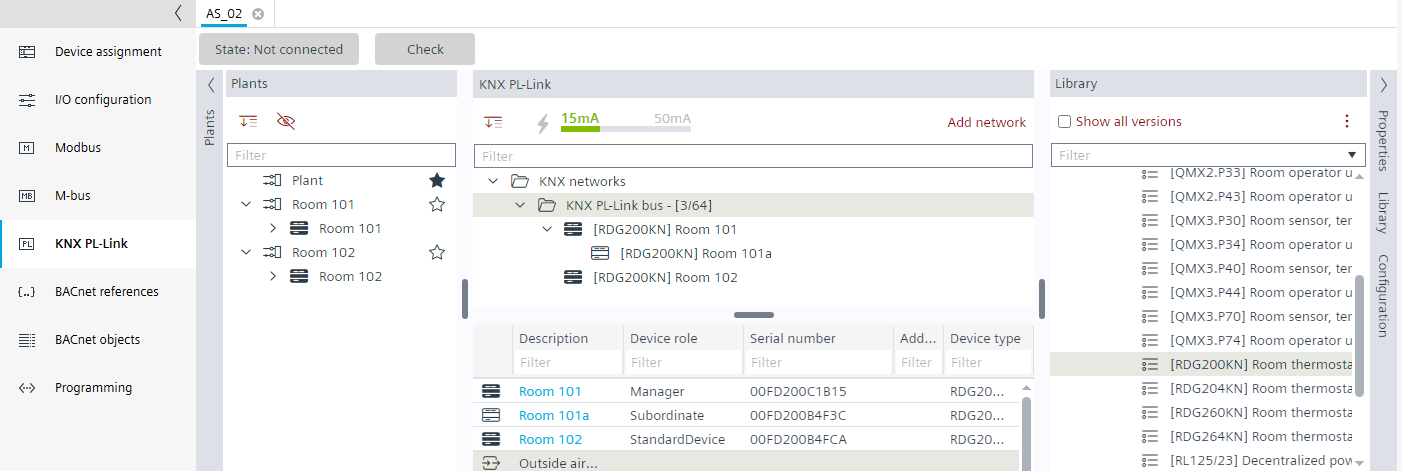
Adding the serial number to the device (offline)
Add the serial number manually or use a barcode reader to be more efficient. The serial number and the barcode are available on the device or on the packaging of the device.
Note: When assigning the device address, it is very helpful if the QR code is stuck on a floorplan. This means you can simply use the barcode reader to transfer the QR code into the serial number field of the respective device.
- The serial number is available as text on paper or as a QR code label.
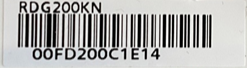
- (Optional) A barcode reader is installed and operable.
- In the KNX PL-Link area, select the KNX PL-Link bus.
- Select the first RDG2 device in the table view.
- Select the Serial number column and enter the serial number (hexadecimal value) or use a barcode reader.
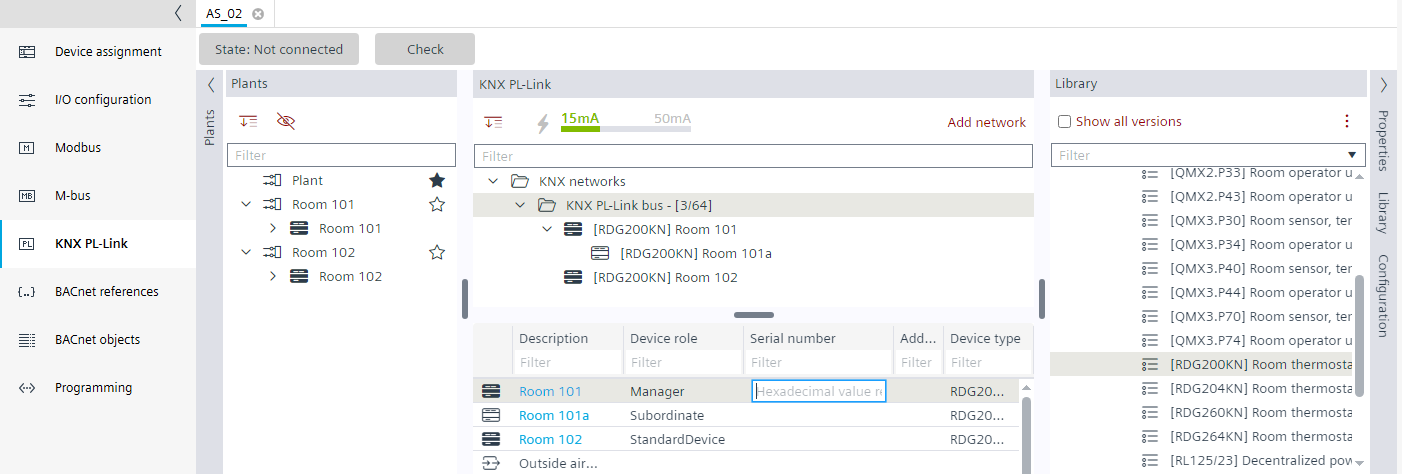
- Select the next RDG2 device in the table view.
- Select the Serial number column and enter the serial number (hexadecimal value) or use a barcode reader.
- Continue the procedure for all devices.