Adapting custom state text for an event enrollment object
The description is valid for binary and multistate objects. When reusing customer state texts in different objects, make sure that the signal number has the same number of channels.
1. Define the number of signals used for this data point
- A binary or multistate object is available.
Creating I/O data points
- Go to Building > Building structure.
- Right-click a device and select Go to engineering.
- Open the I/O configuration task.
- In the Plants navigation view, select the binary or multistate data point.
- In the Property view, select the Signal property.
- From the Signal drop-down list, select the number of channels for this data point (default is 3 channels).
- In the Number of states property, the number of used channels is displayed.
2. Define the custom state text
- In the Property view, select the State text property.
- Double-click in the State text field.
- The State text dialog opens.
- Enter the custom text for each channel.
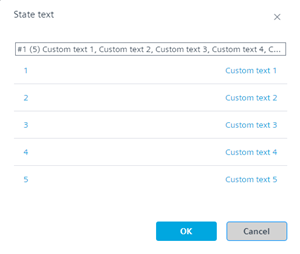
or select existing standard texts.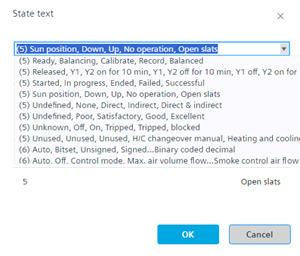
- Click OK.

A customized text can be reused (with the same number channels only) for other objects within the same device.
3. Create an event enrollment object
- Open the BACnet references task.
- Select the Projects tab.
- Select the device, and then the binary or multistate object.
- Right-click the binary or multistate object and select Create event enrollment object.
- Select the Overview tab.
- Select the created event enrollment.
- In the Property view, select the Event type property.
- From the Event type drop-down list, select the Change of state option.
- In the Property view, select the Event property states type property.
- From the Event property states type drop-down list, select the Unsigned value option.
4. Assign the custom state text to the alarm value
- In the Property view, select the Event parameters property.
- Double-click in the Event parameters field.
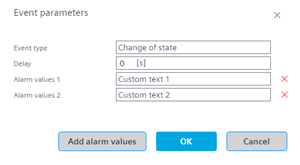
- The Event parameters dialog opens.
- From the Alarm values 1 drop-down list, select the alarm text.
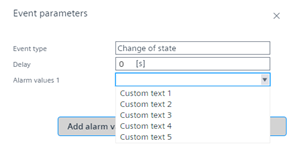
- Click Add alarm values to extend the alarm functionality.