Add a data point in M-bus (custom configuration, experts only)
Add different data points in the M-bus network with custom configuration. Custom configuration must be applied if no corresponding preset configuration is available.
M-bus modes
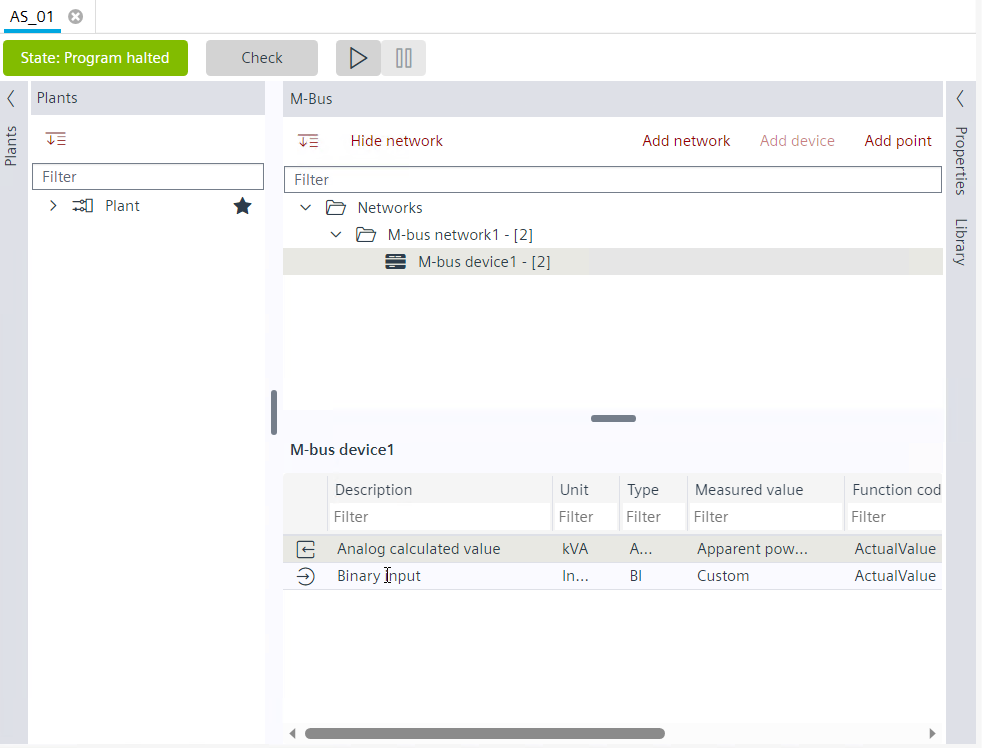
- Technical data sheet or specification of the device to be integrated is available from the supplier.
- Go to Building > Building structure.
- Open the M-bus task.
- In the M-bus area, select the device for which you want to add the data point.
- Click Add data point.
- The Add data point dialog box opens.
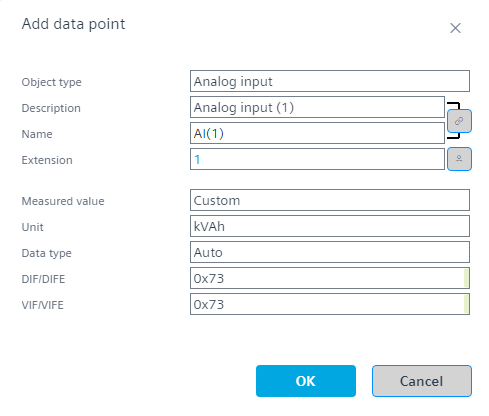
- Do the following:
- a. Select the type of object in the Object type field. Default is Analog input.
- b. Edit the description of the data point in the Description field.
- c. Edit the name of the data point in the Name field.
- d. Enter an extension to the M-bus name in the Extension field.
- The extension is added in parenthesis in the Name field.
- e. Select a unit from the Unit drop-down list.
- f. In the DIF/DIFE field, enter 0x73.
- g. In the VIF/VIFE field, enter 0x73.
- The Measured value field changes to
Custom. - h. Select the BACnet object data type from the Data type drop-down list:
- Auto
- Binary coded decimal
- Float
- Signed
- Unsigned - Click OK.
- A custom M-bus data point is added.
- Select the Properties tab.
- In the Data information block field, enter the DIF/DIFE code.
- In the Value information block field, enter the VIF/VIFE code.
M-bus value information block (VIB)
- The custom M-bus data point is configured.