Port management - Discovered devices tab

The Port management function is only available if the corresponding user role allows it. In the Discovered devices tab, the user must at least have the role Extended operation under Read property access level. The OK button is enabled if the Write property access level is at least Extended service.
Settings > User profiles > Roles
- An online connection is established
 or
or  .
.
Connect and disconnect
- Open the Startup > Configure and download task.
- In the Discovered devices tab, right-click the device and select Port management.
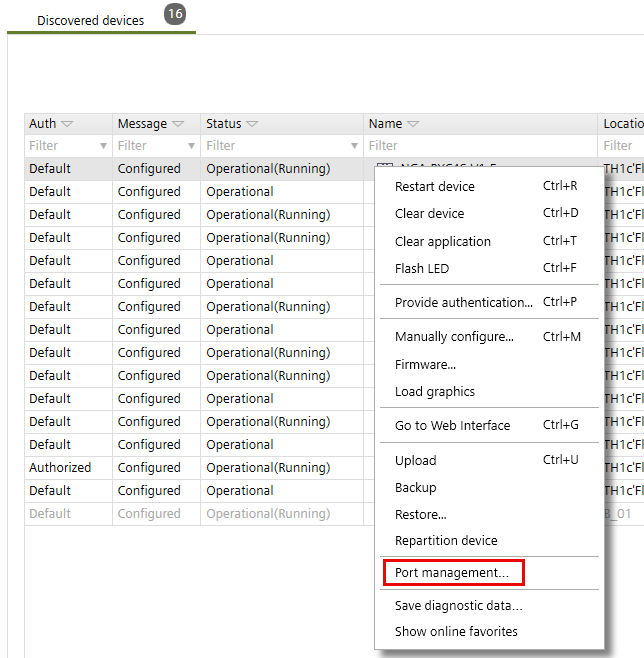
- The Port management dialog box opens. If the connection status is:
- Up, a connection is established and in use.
- Down, no physical connection available.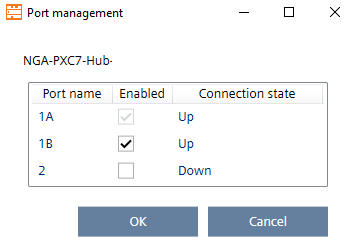
Note: The displayed Port name is directly read from the device and depends on the device type. - Do the following:
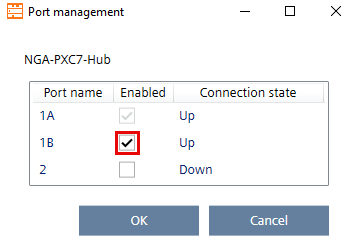
- Enable the port, activate the checkbox in the Enabled column and then click OK.
- Disable the port, clear the checkbox in the Enabled column and then click OK.
Note: The first Ethernet port connection must always be kept enabled.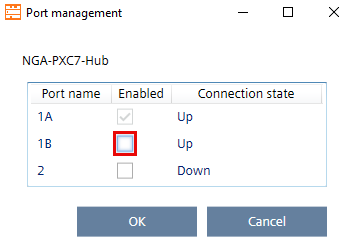
- If the connection status is Up (a connection is established and in use), a Confirmation dialog box opens, requesting confirmation to disable the port.
Port management with daisy chain connection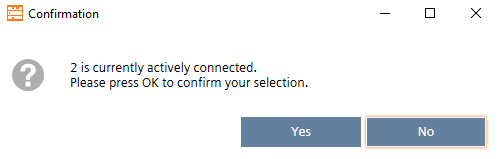
- Click Yes.
- The selected port is successfully disabled. See the message in the Log view.
- Create an handover report of the Ethernet port status.
Handover report for port settings