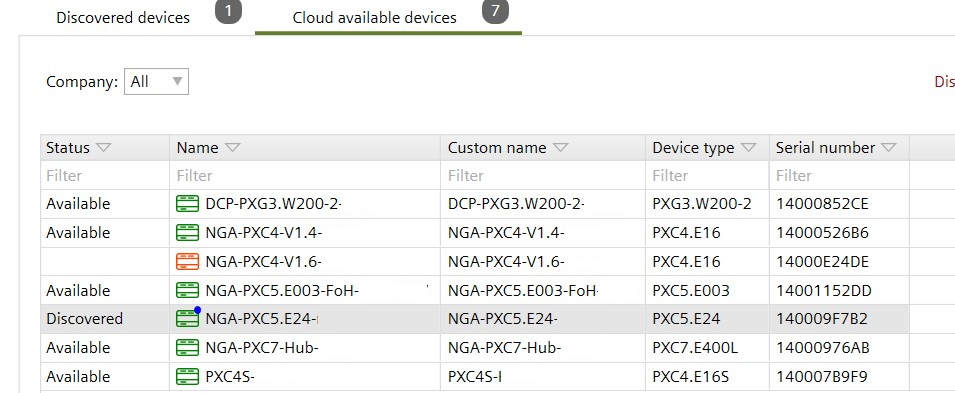
Showing cloud available devices
Icons | Description |
|---|---|
| The device is onboarded, but not connected to Building X. Check why the device is no longer online. |
| The device is registered and connected to Building X. The device sends information such as values, alarms, and trends and can. download and upload from the engineering tool. |
| The device is registered and connected to Building X and connected via CloudLink. The device sends information such as values, alarms, and trends and can download and upload from the engineering tool. Additional commissioning features are available and operational. |
| The device was connected to Building X via CloudLink, but the connection between Building X and the device is lost or interrupted. The state takes some time to update, click Refresh to update the state. |


- The Enable cloud check boy is enabled to get access to the device.
The Enable BACnet tunnel check box is enabled for remote engineering.
Cloud port - A cloud connection has been established.
Connecting via a cloud connection
- Select Startup > Configure and download.
- In the Discovered devices tab, select the Cloud available devices tab.
- In the Company drop-down list, select All or a [Company name].
- The device list shows the cloud connected devices.