Devices which have been engineered with Desigo V6.0 or V6.1 need to be upgraded in order to use the full alarming functionality. Devices older than Desigo V6.0 do not support alarming.
Following BACnet objects need to be adjusted to use all alarming features in the project.
A newer version of the ABT Site library has been installed.
Go to Building.
Open the Application & device overview task.
Click Check for updates.
The system checks for new versions of all application templates and graphics libraries. If a new version is found, Update displays in the Version column of the list.
Click Update for each item you want to update.
A message displays details about the update, e.g. the type version numbers. An info might display telling you that a firmware update is required.
For operating and monitoring devices select Library content update.
Select the new version from the New type version drop-down list.
Click Update.
The application templates or graphics are updated to the selected library version.
Update firmware from library
Desigo V6 firmware is required. The Discovery and Node Setup Tool (DNT) must be used for Desigo V5 and V5.1 firmware.
Update files (Desigo Firmware Library) are available on the computer.
Go to Startup.
Open the Configure and download task.
Select the Engineered devices or Discovered devices tab.
In the Engineered devices tab, right-click the building or device to be updated and select Load > Firmware.
In the Discovered devices tab, right-click the device to be updated and select Firmware.
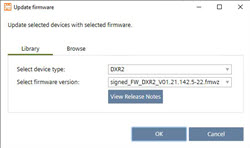
Select the Library tab.
Select the device type and the firmware version from the corresponding drop-down list.
(Optional) Click View Release Notes for more information about the selected firmware version.
Click OK.
The device firmware is updated. The update process might take a while. Wait for the device to restart.
A USB or Ethernet connection is established. If connected through the room unit, the connection will be dropped. If a connection is needed, wait for the device to restart, and re-establish the connection. Connecting to devices
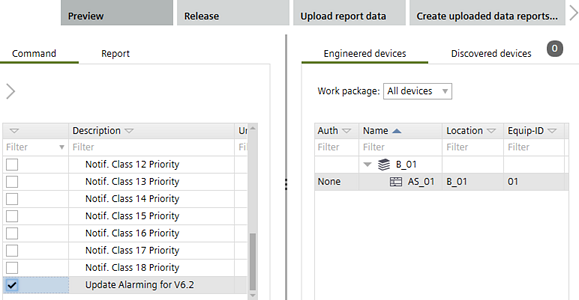
From the Command list drop-down list, select Alarm management.
A list of parameters displays by description, units, and value field. The list provides units, range checking, default value, and state text.
Select the parameter Update Alarming for 6.2.
Select the device to be updated.
Click Preview.
The parameter settings are read and the results display below the device.
Some errors display in the Jobs log depending on your configuration. You can ignore these errors.
Click Commit.
The same errors display in the Jobs log depending on your configuration. You can ignore these errors. The parameters are updated for the selected device.