Configure and download
The Configure and download task allows you to open a work package that contains engineered devices. You can configure and load pre-engineered devices or manually configure and load devices. The work area consists of the Engineered devices and the Discovered devices tabs.
The process of downloading configurations engineered in ABT Site to discovered devices is divided into two steps.
- Download the device network configurations
- Download the application configuration
Downloading device configurations
Each step involves a restart of the device. In the Log viewer, check the Jobs tab to find out about the progress of the current job.

Engineering and configuration over the WAN port is not supported, no download or upload can be carried out. In this case, ABT Site must be connected directly to the BACnet/IP network.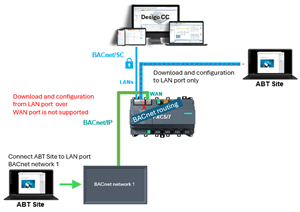
1 | Task selector | 2 | Engineered devices tab |
3 | Discovered devices tab | 4 | Toolbar |
5 | Details pane |
| |
① Task selector
Task | Description |
|---|---|
Configure and download | Current task |
Global functions | |
Export | |
Commissioning and diagnostics | |
Mass commanding | Mass commanding for room automation |
② Engineered devices tab
The Engineered devices tab contains all or a subset of engineered devices based on the work package selected.
Tab toolbar
Command | Description |
|---|---|
Work package | This list box allows you to select from a list of work packages (Pack & Go files) or All devices. |
Register in Cloud | Connection to the Siemens cloud. |
Load | Click Load to display all available commands. |
Network configuration Configures the network configuration of the selected discovered device using the selected engineered device. | |
Full with upload (device may restart) Loads the application configuration of the selected engineered device into the selected discovered device. Uploads all device data prior to downloading the application configuration. Note This is the recommended BACnet/SC certificate workflow for downloading or renewing of certificates. | |
Full (device may restart) Loads the application configuration of the selected engineered device into the selected discovered device. Only uploads the user profile (Access Control Profile) if it has been modified online, prior to downloading the application configuration. | |
Engineering data Loads the engineering data of the selected engineered device into the selected discovered device. The menu is available when Enable engineering data on device is enabled. | |
User profile Loads the user profile (ACP) for the selected device. Overwriting online modified user profiles is optional. | |
Only updated certificates Loads the operational or root certificates in the selected device. | |
Building X integration data Loads the integration data (JSON.zip) of the selected engineered device into the selected discovered device. | |
Firmware Loads the firmware into the destination device(s). |
Engineered devices table
The Engineered devices table lists the building structure or the contents of the selected work package.
Column | Description |
|---|---|
To Do | Lists the task to be performed next (Download, Upload, etc.) |
Auth | Displays the authentication state. |
Name | Lists the building name. It also lists folders for Unplaced areas, Unplaced devices, and Unused devices. An expander to the left allows you to view the building structure. |
Location | Lists the location of the device. |
Equip-ID | Reference to mechanical plans and prints. |
Device type | Lists the device type. |
Address | Lists the IP address and UDP port for IP devices, or network number and MAC address for MS/TP devices (e.g., 7001-23. Where the network number is 7001 and the MAC address is 23). |
Dev. Inst. # | Device instance number that is associated with the BACnet Device. |
Serial # | Lists the serial number of the physical device. |
Context menu
To display the context menu, right-click in a row with a device.
Command | Description |
|---|---|
Go to engineering | Opens the Engineering component. |
Go to programming | Opens the Programming editor. |
Find matching serial number | Lists any device that has the same serial number as the selected device. |
Find matching device type | Lists any device of the same type as the select device. |
Flash LED | Flashes the LED on the device. |
Provide authentication | Opens the Authentication dialog box. You must enter your User name and Password to login to the device. |
Load | Network configuration Configures the network configuration of the selected device. |
Full with upload (device may restart) Loads the application configuration of the selected device. Uploads and merges all device data prior to downloading the application configuration. Note This is the recommended BACnet/SC certificate workflow for downloading or renewing of certificates. | |
Full (device may restart) Loads the application configuration of the selected device. | |
Engineering data Loads the engineering data of the selected engineered device into the selected discovered device. The menu is available when Enable engineering data on device is enabled. | |
User profile Loads the user profile (ACP) for the selected device. Overwriting online modified user profiles is optional. | |
Web certificate only Loads the operational certificates in the selected device. INFO: Do not use this function for BACnet/SC certificates. | |
Building X integration data Loads the integration data (JSON.zip) of the selected engineered device into the selected discovered device. | |
Firmware Loads the firmware into the destination device. Updating firmware of engineered devices. | |
Go to Web Interface | Opens the web interface of the selected device in the Online component window. A device must be configured. |
Application help | Opens the help for the selected application template or application type. The command is only active if a help is available. |
Upload | Uploads only the runtime instance data for the selected devices. This includes online modified user profiles. Changes such as added users and password changes will not be displayed in ABT Site. |
Upload engineering data | Uploads the engineering data of the selected engineered device into the selected discovered device. The menu is available when Enable engineering data on device is enabled. |
Backup | Allows you to backup up the current device configuration. |
Restore | Allows you to restore a previous version of the device configuration. |
Save commissioning data | Saves point test information of the selected device to Startup > Commissioning and diagnostics. |
Properties | Opens the Details pane. |
Upload and download behavior in ABT Site
The table matrix shows the overview of all possible functions that are supported within ABT Site.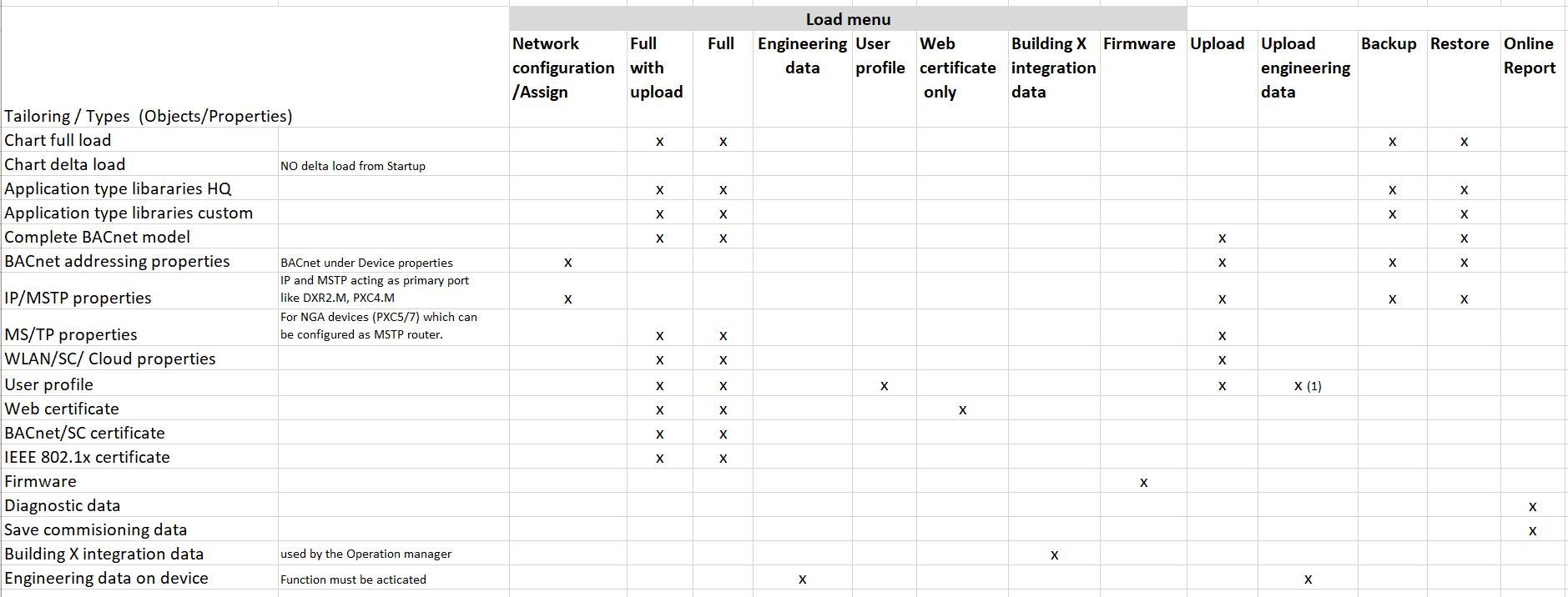
1) User profile is only uploaded to a new ABT project (on the first device) during the engineerinf data upload.
The option Full with upload imports first data that may be modified on site, such as setpoints; first before starting the full download starts. It is recommended to always to use this function on site.
③ Discovered devices tab
The Discovered devices tab contains all or a subset of discovered devices based on the network number and discovery filter selected.
Tab toolbar
Command | Description |
|---|---|
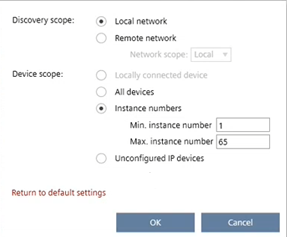
Discover | Opens the Discovery dialog box. Discovery scope
Device scope
|
Clear table | Clears the contents of the Discovered devices table. |
Discovered devices table
The Discovered devices table lists all devices on the network.
Column | Description |
|---|---|
Auth | Displays the authentication state. |
Message | Displays messages received from the device:
|
Status | Lists the status of the device:
Lists the engineering data status of the device:
|
Name | Lists the device name. Allows you to search for a name. |
Location | Lists the location of the device. |
Equip-ID | Lists the equipment tag of the associated device. Also allows you to search for a discovered device by equipment tag or filter the list of equipment tags. |
Device type | Lists the device type. Allows you to filter by device type from a list of types or list all. |
Firmware version | Lists firmware version of the device. |
Address | Lists the IP address and UDP port for IP devices, or network number and MAC address for MS/TP devices (e.g., 7001-23. Where the network number is 7001 and the MAC address is 23). |
Dev. Inst. # | Device serial number (device instance number) that is associated with the BACnet Device. |
Application | Lists the application version number. |
Device ID | Identification number assigned to the device. |
Serial Number | Lists the serial number of the associated device. |
 Device does not support engineering data on device
 No engineering data after full download
 Engineering data are outdated (upload is supported)
 Engineering data are valid
Context menu
To display the context menu, right-click in a row.
Command | Description |
|---|---|
Restart device | Stops and restarts the device with current settings. A device must be configured. |
Clear device 1) | Stops the device, clears it, and clears the application configuration. The loaded application remains on the device and can be activated. The device must be configured. |
Clear application 1) | Stops the device, clears the application configuration, and keeps the existing device configuration. The loaded application remains on the device and can be activated. The device must be configured. |
Flash LED | Flashes the LED on the device. |
Provide authentication | Opens the Authentication dialog box. You must enter your User name and Password to login to the device. |
Discover all unaddressed devices on network (MS/TP only) | Discovers all unaddressed MS/TP devices on the specified network. A configured device must be selected so that the discover unaddressed operation can be issued to other devices on the network. All found devices will be listed in the discovered devices table. |
Perform auto-addressing (MS/TP only) | Auto addresses all unconfigured MS/TP devices on the specified network, and only sets the network number and MAC address of the devices. A configured device must be selected so that the auto-address operation can be issued to other devices on the network. Auto-addressing is for MS/TP devices only. All addressed devices will be listed in the Discovered devices table. |
Set Baud rate for all devices on network (MS/TP only) | Resets the baud rate (9600, 19200, 38400, 76800, or 115200) for all devices on the specified network. A configured device must be selected so that the set baud rate operation can be issued to other devices on the network. Initially the devices set the baud rate automatically based on the baud rate of the devices already communicating on the network. |
Set Max Manager for all devices on network (MS/TP only) | Allows the selected device to set the Max Manager Address value to all devices that support this command. A configured device must be selected so that the set Max Manager operation can be issued to other devices on the network. The value can be set to a specific value (1 through 127) or to Auto. The latter causes the selected device to poll the network for the highest MAC address and sets all devices to this value. |
Manually configure | Opens the Manually configure dialog box. |
Update firmware | Loads the firmware into the destination device(s). |
Load graphics | Allows you to load graphics for FIN Engineering. |
Go to Web Interface | Opens the web interface of the selected device in the Online component window. A device must be configured. |
Upload | Uploads only the runtime instance data bundle for the selected devices. |
Backup | Allows you to backup up the current device configuration. |
Restore | Opens the Restore device dialog box. Allows you to restore a previous version of the device configuration by selecting the backup file to be restored. |
Save diagnostic data | Reads diagnostic information from the device to ABT Site. |
Show online favorites | Opens Startup > Favorites. Displays custom favorites if available in the application template. You can customize custom favorites in Configuration > Favorites. |
1) Additional information required for clear device and clear application commands
Clear device and Clear application can be triggered by various clients, such as ABT Site, ABT Go, Web Interface, provided the operator has the required login credentials. In addition to that, the Clear device command can also be triggered directly on the device, using a specific power cycle/reboot process. With certain families of devices, such as Desigo Control Point, additional information on loaded libraries and templates is required.
To all Desigo device families (Desigo room automation, PXC4/5/7, Web Interface, Desigo Control Point, AX100), the following applies:
- Clear device resets the device to its factory settings. This command deletes all:
- Loaded applications (control programs, data points, BACnet objects)
- All field devices on local field networks (such as TX I/O modules, onboard IO configurations, PL-Link/ DALI/Modbus devices)
- All network settings
- All loaded certificates
- The entire control program
The currently loaded firmware remains on the device, as the factory-set firmware has been overwritten.
- Clear application deletes all loaded applications. This includes:
- Control programs
- Data points (and other building automation objects, such as scheduler, value objects, functional SVO)
- Local field networks (such as TX I/O modules, onboard IO configurations, PL-Link/ DALI/Modbus devices)
Information for Desigo Control Point only
With Desigo Control Point, the FIN-Database is reset.
- In contrast to Clear device, the command Clear application leaves the following on the device:
- All network settings
- All loaded certificates
- Entire control program
As a result, the device can still be addressed via BACnet and configured routing functions (such as MS/TP field network with PXC7) stay intact. AX100 does not support this function.
④ Tool bar
Command | Description |
|---|---|
Show online favorites | Opens Startup > Favorites. Displays custom favorites if available in the application template. You can customize custom favorites in Configuration > Favorites.
|
Assign | Configures the discovered device based on the engineered device selected (Device network configuration only). |
Go to Web Interface | Opens the web interface of the selected device in the Online component window. A device must be configured. |
⑤ Details pane
The contents of the Details pane vary depending on the selected element.
Building element details
Details pane of the device version ≤ 1.5
Further information
- Discovering devices
- Manually configuring devices
- Downloading device configurations
- Downloading a control program to a device
- Downloading an updated certificate to a device
- Downloading Building X integration data
- Engineering data on the device (EDoD)
- Entering authentication credentials
- Connecting to the web interface of the device
- Setting the MS/TP Max server value
- Setting MS/TP baud rate
- MS/TP network limits
- Uploading a device configuration
- Uploading runtime instance data
- Updating user profiles for engineered devices
- Updating firmware of engineered devices
- Saving diagnostic data
- Saving commissioning data
- Onboarding device to Building X
- Ethernet and USB port management