Mass commanding
The Mass commanding task sets parameters on multiple devices. For example, adjust all rooms to the economy state.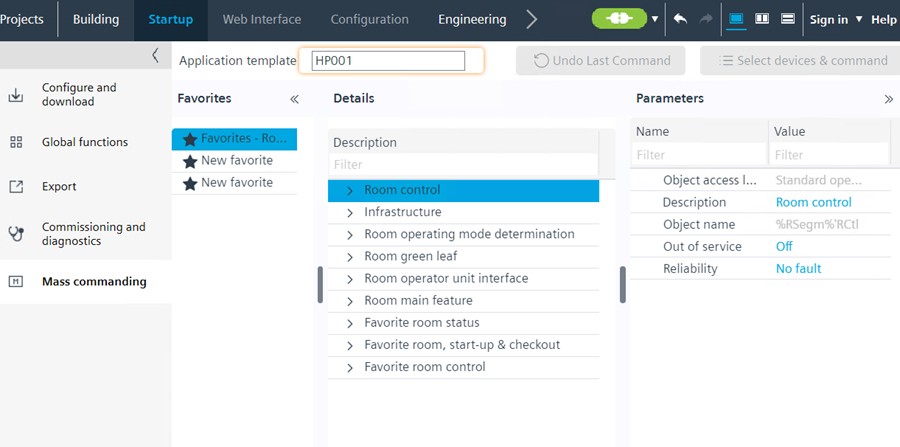
NOTICE

Incorrect settings are written to the automation station
The action is irreversible once the parameters for multiple devices are set.
- Select only automation stations affected by the change.
Set parameters for multiple devices
- The automation stations are online.
- An application template is available in the project; application templates are based on the selected application type, for example, VAV041_H.
- The function can only be applied to application types for related devices such as DXR1, DXR2, Intelligent Valve, and so on.
- Go to Startup.
- Open the Mass Commanding task.
- From drop-down menus, select an application template to view favorites.
- In Favorites pane, select a predefined or own favorite.
- In Details pane, select a device or functionality.
- In Parameters pane, change the parameters.
- Connect to your network device.
Connect and disconnect - Click Select devices & command above the Parameters pane.
- In the new window, select all the devices for the parameter changes.
- Confirm with Command and OK.
- Parameters are set across all selected devices.
Undo the last commanded value using mass commanding
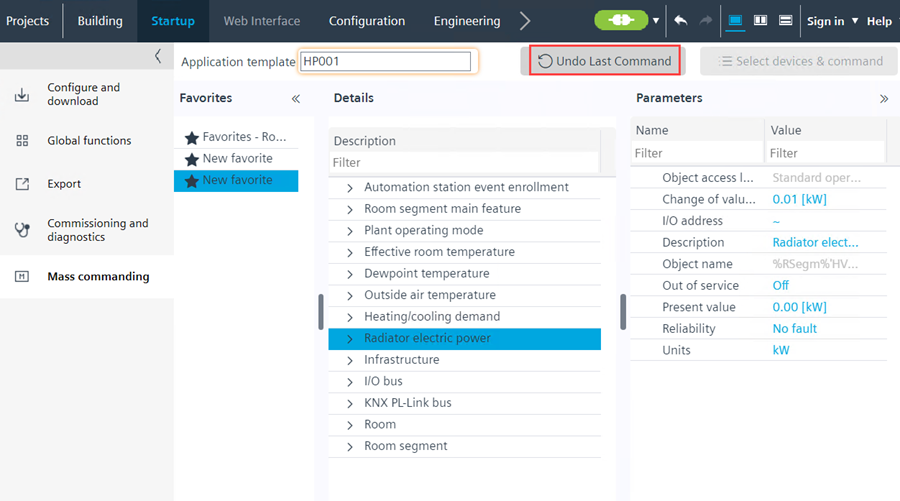
The Undo Last Command in Mass Commanding enables the user to cancel the previous commands set under the Mass Commanding section.
- Perform steps given in Mass commanding.
- Open the Mass Commanding task again.
- To change some parameters, click Select devices & command above the Parameters pane.
- In the new window, select all the devices for the parameter changes.
- Confirm with Command and OK.
- Click Undo Last Command.
- The last commanded value is cancelled.
- "Undo mass command executed successfully. The commanded values are restored to last values." message is displayed in the Log viewer and status bar.

The Undo Last Command button is disabled when you are offline, not commanded any object, or switched the template after commanding.