Updating firmware of engineered devices
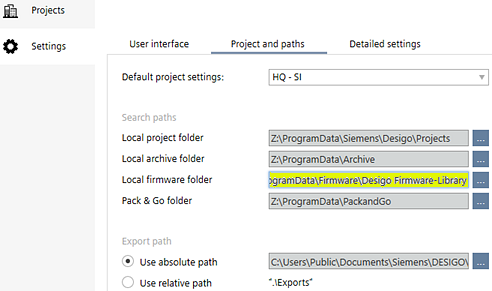
Use this procedure to update the firmware from the library or by browsing to a firmware file. All firmware versions are distributed in the official "Desigo Firmware Library". Download the Desigo Firmware Library to your computer, and set the path to the folder in Project Manager > Settings > Project and paths > Local firmware folder.
Settings
This task supports mass loads. It does not allow firmware and application type loads over a room unit. Checks are performed to ensure that all selected devices are of the same type and to determine file compatibility. Additional language files (text groups) can only be loaded to controllers running non-preloaded applications. The device performs a backup of device instance data (as needed) and restores it after update except for Application type (user must reload configuration).

The RDG2 firmware may only be updated by an authorized Siemens employee. It is not possible to update the firmware via Desigo PXC4/5/7.
For operating and monitoring devices, make sure to first upload the device configuration and then update the device before performing a firmware update.
Uploading a device configuration
Updating application templates and graphics libraries
Update firmware from library
- Desigo V6 firmware is required. The Discovery and Node Setup Tool (DNT) must be used for Desigo V5 and V5.1 firmware.
- Update files (Desigo Firmware Library) are available on the computer.
- Go to Startup.
- Open the Configure and download task.
- Select the Engineered devices or Discovered devices tab.
- In the Engineered devices tab, right-click the building or device to be updated and select Load > Firmware.
- In the Discovered devices tab, right-click the device to be updated and select Firmware.
- Select the Library tab.
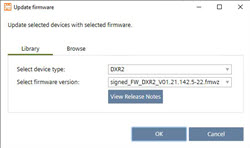
- Select the device type and the firmware version from the corresponding drop-down list.
- (Optional) Click View Release Notes for more information about the selected firmware version.
- Click OK.
- The device firmware is updated. The update process might take a while. Wait for the device to restart.
Update firmware from file
Please update the device configuration and re-load the device in ABT Site (load in Startup or Play in the editor)! With a firmware update, a clear device no longer needs to be performed for the PXM40.E, PXG3.W100-2 and PXG3.W200-2 devices. The device must also be updated in ABT Site after the update.
The behavior of all devices is the same during a firmware update.
- Update files are available on the computer.
- Firmware of WAN device must be updated from the LAN port.
- Go to Startup.
- Open the Configure and download task.
- Select the Engineered devices or Discovered devices tab.
- In the Engineered devices tab, right-click the building or device to be updated and select Load > Firmware.
- In the Discovered devices tab, right-click the device to be updated and select Firmware.
- Select the Browse tab.
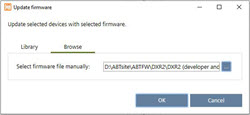
- Click Browse to locate the firmware source files manually.
- Select a firmware bundle file (.fmwz) and click Open.
- Click OK.
- The Firmware update dialog box displays.
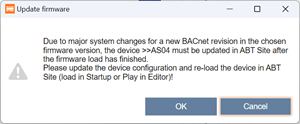
Due to major system changes for a new BACnet revision in the chosen firmware version, the device must be updated in ABT Site after the firmware load has finished.
Update the device configuration and re-load the device in ABT Site (load in Startup or Play in the editor)! - Click OK.
- The device firmware is updated. The update process might take a while. Wait for the device to restart.
- A full load is required.