Repartitioning of DXR2 devices with device version V6.4
The firmware of the latest device version (V7.0) is larger and can no longer be loaded into the existing DXR2 devices with old firmware. Therefore, all DXR2 devices must be repartitioned, so that the latest firmware can be used. This requires several steps and takes several minutes for each device. Most actions can be performed with mass operation, which significantly reduces the time required in a project.

For existing DXR2’s, there is no update to a higher firmware version (including upgrade of the device type version) needed, as long as they stay within the original scope (for example, do not need new features or functions or texts).
IP connection for DXR2.E devices
With an IP connection, the selected DXR2.E devices are processed in parallel. Thus, approximately 20 minutes are required for 20 devices. It is not recommended to select more than 20 devices.
Connecting via an Ethernet/IP network
MS/TP connection for DXR2.M devices
The DXR2.M devices for MS/TP require a multiple of the time compared to IP devices. This is the result of the slow MS/TP communication, the amount of data and the sequential processing of the devices. It is recommended to run the repartitioning task overnight or during the weekend. The process requires approximately 3.5 hours for one device. We recommend performing a test in the office before repartitioning a DXR2.M device.
Connecting via an Ethernet/IP network
USB connection for DXR2.M devices
Use this connection type instead of the MS/TP connection if you can connect the DXR2M device directly to the computer. The repartition process will then take approximately 15 minutes per device.
Connecting via USB port
For critical deployments (for example, server room), the procedure must be scheduled with the customer in advance.
DXR2.E | DXR2.M |
|---|---|
|
|
|
|
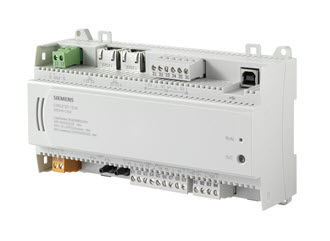
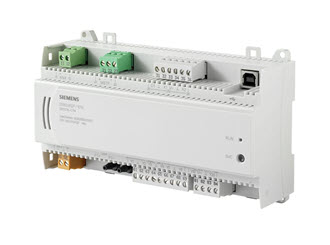
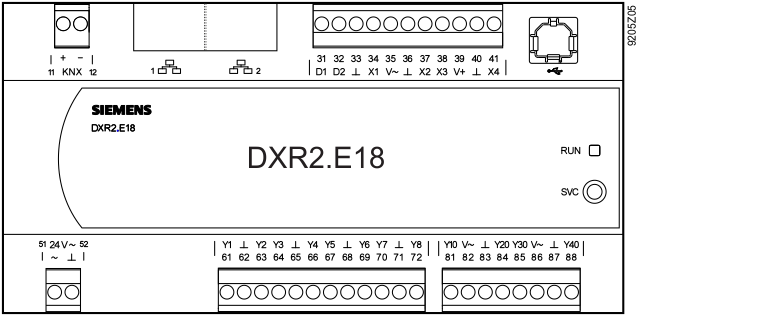
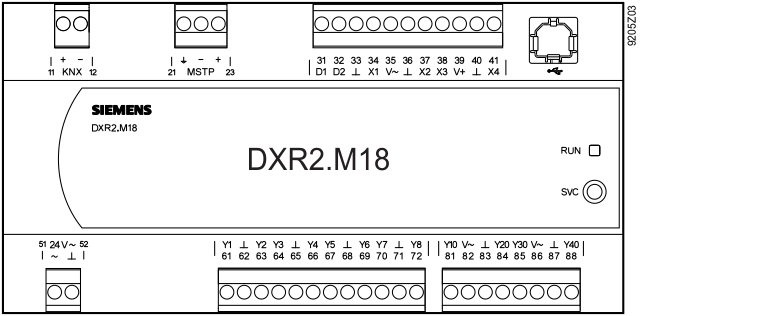
When multiple devices are selected for download and/or upload, one or more devices may fail to load due to network conditions, such as excessive network traffic. In these cases, select the devices that failed to load and repeat the download/upload command.
1. Check the installed root file system version
- The DXR2 devices are connected and operational.
Connecting to devices
- Go to Startup.
- Open the Configure and download task.
- Select the Engineered devices tab.
- In the Discovered devices tab, click Discover and select a Discovery filter(All or Locally connected device)from the drop-down list.
- Click OK.
- All locally connected devices on the selected network display in the Discovered devices table.
- In the Discovered devices tab, select a device.
- In the Details pane, select the System tab. This check must be performed manually for each device.
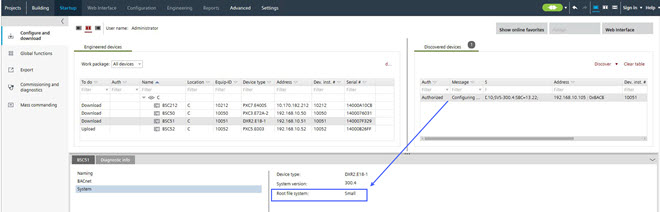
- The device information appears:

- Device type: DXR2.x
- Firmware version: Lower than Desigo firmware library version FW_V7.0_DXR2_V01.21.152… -> Repartition required
- Root file system: Small -> Repartition required
2. Read back data
- The devices are connected.
Connecting to devices - The root file system is small.
- Go to Startup.
- Open the Configure and download task.
- Select the Engineered devices tab.
- Select a hierarchy folder (for example, Floor).
Note: The maximum of multi-selected devices should not be more than 20 devices. - Right-click the hierarchy folder and select Upload.
- The devices runtime instance data is uploaded to the project.
- Click the Log tab to check the upload status.
3. Repartition of the firmware memory
- The required repartition firmware is integrated into ABT Site and cannot be manually selected at later time.
- This step will take with:
- IP connection for 20 devices about 15 - 30 minutes
- MS/TP connection for 1 device about 3 hours and 30 minutes
- USB connection for 1 device about 15 – 20 minutes
- Select the Engineered devices tab.
- Select a hierarchy folder (for example, Floor).
Note:
- The maximum number of multi-selected devices should not exceed 20.
- DXR2 devices that already have the large root file system loaded will be skipped. - Right-click the hierarchy folder and select Repartition device.
- A Confirmation dialog opens.
Note:
Carefully read the confirmation information before proceeding. If there is a power failure during the repartitioning period, the devices can be damaged and must be replaced.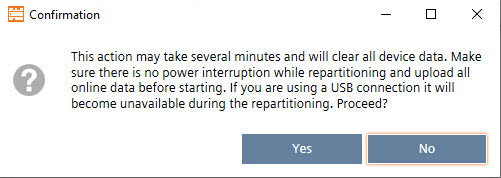
- Click Yes.
- Click the Log tab to check the progress of loading the repartitioner.

- When the download is finished, the Repartitioning has started on device dialog opens.
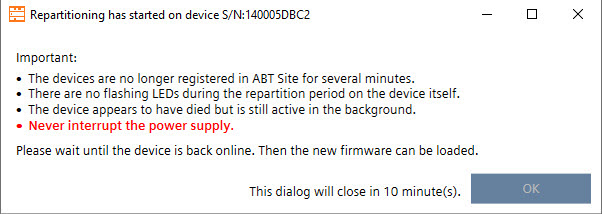
Important:
- The devices are no longer registered in ABT Site for several minutes.
- There are no flashing LEDs during the repartition period on the device itself.
- The device appears to have died but is still active in the background.
- Never interrupt the power supply.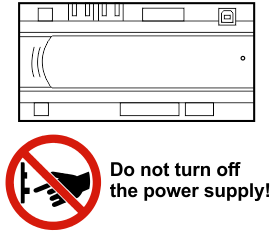
- Click OK.
- (Optional USB): From this point on, ABT Site can be disconnected from the device.
Notice: If the power supply is interrupted during this time, the device will be destroyed. - (Optional USB): Connect at later time when LEDs are flashing again.
- Wait till the device is visible in the Discovered devices tab.
- In the Device type column, the device type changes from DXR2.E18-1 to DXR2.E18-1X. The X in the device type indicates that the root file system is changed to large root file system and is ready for the update of the new firmware.

- Note: The repartition firmware is not operational for the control program, a firmware update with a production firmware is needed (see next step).
4. Update firmware from library
- Update files Desigo firmware library (FW_V7.0_DXR2_V01.21.152… or higher) are available on the computer.
- Select the Discovered devices tab.
- In the Device type column, filter for the DXR2 devices.
- Select all DXR2 devices with an extension X in the Device type name.

- Right-click the selected devices and select Firmware.
- Select the Library tab or Browse to a local folder.
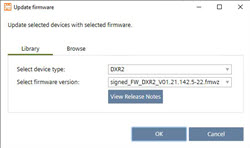
- Select the device type and the (Desigo firmware library version FW_V7.0_DXR2_V01.21.152… or higher) from the corresponding drop-down list.
Update firmware from file - (Optional) Click View Release Notes for more information about the selected firmware version.
- Click OK.
- The device firmware is updated. The update process might take a while. Wait for the device to restart.
- Click the Log tab to check the status of the firmware upload.
5. Full download
- Select the Engineered devices tab.
- Select a hierarchy folder (for example, Floor).
- Right-click the selected folder and select Load > Full (device may restart).
- The control program is loaded and operational.
- Click the Log tab to check the status of the full download.
- Check the functionality of the control program in the DXR2 devices.