Connecting via an Ethernet/IP network
You can connect via IP, MS/TP or WLAN. The WLAN connection is a direct connection to the device.
The LAN cable connects the commissioning laptop with the Ethernet/IP network in two ways:
- The LAN cable is plugged directly into the device.
- The LAN cable is plugged into another location (for example, router, switch, etc.) on the IP network.

If the 24 V power supply to the device is interrupted, the switch function of the device automatically stops, and IP communication to other devices in the communication chain is interrupted.
Connect over an Ethernet/IP network
- The network interface card on the laptop is configured.
Configuring a network connection - A category 5e (cat 5e) Ethernet cable with RJ45 connectors is available if connecting via an ethernet connection.
- If available, plug the LAN cable into the commissioning laptop and into the device or to an Ethernet/IP router that is connected to the device.
- In the Common toolbar, select the arrow beside the Connect
 button.
Connect and disconnect - Select the Ethernet tab.
- Select the device type IP, MS/TP or Device AP (WLAN).
BACnet/SC cleared: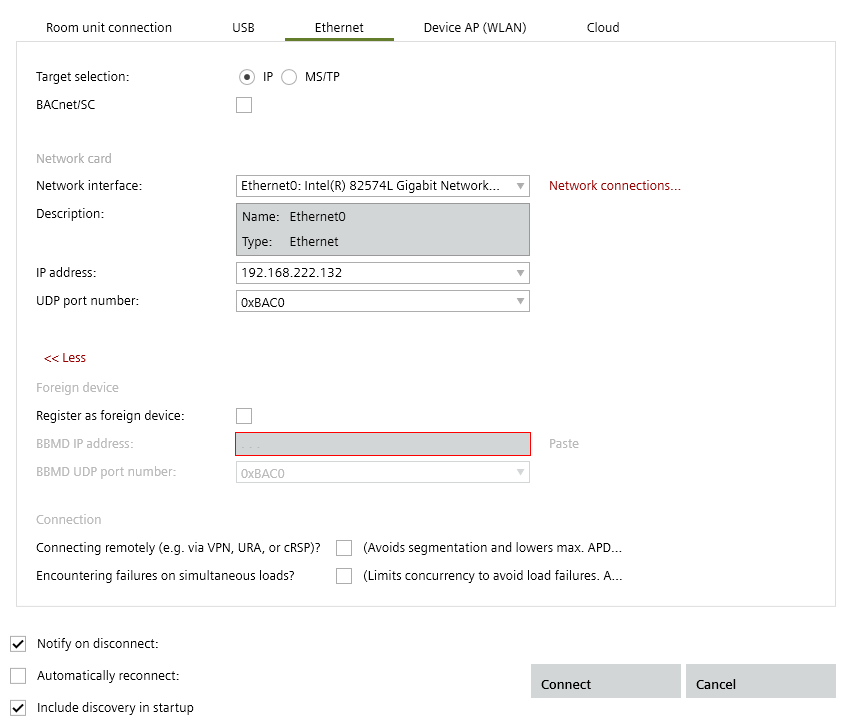
BACnet/SC enabled: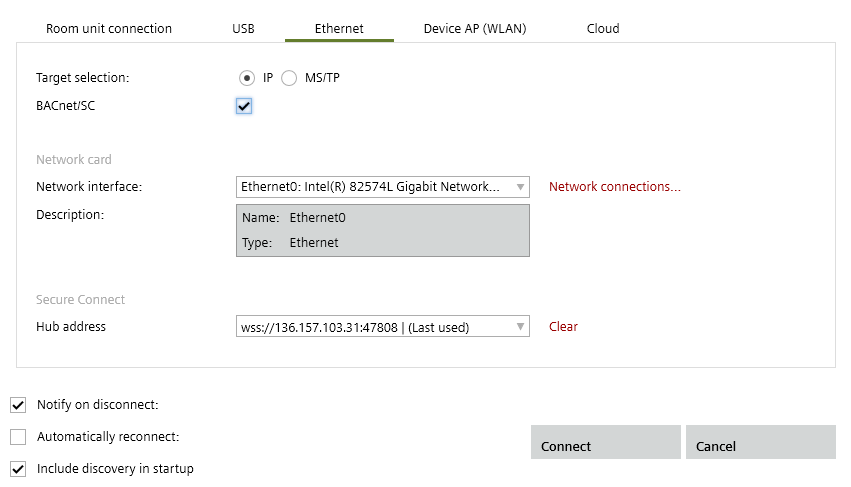
Device AP (WLAN) selected: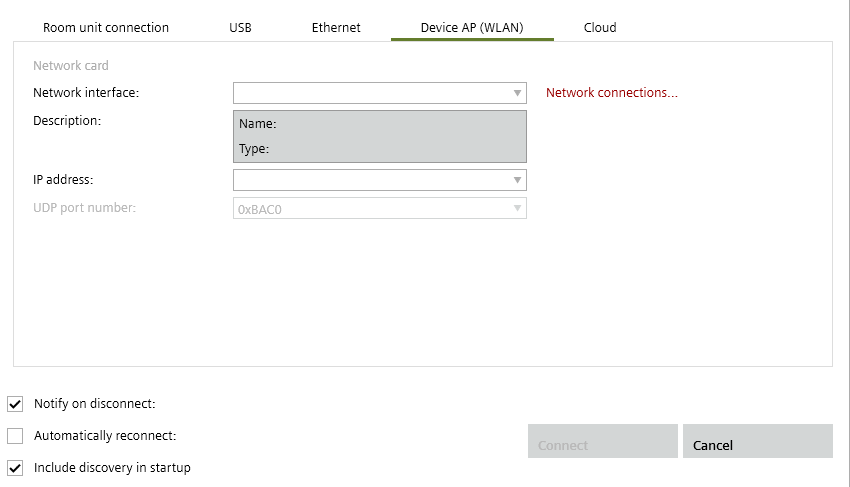
- Configure the connection.
- Click Connect.
- The connection to the device is established.
- Select Startup > Configure and download.
The device can now be discovered.