Settings
1 | Task selector | 2 | User interface tab |
3 | Projects and path tab | 4 | Detailed settings tab |
② User interface tab
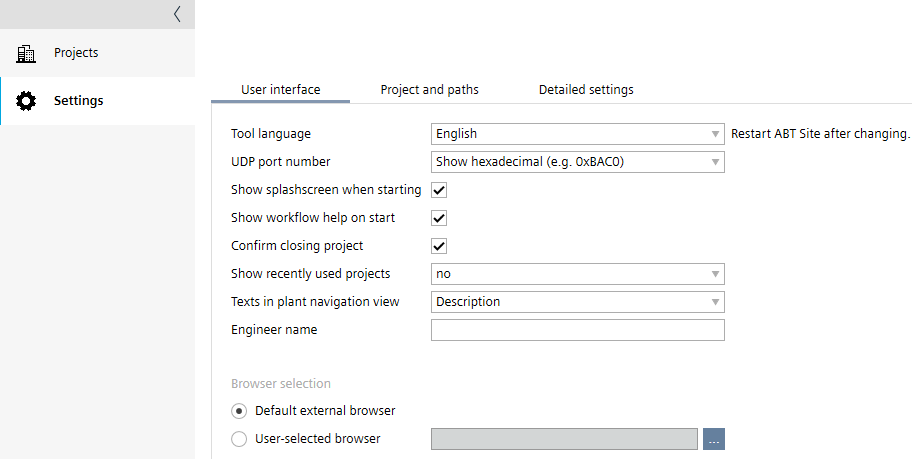
Setting | Description |
|---|---|
Tool language | Select the ABT Site tool language from the installed languages. The tool language defines in which language the UI is displayed. A restart is required for the changes to take effect. |
UDP port number | Configure the UDP port format used in ABT Site:
|
| Deactivate the splash screen on program start, if it causes performance issues. |
| Select the check box to show the workflow help topic every time ABT Site starts. |
| Selected check box shows a confirm dialog box when you close the project. |
Show recently used projects | You can choose to display an additional tab in the Projects task and the number of recently used projects to be dsplayed. Activating the Show recently used projects function increases performance if there is a large number of products in your folder. Note |
Texts in plant navigation view | You can change the display in the plant navigation view to:
Example of a Name [Description] selection: |
Engineer name | Add your name or mail address. The information entered will be used in engineering data on device. It is displayed in the Activities tab in the User column. |
 Show splash screen on start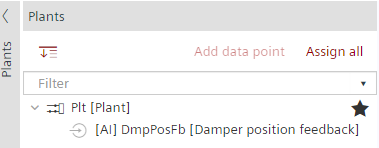
Browser selection
You can engineer devices using a browser window within the ABT Site frame or an external browser window.
Setting | Description |
|---|---|
| Click this option button to be able to use your system's default browser for engineering. |
| Click this option button to be able to select the browser of your choice for engineering. |
 Default external browser
 User selected browser
③ Project and paths tab
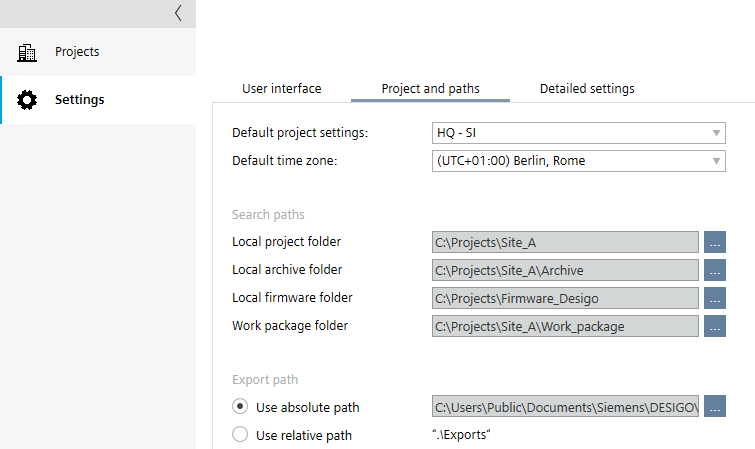
Setting | Description |
|---|---|
Default project settings | Determines which engineering unit is used for new projects by default. If you select HQ -US, only US application types are available. You can change the used unit system for each project in Settings > Localization.
Note |
Default time zone | Determines which Default time zone is used for new projects by default. The time zones for the project can be customized if required. |
Local project folder | Select the directory where projects are saved. The path cannot be entered manually. Click the button next to the field to browse the directory. Note ABT Site does not support working with engineering data on shared folders (for example, on networks or cloud services). |
Local archive folder | Select the directory where archived projects are saved. The path cannot be entered manually. Click the button next to the field to browse the directory. |
Local firmware folder | Select the directory where firmware versions are saved. The path cannot be entered manually. Click the button next to the field to browse the directory. All firmware versions are distributed in the official "Desigo Firmware Library". |
Work package folder | Select the directory where work package projects are stored after opening the ABT Go file. The path cannot be entered manually. Click the button next to the field to browse the directory. |
| Click this option button to define one export path for all projects. Each time you export data the results will be saved in the specified folder. |
| Click this option button to save exported data relative to the project folder you are working in. Each time you export data the results will be saved in the folder ...\Exports under the project folder you are working in. |
④ Detailed settings tab
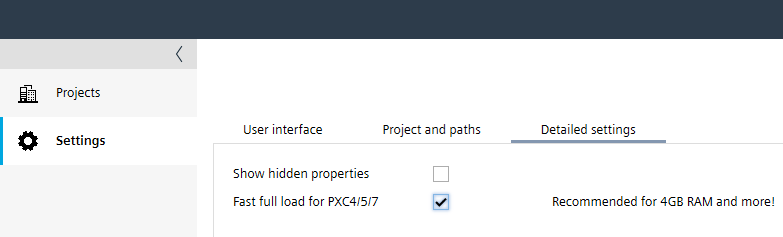
Setting | Description |
|---|---|
| Shows all object properties within the project. |
| Pre-opens an instance of the Programming editor when a project is opened in order to reduce loading time. Recommended if a minimum of 4GB of RAM is available. |