Adding projects
You can add projects in Project Manager > Projects.
Projects
In case you have a large number of projects, use folders to manage the projects. Do not put all your projects in a flat list. It might influence the performance of the tool.
You cannot add projects to an invalid project folder. Clicking Add project will open Project Manager > Settings.
In Project Manager > Settings, set a valid project path in the Local project folder field.
Settings

You need to be logged in as Administrator to set or change passwords for other users. The Administrator password is set when creating a project.
Add a project
- In Project Manager > Settings, you have specified a valid local project folder in the Local project folder field.
- Click Add project.
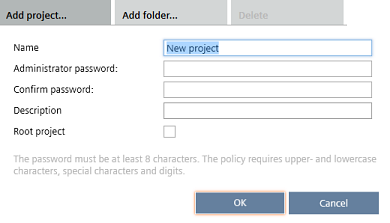
- Enter a Name.
- Enter an Administrator password and confirm the password.
Note: The ABT Site project password must fulfill the password policy of:
- min. 8 characters
- upper and lower case letters
- digits
- special characters
To access a device the first time with web interface, all 4 rules must be active.
User profiles > Common settings - (Optional) Enter a Description.
- (Optional) Select Root project to add a new ABT Site project on the top level even if a lower level folder is selected.
- A project is added to the project table. The default name is New project_n.