Working with the library
You can drag elements from the Library to the Project tree and the Programming editor.
Plants navigation view
Programming editor
Add a plant from the library to the project tree
- Select the Library tab.
- Select a plant.
- Drag the selected plant from the Plants folder into the Project tree.
- The plant and all its components appear in the Project tree.
- (Optional) Right-click the plant in the Project tree, then select Show in program view to open it in the Programming editor.
Programming editor
Add a program block to the project tree
- Drag a program block from the Program blocks folder in the Library to the plant in the Project tree.
- The program block appears in the Project tree. You can now drag the program block to the Programming editor.
Plants navigation view
Programming editor
Add a program block to the Programming editor
- Drag a program block from the Program blocks folder in the Library to the Programming editor.
- The program block appears in the Programming editor.
Programming editor
Add a function block to the Programming editor
- Drag a function block from the Function blocks folder in the Library to the Programming editor.
- The function block appears in the Programming editor.
Programming editor
Add a scheduler to the Programming editor
- Drag a scheduler (R_ASCHED, R_BSCHED, R_MSCHED) from the Function blocks folder in the Library to the Programming editor.
- The scheduler appears in the Coordination folder.
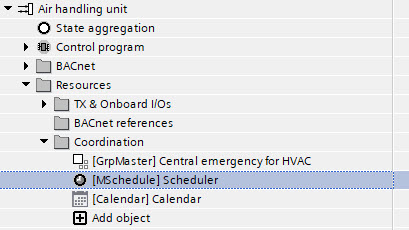
- Do one of the following:
- In the Project tree, select the Scheduler.
- In the control program, select the scheduler function block.
- Right-click the object and select Configure.
- Configure the schedule program as required.
Configuring a schedule - Define one time manager for the entire project.
a. Go to Building > Building structure.
b. Select a device.
c. In the [device name] tab, select Time sync.
d. Select the Time manager extension checkbox.
- The time manger is marked with a
 icon.
icon.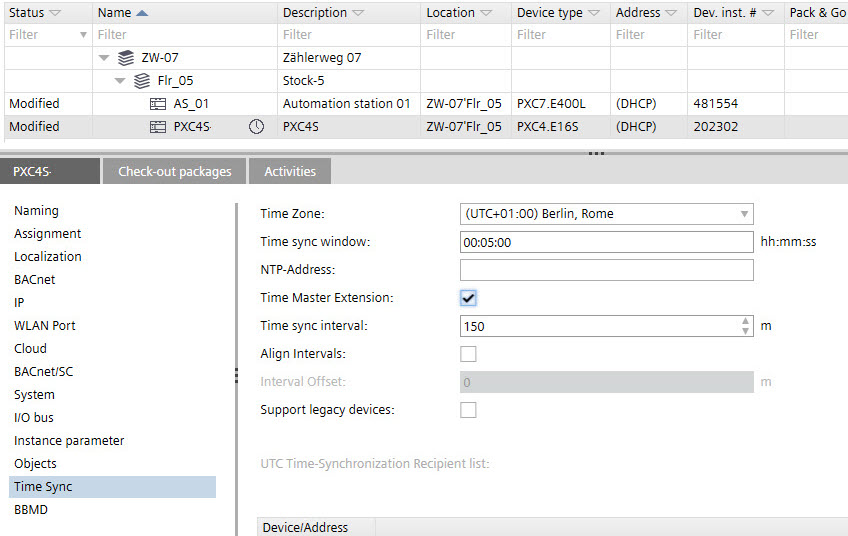
Device details
Programming editor
Plants navigation view
Add a field device to the project tree
- Do one of the following:
- Drag a field device from the TX & Onboard I/Os folder in the Library to the TX & Onboard I/Os folder of a plant in the Project tree.
- Drag a field device from the Modbus folder in the Library to the Modbus folder of a plant in the Project tree.
- Drag a field device from the M-bus folder in the Library to the M-bus folder of a plant in the Project tree.
- The field device appears in the respective folder. You can now drag the field device to the Programming editor.
Plants navigation view
Programming editor
Add an event enrollment object to the Programming editor
- Drag the event enrollment object [R_EE] Read event enrollment from the Function Blocks in the Library to the Programming editor.
- The event enrollment object appears in the Programming editor.
Programming editor