Folder structure, names, and assigning graphics
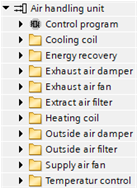
You can structure plants using folders for component groups and function units. For example, you can create a component folder for supply air fans, extract air fans, energy recovery, heating coils, cooling coils, etc. and a function folder for temperature control.
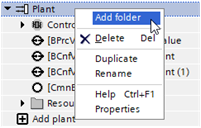
Proceed as follows to create a folder:
- Right-click the desired plant and select Add folder to create a new folder.
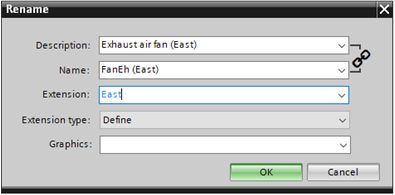
- In the Description field, you can add a predefined text from the text data base for naming the folder. Suggestions are provided based on the entered characters.
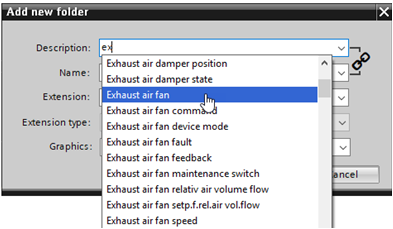
- In the Extension field, you can enter an extension such as 1 / 2 or East / West. The extension type must be set to Define.
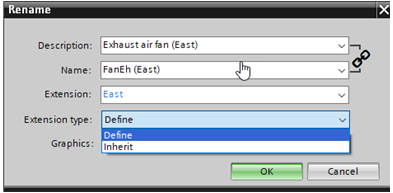
- The Extension type field determines whether you can define the extension or whether the extension is inherited from the next higher folder.
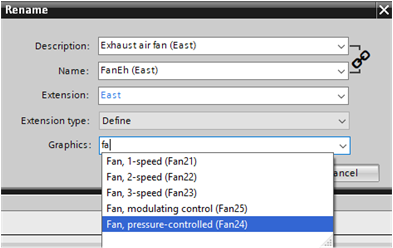
- In the Graphics field, you determine the graphics that are displayed in Desigo CC and Desigo Control Point. Suggestions are provided based on the entered characters.
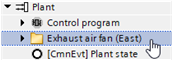
- The folder is created on the corresponding plant.
Assign data points
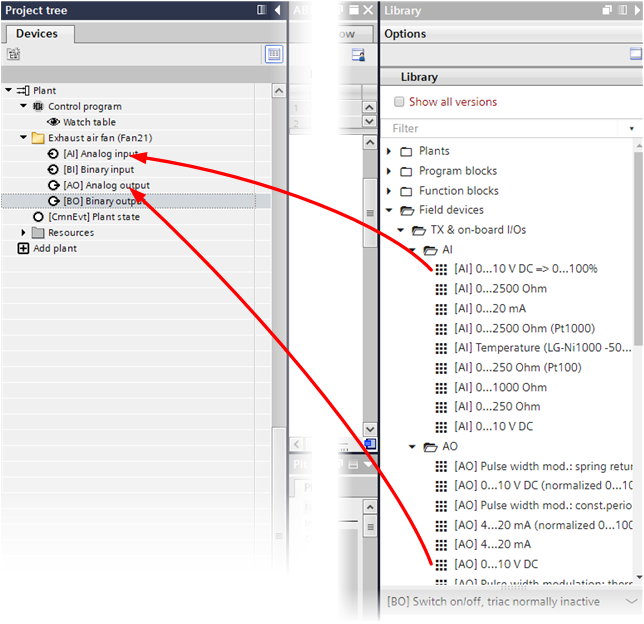
Data points can be assigned to a folder based on their application.
You can move data points between folders and drag objects from the library to the plant view. The data points are sorted alphabetically by object type within the folder.