Object naming
Text database
ABT Site contains a text database with predefined texts for data points and folders (application functions). This enables you to assign proper names and descriptions for your plant objects. Point testers know which type of data points they test by their name. When adding folders or data points in the plant view you are provided with names and matching descriptions to choose from a text database.
Updating text databases of devices
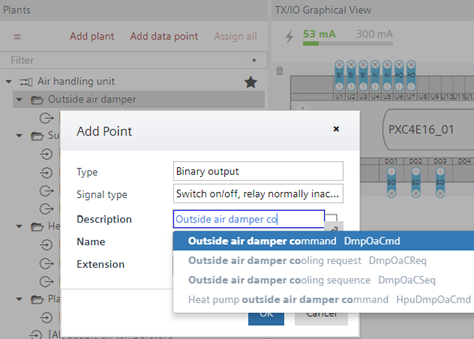
The number of available names, descriptions and tags in the text database is reduced by default in order to provide a context specific selection. For example, when selecting an output only names and descriptions relevant for outputs are provided. In order to show all names, descriptions and tags in the text picker, open Settings > Naming defaults > Naming rules tab, and select Show all names and tags.
Plant automation tab
Custom state texts
Besides predefined texts, you can create your own custom state texts. Custom state texts are stored in the project database and can be reused multiple times in a controller or a project.
Creating custom state texts
Naming structures
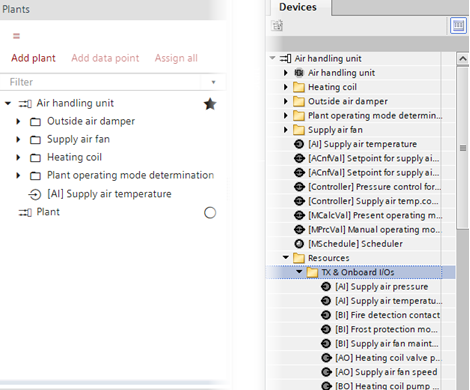
The naming structures are managed in the plant view for each plant. The created folders support structuring data points within a plant and are also used for Programming, ABT Go, Desigo CC and Desigo Control Point (operating and monitoring devices). The Graphics field in the Add folder dialog provides additional semantical information for Desigo CC and Desigo Control Point (operating and monitoring devices). The information is used for tagging of Desigo Control Point graphics, Desigo CC graphics and future ABT graphics.
You can set up whole structures for example an air handling unit comprised of heating coil, outside air damper etc. You can add data points to folders, move data points from folder to another folder or drag and drop objects from the library into the plant view. Data points within a folder are sorted alphabetically by object type.
The default hierarchical object naming for all objects (data points, value objects, schedulers, etc.) is based on the defined folder structure.
The naming structures are the same in I/O configuration, Modbus and Programming.
I/O configuration
Modbus
Programming
Programming
In the Programming editor TX and Onboard I/Os are listed in a Resources folder. You can multi-select in the tree and move them from one folder to another. You can also multi select objects in the Programming editor and drag them to the folder structure.