Plant automation tab
Section | Setting | Description |
|---|---|---|
Defaults |
| The number of available names, descriptions and tags in the text database covers the ones needed for the new application concepts introduced. Select the check box to show also names, descriptions and tags of our legacy systems in the text picker when adding folders and data points. This might be helpful for compatibility with older Desigo projects. |
Number of custom state texts | Defines the number of custom state texts that can be stored.
Enter an integer value between 0 and 100 to define the number of custom state texts. | |
Hierarchical descriptions |
| Shows the standard behavior in ABT Site.
|
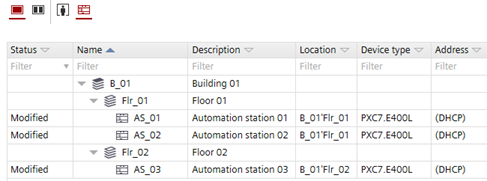
Including building structure, plant & folders | Defines the hierarchical description with building structure, plant and folders. Description of floor 1:
Description of floor 2:
Note: The plant must be assigned to the required building. Building hierarchy view:
Device view:
| |
Include only plant & folders | Defines the hierarchical description with plant and folders.
| |
Separator for hierarchical description | Defines the separator within the hierarchical description. Default is “-“. | |
Object naming |
|
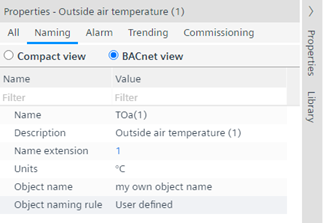
In the Properties tab, the Object name rule field changes to User defined.
Note: It is not advisable to use this function together with the user designation, because both functions use the same data source. This may prevent a consistent view of the data point description. |
|
| |
Naming settings for I/O replacement | Use I/O name of | Defines which text will be used when you replace the name:
Replacing names and descriptions Note: If you change the standard name, for example, TSu to myTSu, the automatism in Desigo CC (Graphic generator, graphic symbols, reports and so on) and Desigo Control Point does not work anymore, the corresponding graphics have to be adjusted as well. |
Use I/O description of | Defines which text will be used when you replace the description:
|
 Show all names and tags




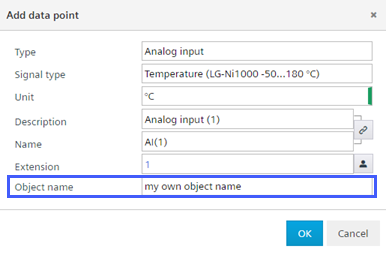
 The activated check box displays an additional Object name field when a new object is created. Enter an object name text into the field. Keeping the object name empty will result in a standard hierarchical object name. Note: Within the project, the text must be unique.