Programming predefined room operation unit for KNX PL-Link (QMX)
A device chart controls the visibility of a room control unit. For library solutions, such as the QMX3.P44, can be made visible by simply enabling or disabling the corresponding object in the KNX PL-Link task. If there is no library solution available, it can be created in the Programming menu as required.
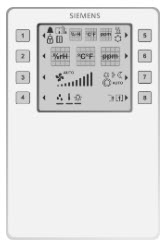
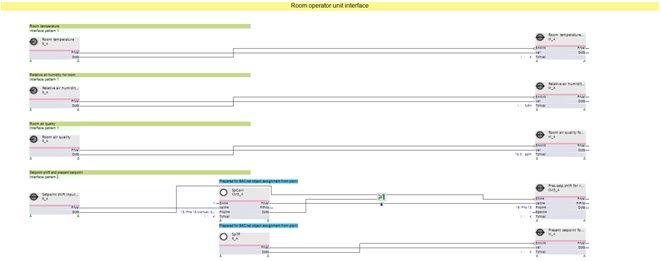
Example of a device chart: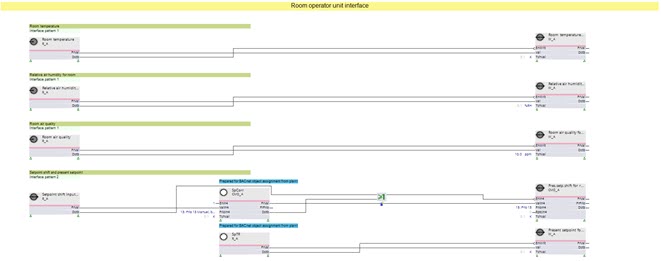
1. Open the Programming editor
- The Display view of the room operation unit is configured.
- The automation station PXC4/5/7 is configured.
- Go to Building > Building structure.
- Right-click the automation station and select Go to engineering.
- Open the KNX PL-Link task.
- Select the room operation unit in the KNX PL-Link area.
- Open the Programming task.
INFO: This can take a while. - The programming editor opens, and an empty work area displays.
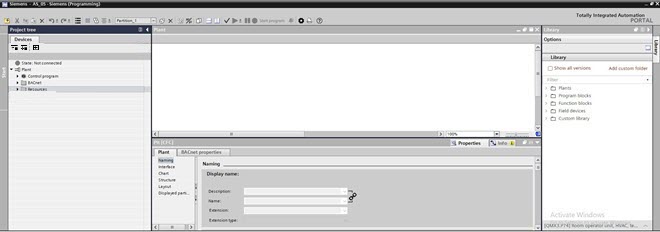
2. Select predefined device chart
- In the Project tree select the Devices tab.
- Select Plant > Resources > KNX PL-Link > Room operator unit.
- All configured BACnet objects are displayed in the Project tree.
- Right-click the room operator unit and select the Device chart check box.
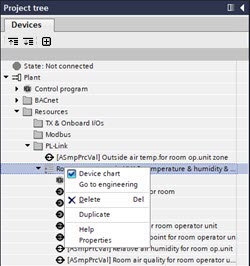
- An empty device chart opens.
INFO: Do not clear the Device chart check box anymore. As soon as the Device chart check box is cleared, the device chart is deleted and the program is lost. When this happens, the Undo function must be used. - Double-click the Device chart.
- The device chart displays. The device chart already is configured as per the ABT Site configuration.
3. Define the references to the Plant chart
References of the plant chart to the device chart (or vice versa) are dependent upon the respective program function.
- Select the function block in the Plan chart.
- Drag a link to the prepared input function block (marked blue) in the device chart.
- Make required changes to the device chart as required.