Configuring the display view of the QMX3 room operation unit
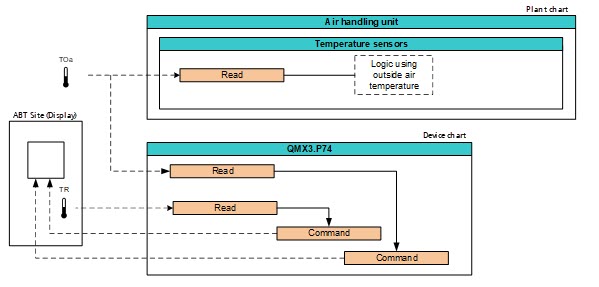
A device chart shows and controls the corresponding room operation QMX3. Use the device chart from the library to start with. Object references between plant chart and device chart can or must be created to get the full functionality.
A device chart is configured in four steps:
- Configuration in the KNX PL-Link area.
- Modification of the chart in the device chart.
- Modification of the chart in the plant chart.
- Creation of links from the device chart to the plant chart.
- The KNX PL-Link devices are configured.
- Go to Building > Building structure.
- Right-click a configured PXC4/5/7 and select Go to engineering.
- Select the Configuration tab on the right.
- In the KNX PL-Link area, select the feature to be configured, for example Temperature.
- In the section Display, select the property to be configured, for example, Temperature display.
- In the Temperature display drop-down list, select one of the options:
- None
- Display room temperature
- Display outside air temperature
- Display room & outside air temperature - Repeat these steps for all features.
- The display view of the room operation unit is configured an visible in the device chart
- Create links between device chart and plant chart for the values to display on the room operation unit display.

If a predefined option is used, there is no need to adjust the BACnet objects in the device chart. This happens automatically.