Changing BACnet object names (CSV)
This function allows all names for the same object to be unified and standardized. This is required, if the Siemens standard name is not accepted by the customer, for example:
Siemens | Customer | ||
|---|---|---|---|
Object name | Description | Object name | Description |
B1’Plt1’TOa | Outside air temperature | Analog Input 3 | OAT |
B1’Plt1’TSu | Supply air temperature | Analog Input 4 | SAT |
Workflow
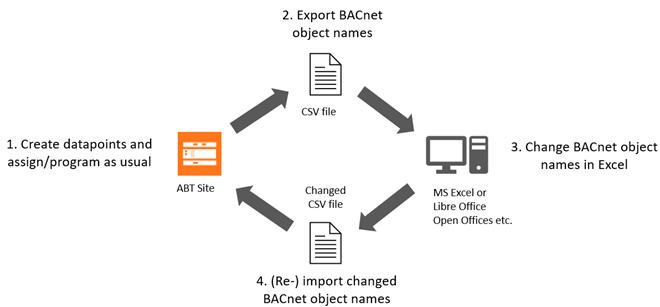

Renaming of the object names has an impact to Desigo CC. Some automatic functions are then no longer supported and must be created manually (for example, assigning graphic objects with the graphic generator).
Create a data export
- Go to Building > Building structure.
- Select a device or a hierarchy object.
- Right-click and select Create export.
- The Create export dialog box opens.
- Select the Scope of content to export.
- Select the BACnet object names (PXC4/5/7 only) option.
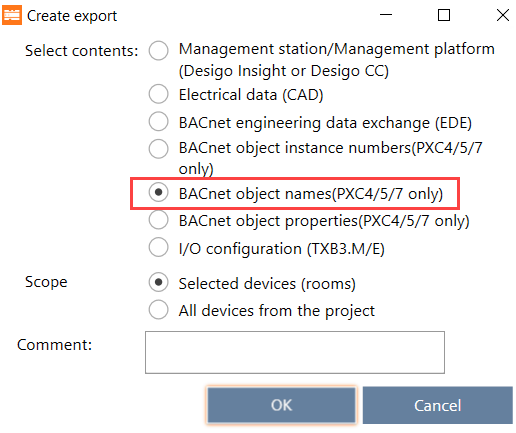
- (Optional) Enter a comment.
- Click OK.
- The selected content is exported to the default directory for exports [drive]:\Users\Public\Documents\Siemens\DESIGO\Exports.
- The Create export dialog box displays allowing you to open the containing folder.
- Click Open folder.
- The file explorer opens.
- Extract the created zip.file.
- For each device is a csv.file created with the corresponding device name.
Modify object names
- Open the csv.file with Excel.
- Rename the object name (column F) and description (column G) as required.
INFO:
- Do not change names in the columns object-name and description, if the column object-name-modifiable contains a No.
- Do not rename column names or delete the header row.
- Save the changes.
- Import the file back to ABT Site.
Importing modules and I/Os
- The changed Object name is imported.
- The Object name rule is changed to
User defined.
Additional rows created are skipped and not imported. Deleted rows remain unchanged in the project.