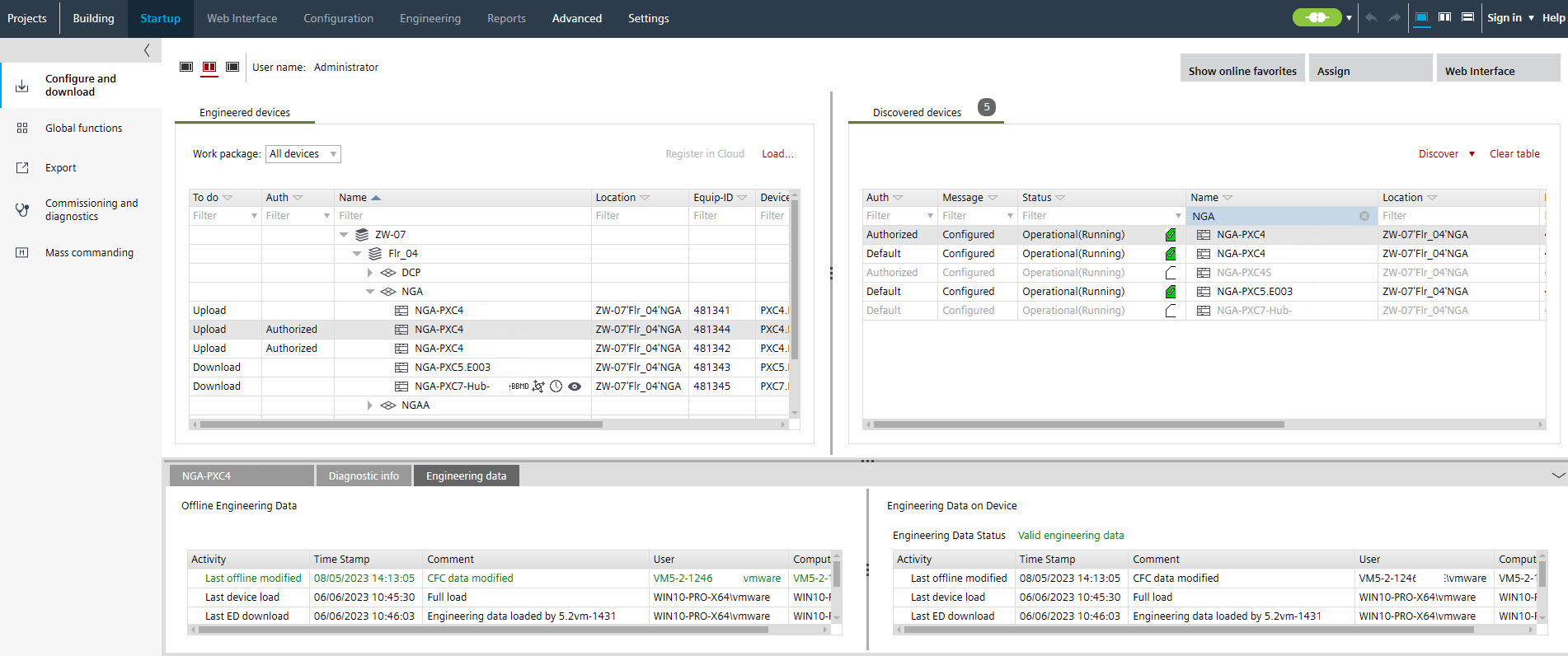
Use case 2: Offline ABT Site project with engineering data (ED) available on the PC/laptop
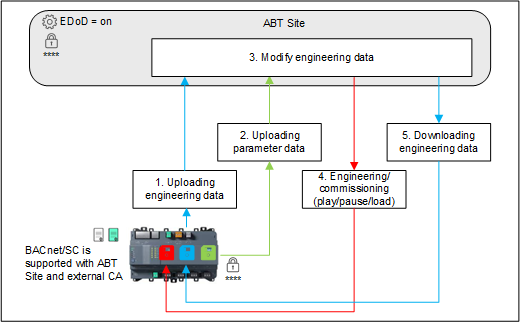
1. Uploading engineering data
- The ABT Site project is open and the engineering data are available on the device.
- Go to Startup.
- Open the Configure and download task.
- Click Connect
 .
. - The connection status changes to
 /
/  .
. - In the Discovered devices tab, select the device you want to upload.
Note: There may be two different timestamps displayed in the Activities tab. The user must decide whether to use the device data or the project data for further processing. - Right-click the device and select Upload engineering data.
- Engineering data are uploaded and displayed in the Engineering devices tab.
Note: Uploaded data overwrite existing engineering data. There is no merge between those data. - Current activities are displayed in the Activities tab.

Shows the engineering data status of the device:
 Device does not support engineering data on device
 No engineering data after full download available
 Engineering data are outdated after play/pause function is used (upload of engineering data is still possible)
 Engineering data are valid after full load

If a device that has been engineered with an older version of ABT Site is opened in the Programming editor, data of that device will automatically be converted.
2. Uploading parameter data
- In the Engineered devices tab, right-click the device and select Upload.
- The current parameters of the device are uploaded.
Dynamic objects that have, for example, been created in Desigo CC, are imported and saved in a separate project folder. The dynamic objects are not visible in ABT Site and can therefore not be edited. Those dynamic objects will be downloaded the next time a download is performed.
3. Modify the engineering data
- Right-click the device and select Go to programming or Go to engineering.
- Modify the control program according to the project requirements.
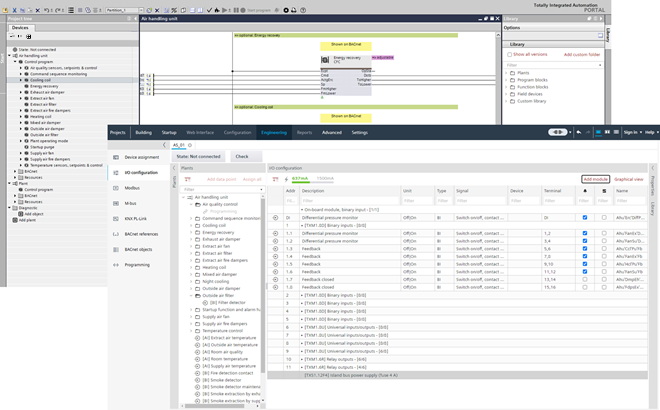
When you close the editor after a program modification, you will be prompted to load the engineering data to the device. If the user selects Cancel, he will then be responsible to download engineering data on user demand.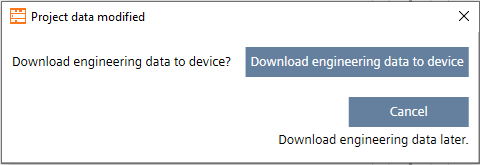
If one or more devices of the type PXC4.E/M (less memory) are selected, a prompt appears before the download starts. This query does not apply to the PXC4E/M-2 (more memory) devices.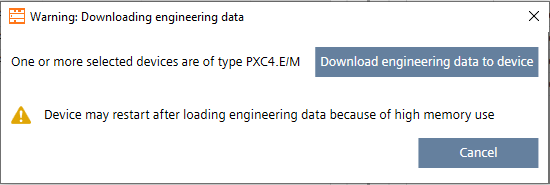
4. Engineering/commissioning
- Click Play
 or perform a full download.
 - A confirmation dialog displays.
- Click OK.
- The changed program is downloaded.
- Verify the changed program.
When using the play/pause function, the status of the engineering data on the device is set to Outdated engineering data. It is therefore mandatory to download the engineering data.
5. Download the engineering data
- A full download was performed successfully.
- The Engineering editor must be closed.
- Go to Startup.
Configure and download - Open the Configure and download task.
- In the Engineered devices tab, select the updated device.
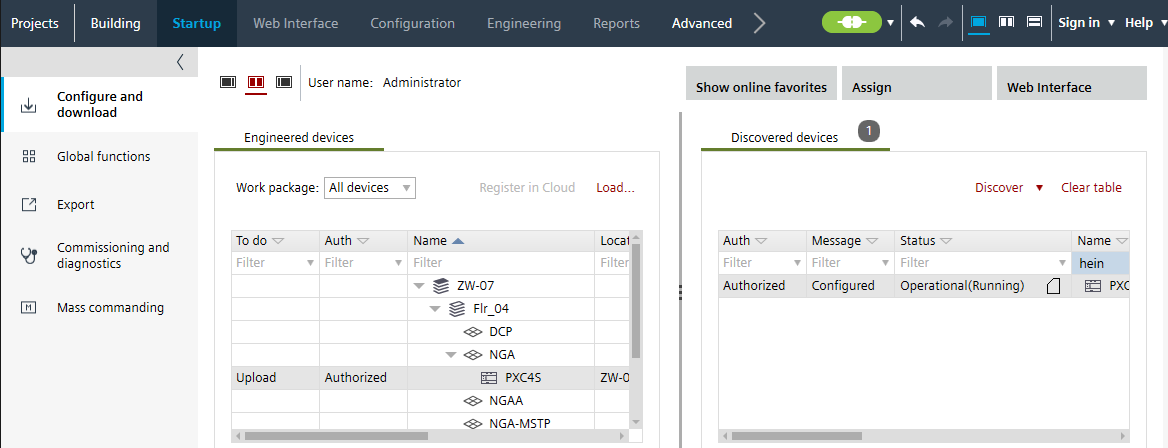
- Click Load > Engineering data.
- The engineering data are downloaded.
- The engineering data status changed in the Discovered devices tab from to .
- The Engineering data tab shows that the engineering data are downloaded and valid.