Preparing M-bus meters for Desigo CC graphics
For the graphical representation of a meter in Desigo CC, the data points for the Logical View must be correctly assigned to the meter.
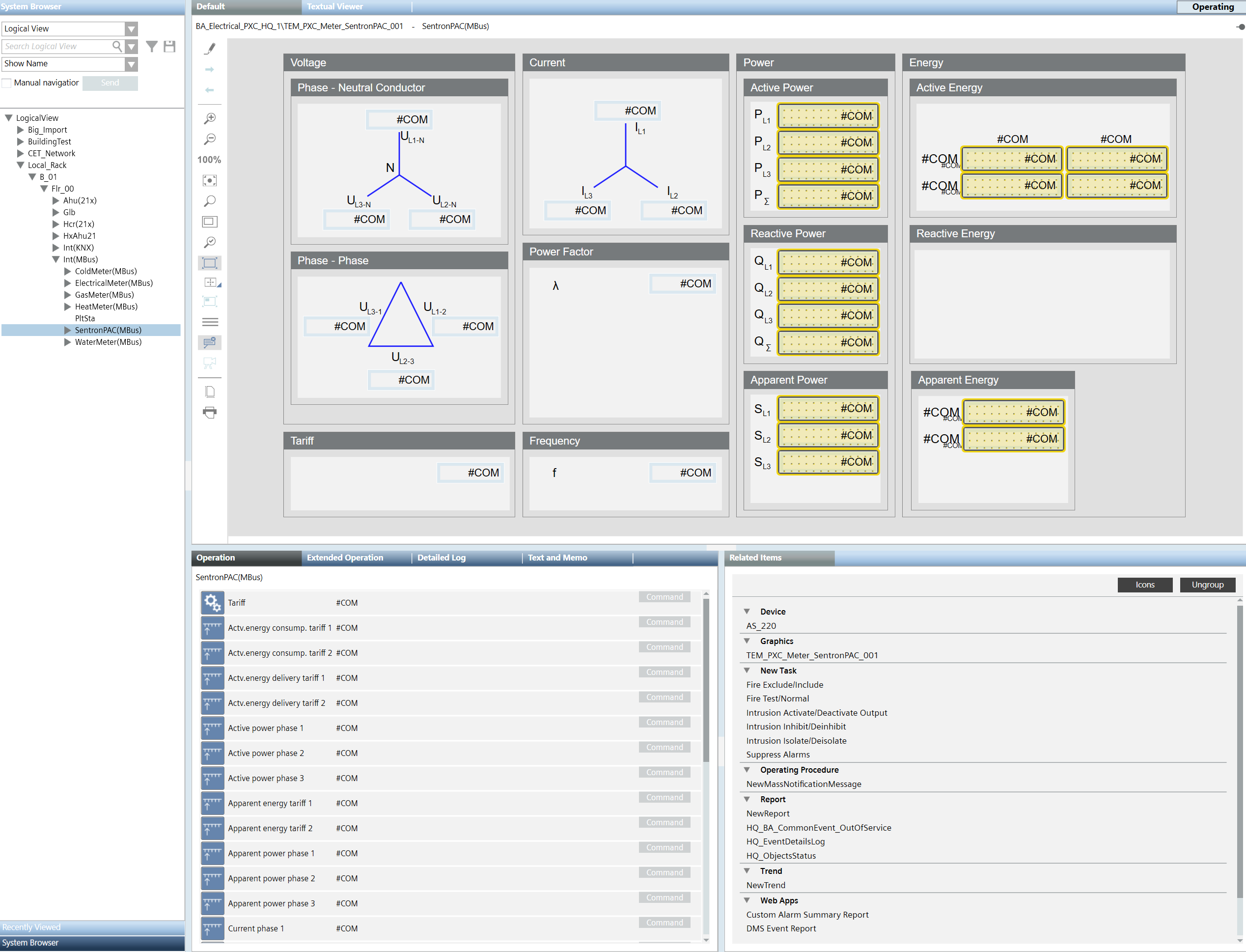
Graphic example SentronPAC for M-bus:
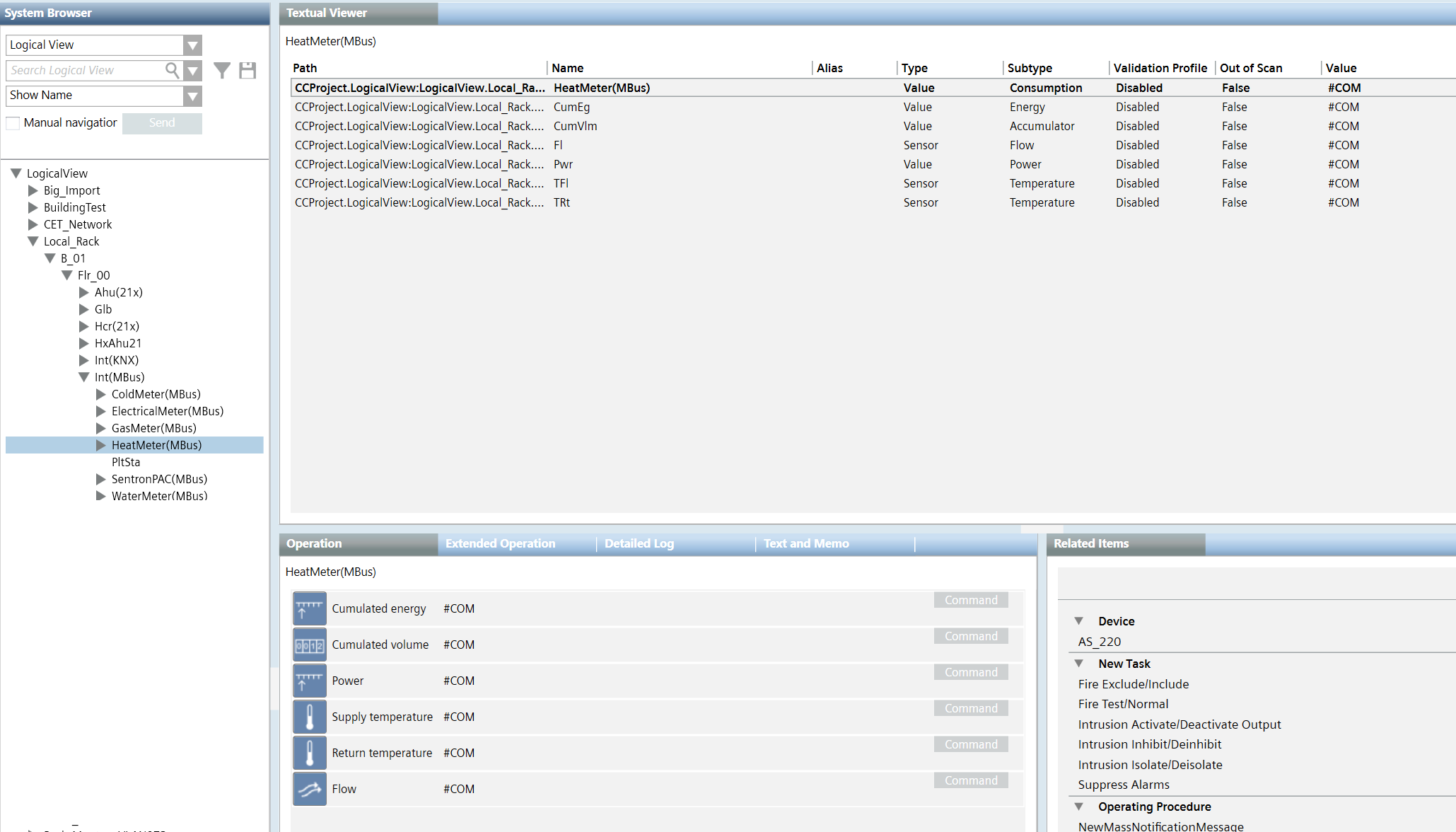
Text example heat meter for M-bus
- A plant, for example, Hydraulic circuit, is available in ABT Site.
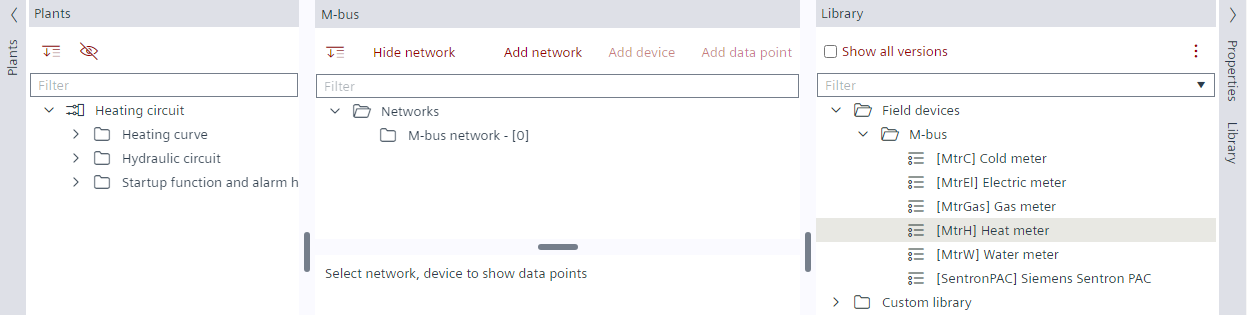
- In the Plants navigation view, select Hydraulic circuit.
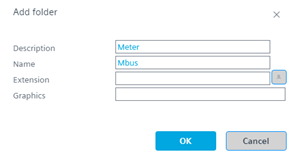
- Right-click and select Add folder.
- In the Add folder dialog box, enter a name and a description.
- Select the Library view on the right.
- From the Field devices > M-bus folder, drag a meter device from the library to the M-bus network.
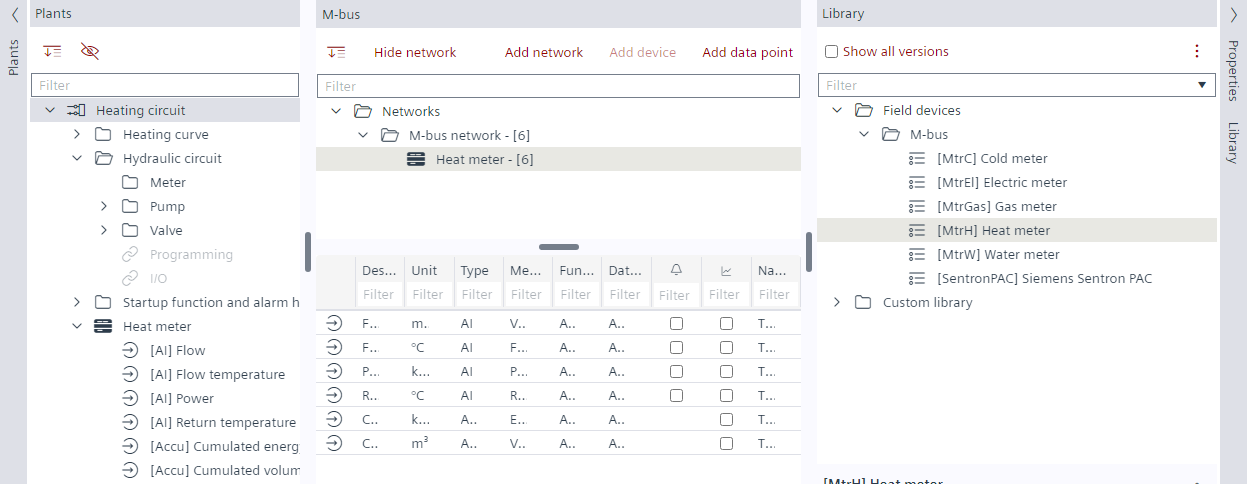
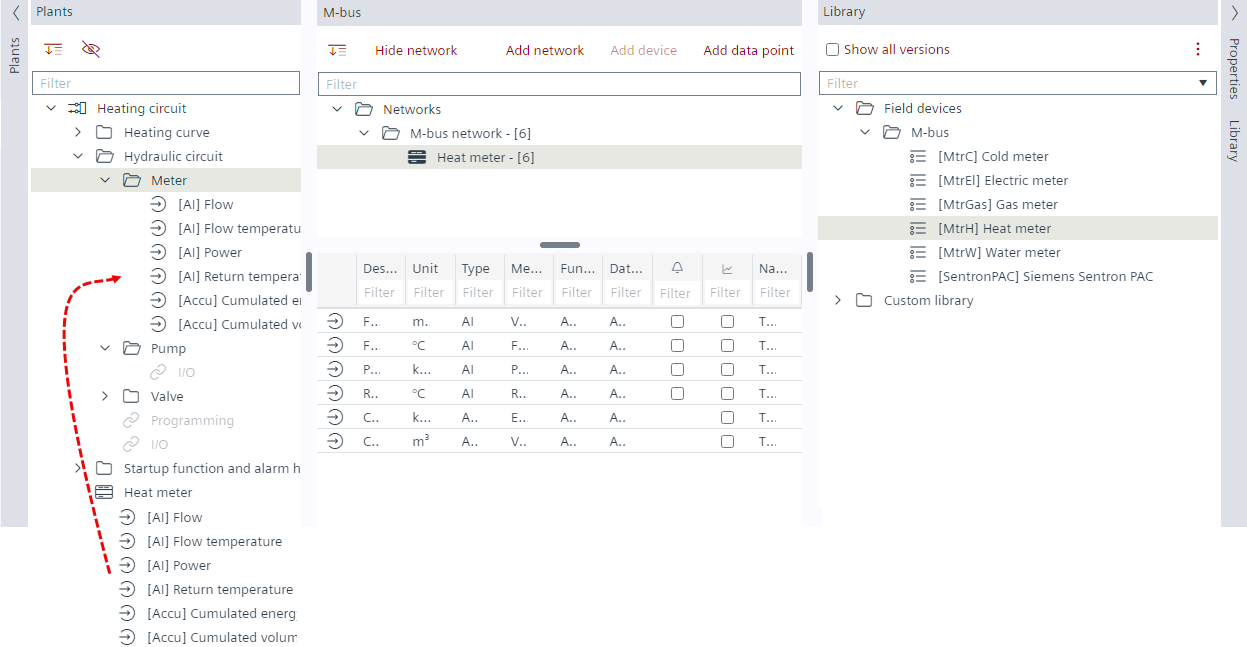
- In the Plants navigation view, select all the data points below the Heat meter.
- Drag all the data points to the Meter folder.
- In the Plants navigation view, select the Meter folder.
- Select the Properties tab on the right.
- The Properties view shows the meter properties.
- Select the Node subtype property.
- Enter the library short name, for example, MtrH.
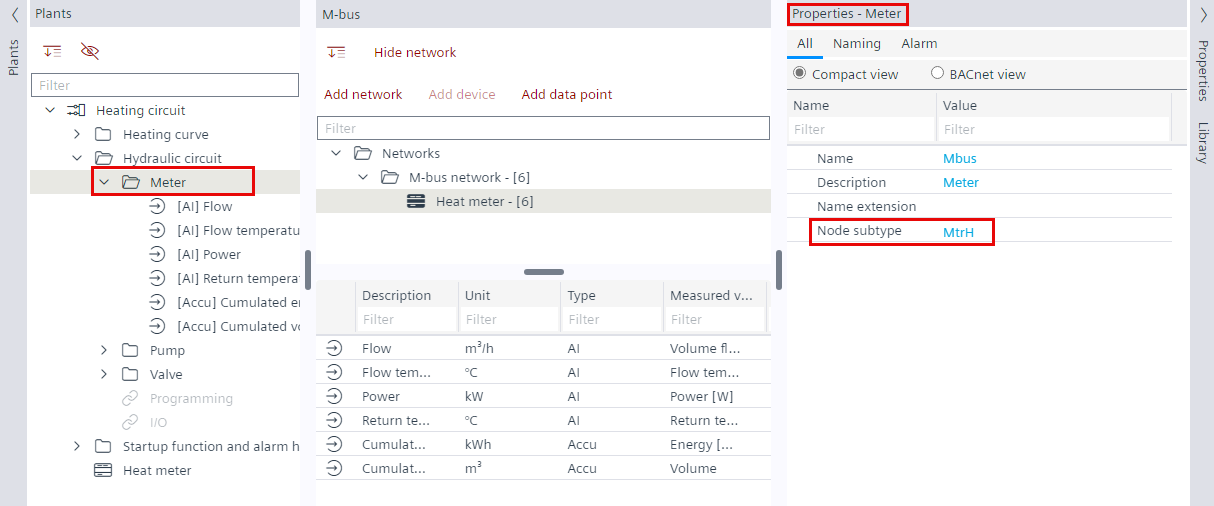
- The meter is configured for the Logical View in Desigo CC.
Support short names for M-bus
Short name | Description |
|---|---|
MtrC | Cold meter |
MtrEl | Electrical meter |
MtrGas | Gas meter |
MtrH | Heat meter |
MtrW | Water meter |
SentronPAC | Siemens Sentron PAC |