Configuring features (template)
Changes made to a template configuration are applied to all devices associated with this template (existing and future).
Locked templates  cannot be configured.
Changing the template configuration will, in most cases, change the object list. Therefore a new application number is required.
Unlocking application templates
For further information on specific application types, click Application help to open the help for the selected application type.
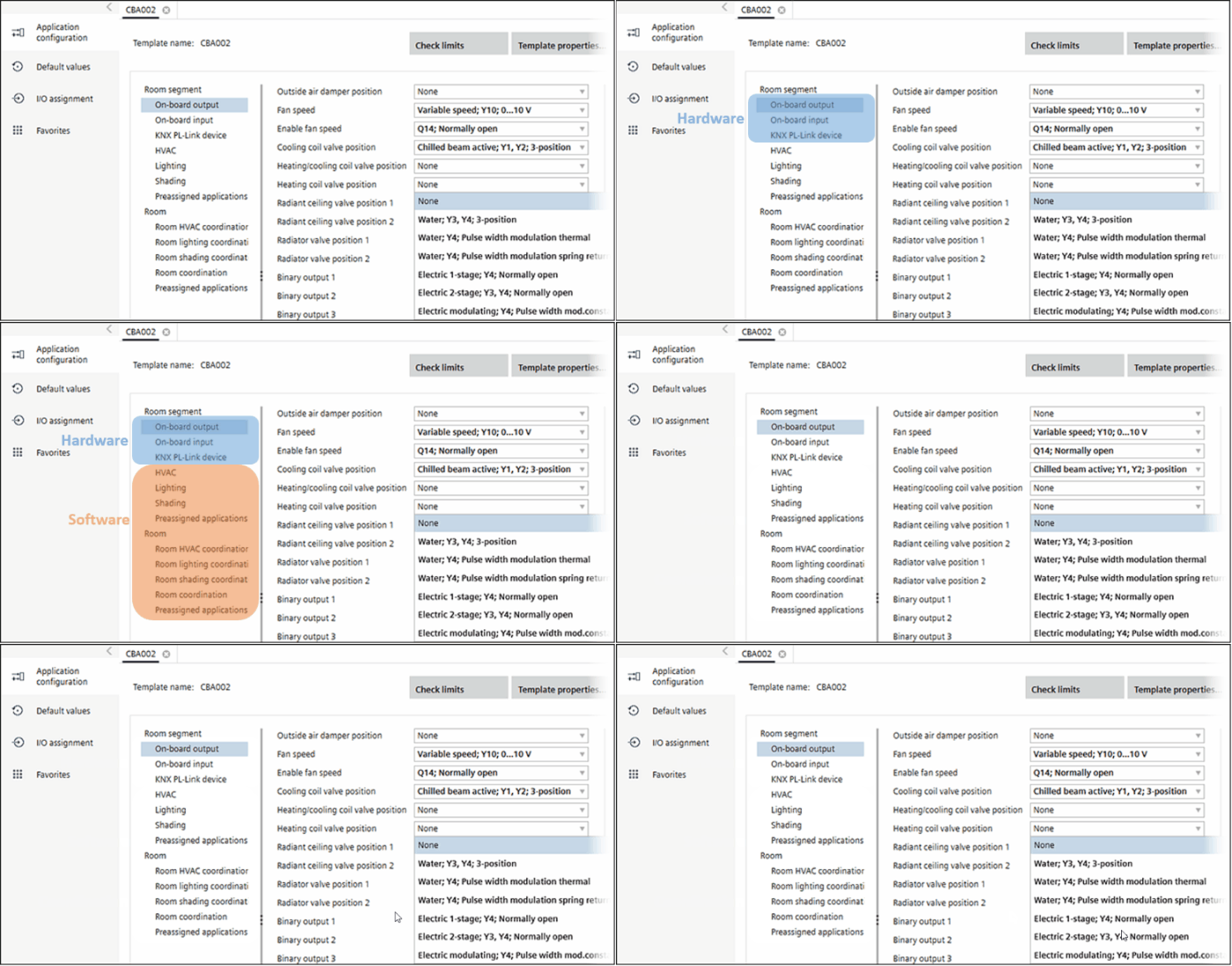
Select on-board I/O's
- Go to Configuration.
- Open the Application configuration task.
- Open the template.
- Select the On-board output or On-board input configuration section.
- Select an I/O for each feature.
- The discipline feature is activated automatically (i.e., the Supply air VAV position Y10; 0...10 V may activate the HVAC feature Supply air VAV 11, external air flow ctr.).
- Selecting an I/O locks it for further use (dimmed).
- Continue until I/O selection is complete.
- On-board I/O's are now selected.
Assign network peripheral devices
- Select the KNX PL-Link device configuration section.
- Select the network peripheral device.
- The corresponding discipline feature is activated automatically (i.e., the Lighting device 1 feature UP 525/03 may activate the Lighting feature Lighting device 1).
- Continue until all planned network peripheral devices are assigned.
- The network peripheral devices are now assigned.
Configure disciplines and coordination functions
- Select a discipline, e.g., Lighting.
- Check the activated features against your plans and configure as needed.
- Select additional features in the corresponding discipline.
- Continue until all disciplines are configured.
- The features for this template are configured.
- Selecting an I/O or network peripheral device automatically activates the corresponding discipline feature.
Dependencies - Releasing an I/O configuration or network peripheral device may deactivate the corresponding feature configuration.
- Changing a specific feature configuration may change a feature configuration in another tab (as per application type specific rules).
- Changing a feature configuration after setting default values may delete the corresponding parameter setting (Additional parameters).