Configuring default values (template)
Parameters and their values can be configured as a default in the application template. Use this editor to make changes to default values for all devices associated with this template within ABT Site.
Configure default values
- Select an application template.
- Click Building > Application & device overview > Go to configuration or Configuration > Application selection > Open template.
- The Application configuration dialog opens.
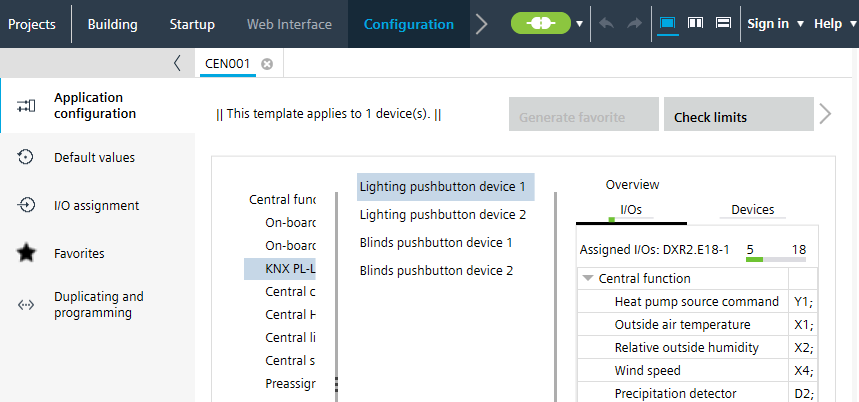
- Select the Default values task.
- Click Show/hide parameter to open the dialog box.
Show/hide parameter (dialog box) - Select the parameters in the upper table. Click Add.
- Select the parameters in the lower table. Click Remove.
- Click OK.
- The parameters are added to or removed from the Default values table.
- Set the access property for each parameter value in the Avail. on AS column.
 : Parameter and value are visible and can be edited in ABT Site.
 : Parameter and value are hidden and fixed as per the Default values table for the application template.
This column can be filtered by using T or True to show only the checked rows and F or False to show only the unchecked rows.
- Modify the default values in the Value column.
- All new and all previously created automation stations with this template adapt the configured default values.
You can only view and change parameter values in ABT Site if the Avail. on AS check box for the selected parameter is selected. The Avail. on AS check box is set in Configuration > Default values.
Configuring default values (template)
If selected, the corresponding object parameters are available in the following areas:
- Device details > Instance parameter page
- Application template details > Instance parameter tab
- Building > Device list > Load instance parameter
- Checkout report