Assigning calendars to schedulers
Add a calendar object
- In the Project tree, select [Plant name] > Resources > Coordination.
Coordination folder - Double-click Add object.
- The Add Coordination object dialog box opens.
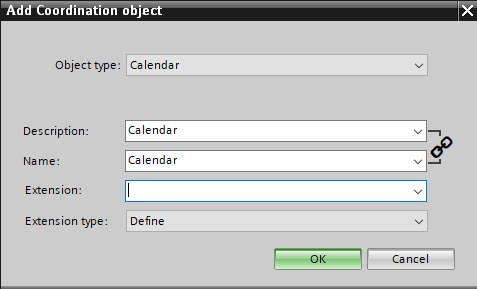
- In the Object type field, select Calendar.
- Complete the required fields.
- Click OK.
- A new calendar object is created in the Project tree.
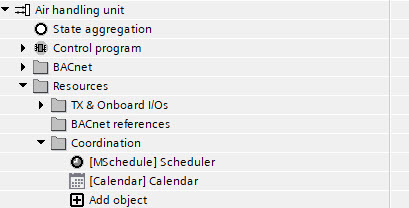
- Right-click the newly created object and select Properties.
- Select the BACnet view option.
- Modify the calendar properties as required.
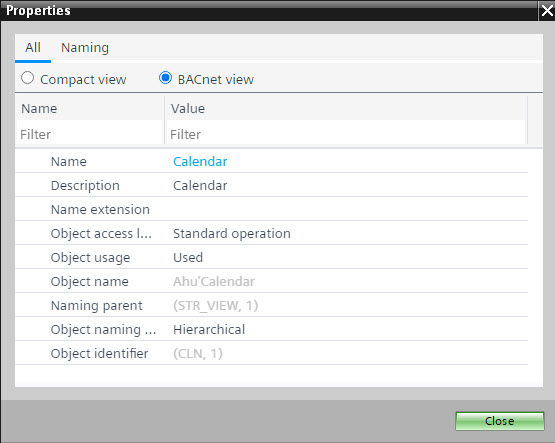
- Click Close.
- Right-click the calendar and select Properties.
- The Calendar opens.
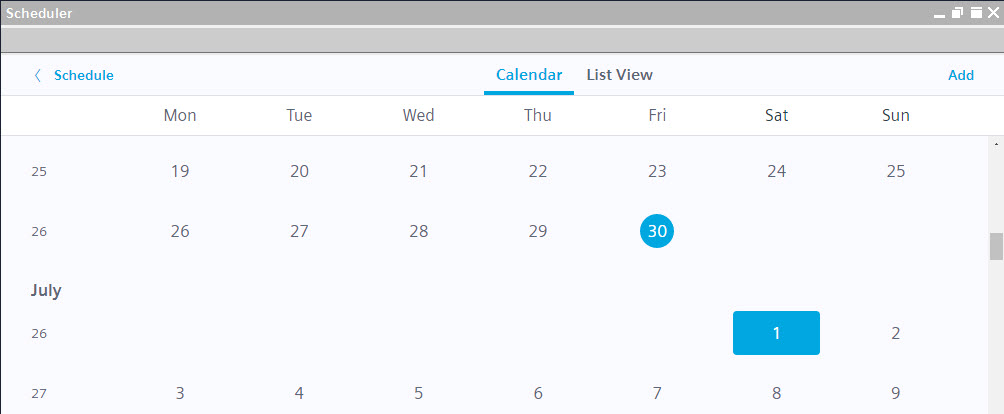
- Configure the calendar.
Exception schedules

The description and the name are linked, i.e., the description matches the name and vice versa. To unlink the description from the name, click the chain icon to the right of the Description and Name fields. To relink the description and the name, click the chain icon again.
Assign a calendar to a scheduler
- You have added one or more calendar objects in the Project tree.
Plants navigation view
- Drag a scheduler from the Function block folder in the Library to the Programming editor.
- Open the Properties tab of the scheduler.
- Click Calendars.
- Do one of the following:
- To assign specific calendars, select the checkbox of a calendar in the Assign column and click Assign selected.
- To assign all calendars, click Assign all.
- The calendars are assigned to the scheduler.