Discovering IP devices
Based on the type of connection selected, use the associated procedure to discover IP devices.
Connection types and network card settings

Before a new query is made, a Clear table must be performed. This is the only way to ensure that only the corresponding devices are listed.
Room unit connection
By default, no devices display in the Discovered devices tab. The Discover button provides you with the option to select either All or Locally connected device from the Discovery dialog box. As a result, the discovered devices are listed in the table.
- A Room unit connection has been established.
Connection types and network card settings
- In the Common toolbar, select the arrow beside the Connect
 button.
 - Select the Room unit connection tab.
- Enter the User name and Password.
- Click Connect.
- Select Startup > Configure and download.
- In the Discovered devices tab, click Discover and use the filters:
- Discovery scope (All or Locally connected device) from the list box.
- Device scope
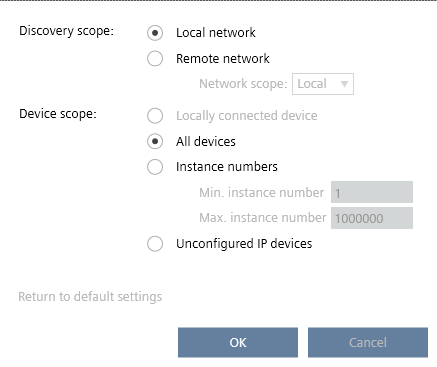
- Click OK.
- All locally connected devices on the selected network display in the Discovered devices table.
PXC3 devices do not support connection through a Room unit.
USB connection
By default, no devices display in the Discovered devices tab. The Discover button provides you with the option to select either All or Unconfigured from the Discovery dialog box. As a result, the discovered devices are listed in the table.
- A USB connection has been established.
Connection types and network card settings
- In the Common toolbar, select the arrow beside the Connect button.
- Select the USB tab.
- Enter the User name and Password.
- Select the MS/TP option.
- Configure the Network card.
- Click Connect.
- Select Startup > Configure and download.
- In the Discovered devices tab, click Discover and use the filters:
- Discovery scope (All or Locally connected device) from the list box.
- Device scope
- Click OK.
- All devices on the selected network display in the Discovered devices table.
Ethernet connection
By default, no devices display in the Discovered devices tab. The Discover button provides you with the option to select either All or Unconfigured from the Discovery dialog box. As a result, the discovered devices are listed in the table.
Until the booting of the devices for their initial engineering and commissioning is completed, discovery of devices through the device ports LAN >WAN or WAN >LAN is not possible. Thus, if devices on the WAN side are unconfigured, BACnet communication with them is not possible. Connect first to those devices via WLAN, USB, or other WAN directly to discover, configure, or load them.
- An Ethernet connection has been established.
Connection types and network card settings
- In the Common toolbar, select the arrow beside the Connect button.
- Select the Ethernet tab.
- Enter the User name and Password.
- Select the MS/TP option.
- Configure the Network card.
- Click Connect.
- Select Startup > Configure and download.
- In the Discovered devices tab, click Discover and use the filters:
- Discovery scope (All or Locally connected device) from the list box.
- Device scope
- Click OK.
- All devices on the selected network display in the Discovered devices table.