Device assignment
Use the Device assignment task to assign automation stations to a device such as a web server.

Engineering > Device assignment allows you to open a maximum of 5 tabs (instances) at a time.
1 | Task selector | 2 | Automation station table |
3 | Toolbar |
| |
For further information on the Operation application, see the Desigo Control Point Operation Manual.
Desigo Control Point Operation Manual
For further information on graphics engineering, see the Desigo Control Point Engineering Manual.
Desigo Control Point Engineering Manual
① Task selector
Task | Description |
|---|---|
Device assignment | Current task |
② Automation station table
Column | Description |
|---|---|
Name | Name of the building element. |
Description | Description for the building structure element. |
Automation station | Name of the automation station the area is defined on. |
③ Toolbar
Command | Description |
|---|---|
Engineering in browser | Only for devices supporting operating and monitoring devices. Opens a new browser window where you can engineer the devices. Note
|
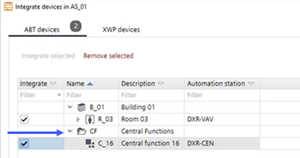
Assign devices | Opens the Integrate devices window where you can select automation stations to be assigned to an operating and monitoring device.
|
Show/hide parameter | Opens a dialog box to add or remove parameters to the Default values table. |
Refresh | Checks for changes in the project, for example room or segment name changes, and refreshes the view. To update an operating and monitoring device after project data changes, click Refresh. Note |