Configuring event enrollment objects
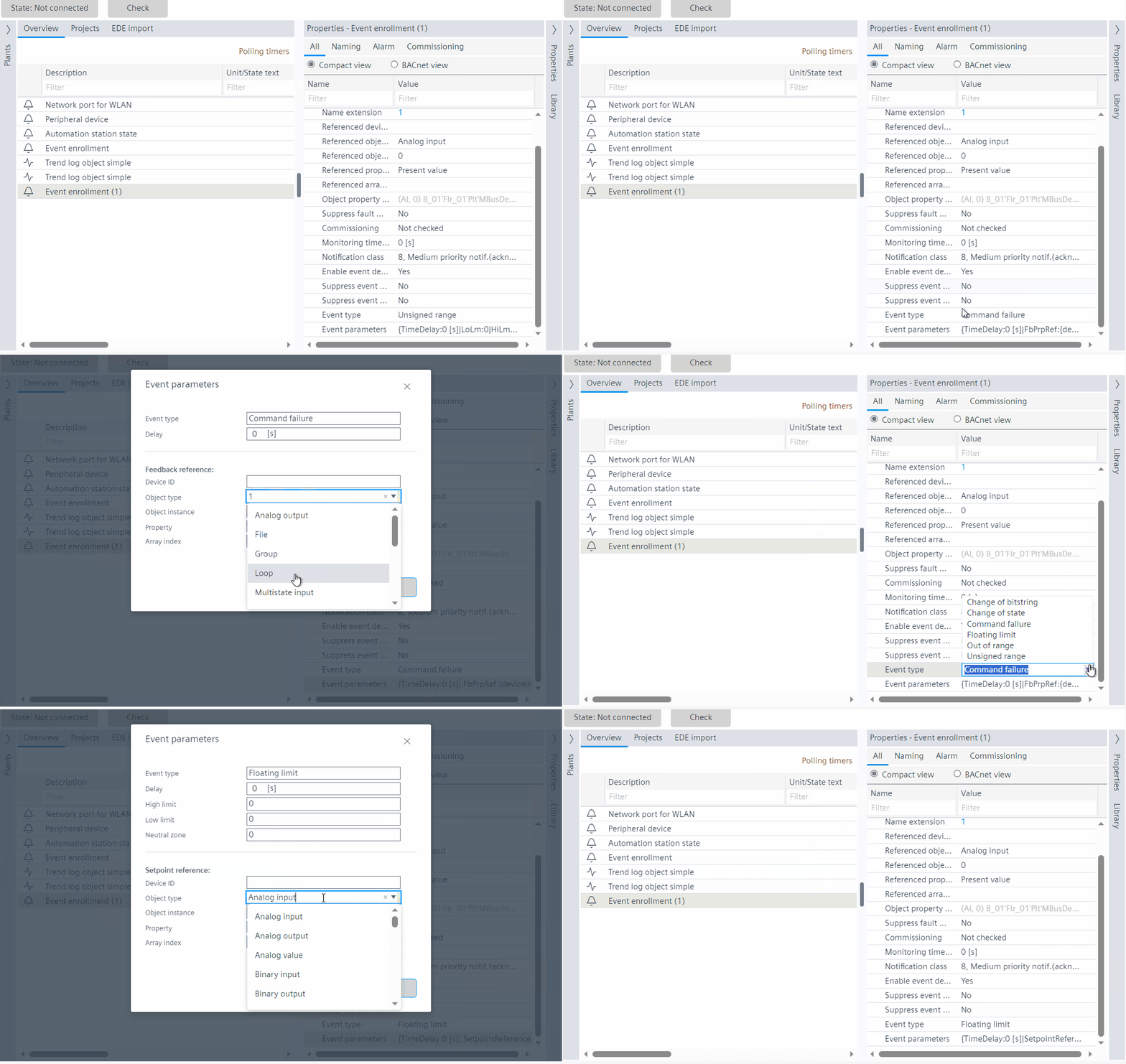
Configuration of the event enrollment is done in the Properties section. This functionality uses offline and online mode.
See Events.
- Go to Engineering > BACnet references and create an event enrollment object, see Creating an event enrollment object - Plants navigation view
- In the Properties view, click Event parameters.
Note: The Reference device instance number and Reference object type fields are mandatory.
Configuring Command failure event type
See Command failure.
- Click on the event enrollment object and go to Properties.
NOTE: By default the present values, based on the object type are populated in the Properties view. - In Properties, select Command failure in Event type.
- Click Event parameters.
- The Event parameters dialog box opens.
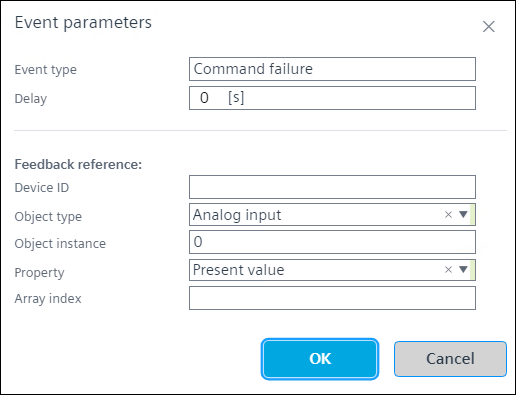
- Set the time in seconds in the Delay field.
- In the Feedback reference section, enter the required values in Device ID, Object instance, and Array index fields respectively.
- Select the Object type and Property from the drop-down list, or, type the description or number in the Object type and Property. See Hybrid control.
- The results are displayed accordingly, then click the required value.
- Click Ok.
- You have configured the command failure event type.
Configuring Floating limit event type
See Floating limit.
- Click on the event enrollment object and go to Properties.
Note: By default the present values, based on the object type are populated in the Properties view. - In Properties, select Floating limit in Event type.
- Click Event parameters.
- The Event parameters dialog box opens.
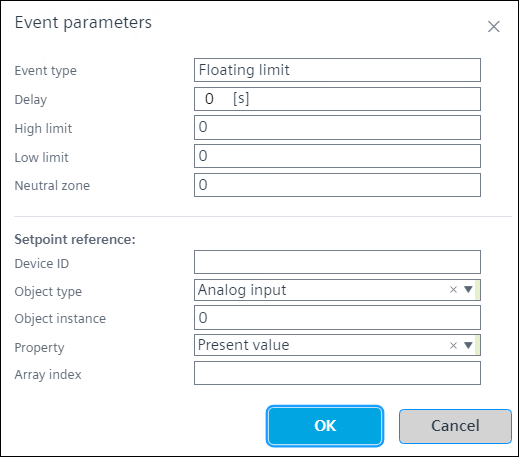
- Set the High limit, Low limit values, and the time in seconds in the Delay field.
- Enter the value in Neutral zone.
- In the Setpoint reference section, enter the required values in Device ID, Object instance, and Array index fields respectively.
- Select the Object type and Property from the drop-down list, or, type the description or number in the Object type and Property. See Hybrid control.
- The results are displayed accordingly, then click the required value.
- Click Ok.
- You have configured the floating limit event type.
Configuring Out of range event type
See Out of range and Unsigned range.
- Click on the event enrollment object and go to Properties.
Note: By default the present values, based on the object type are populated in the Properties view. - In Properties, select Out of range in Event type.
- Click Event parameters.
- The Event parameters dialog box opens.
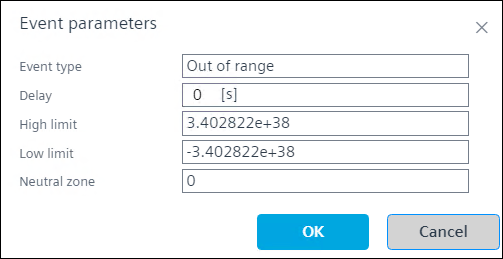
- Enter the time in seconds in the Delay field, and set the High limit and Low limit in the respective fields.
- Click Ok.
- You have configured the out of range and unsigned range event types.
Configuring Change of state event type
See Change of state.
- Click on the event enrollment object and go to Properties.
Note: By default the present values, based on the object type are populated in the Properties view. - In Properties, select Change of state in Event type.
- The Event property states type is enabled.
Note: Unsigned and state texts are enabled if object remains in the same AS. - Define the property state type from the drop-down list. See the below table.
- Click Event parameters.
- The Event parameters dialog box opens.
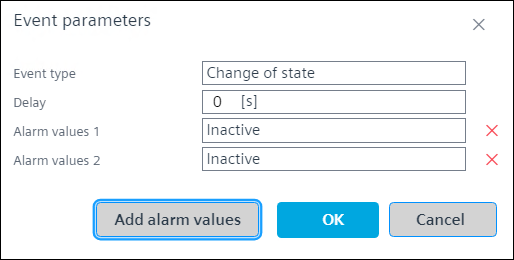
- Set the time in seconds in the Time delay field.
- Add the alarm values from the drop-down list.
Note: The drop-down list consists of Inactive and Active alarm values. - Click Ok.
- To add more alarm values, click Add alarm values.
Note: The alarm values limit is 12. - To delete the alarm value, select the alarm value and, click .
- You have configured the change of state event type.
Event property states type | Alarm values |
|---|---|
Boolean value |
|
Binary value |
|
Program value |
|
Reliability |
|
System state |
|
Unsigned value |
|
Configuring Unsigned event type
Unsigned range is similar to change of state event type. See Out of range and Unsigned range.
- Click on the event enrollment object and go to Properties.
Note: By default the present values, based on the object type are populated in the Properties view. - In Properties, select Unsigned range in Event type.
- Click Event parameters.
- The Event parameters dialog box opens.
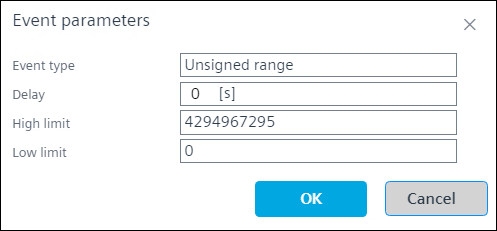
- Enter the time in seconds in the Delay field, and set the High limit and Low limit in the respective fields.
- Click Ok.
- You have configured the out of range and unsigned range event types.
Configuring Change of bitstring event type
See Change of bitstring.
- Click on the event enrollment object and go to Properties.
Note: By default the present values, based on the object type are populated in the Properties view. - In Properties, select Change of bitstring in Event type.
- Click Event parameters.
- The Event parameters dialog box opens.
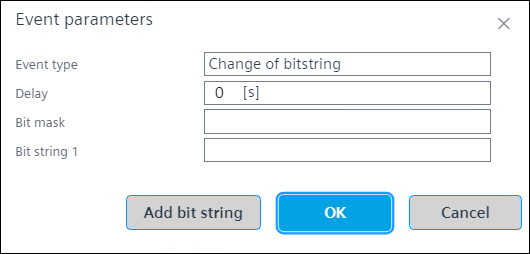
- Set the time in seconds in the Time delay field.
- Select the values from the drop-down list in the Bitmask and Bitstring fields.
The drop-down list contains the alarm values; In alarm, Fault, Overridden, and Out of service. - Click Ok.
Note: The alarm is generated when the bitmask and bitstring values are same. - To add more bitstring values, click Add bitstring.
Note: You can add 5 bistring values. - To delete the bitstring value, select the bitstring and, click .
- You have configured the change of bitstring event type.
Hybrid control
Hybrid control is a functionality where the user is able to select a value from the drop-down list by entering the description or ID/number. This is applicable for the Event enrollment object - Floating limit and Command failure event types; and Scheduler objects.
See Configuring list of object property references within a scheduler object and Configuring event enrollment objects.
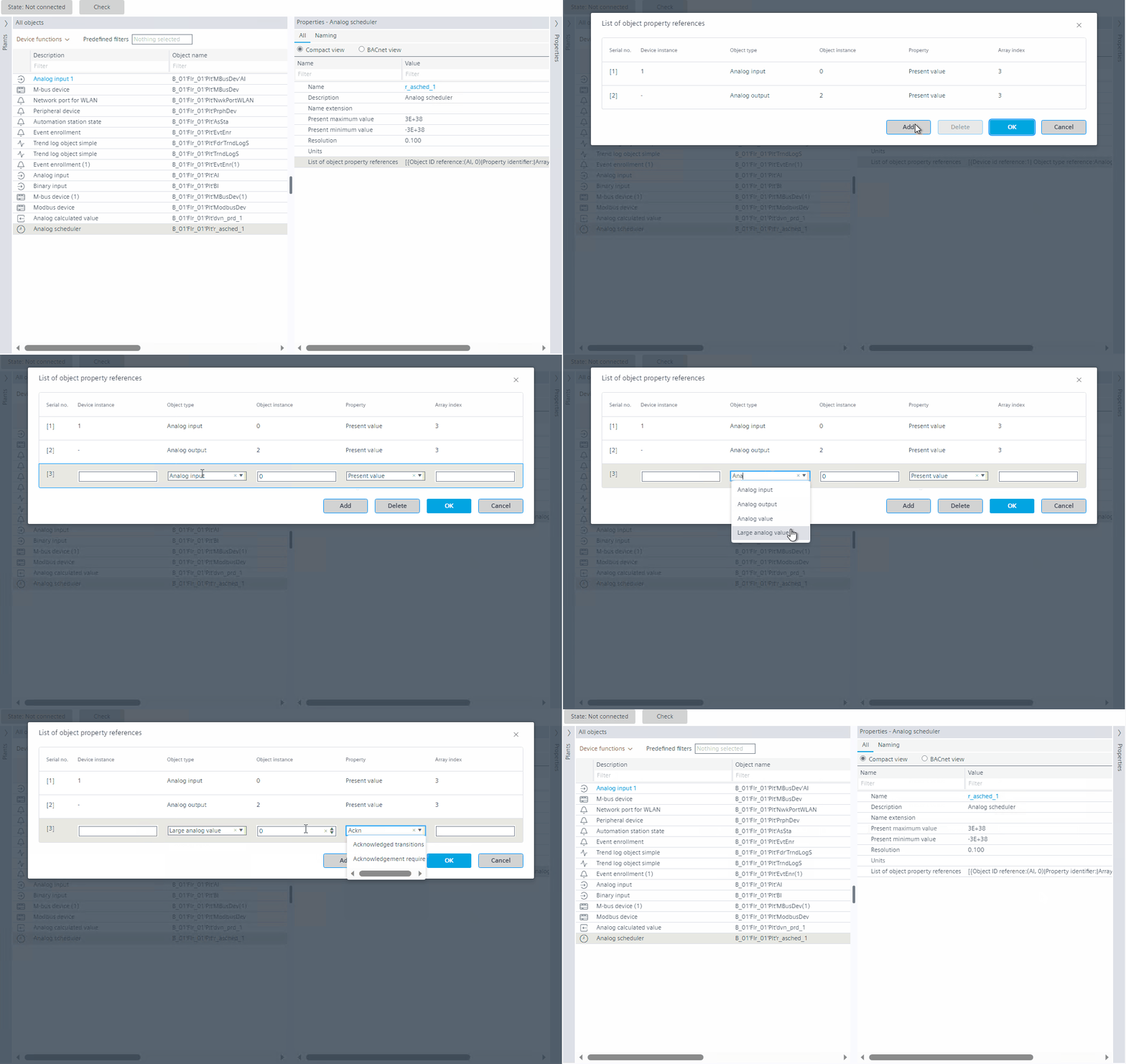
Case 1: Enter the description
Taking an example from scheduler object configuration.

This is applicable only for Floating limit and Command failure event types; and scheduler reference object type.
Case 2: Enter the ID/number
Taking an example from event enrollment configuration.
This is applicable only for Floating limit and Command failure event types; and scheduler reference object type.