Working with the calendar manager
The calendar manager object serves replicates calendar data from primary calendar to one or more subordinate calendars. In a larger project, several primary calendars (different tenants) can be created depending on the building situation. The data exchange occurs automatically daily or can be triggered to synchronize the data after a primary calendar change in online mode.
Scope and recommendation of the calendar manager function
- Use the calendar manager if calendars are not managed by, for example, Desigo CC.
- Create the calendar manager on a PXC4/5/7 with a device version ≥ 1.6.
Activating the calendar manager - Activate 1 calendar manager object on 1 Desigo device per job/customer/site only.
- Primary calendars and subordinate calendars can be hosted on any device of Desigo PXC4/5/7, PXC3 and DXR2, Desigo PX, Apogee and 3rd party devices.
Configuring the calendar manager the first time (manually)
Modifying a calendar entry in an existing calendar manager - Only change dates and times on the primary calendars (do not change subordinate calendar dates or times). Recommendation: define primary calendars on same device as the calendar manager with a proper name.
- The calendar manager updates all calendars from primaries calendar to subordinates calendar once a day (typically during the night, but the update can also be triggered manually by the Web interface).
Synchronizing of the calendar objects - Do not create hierarchies of primary calendars. Propagation from one primary calendar to another primary calendar does not work in such a case.
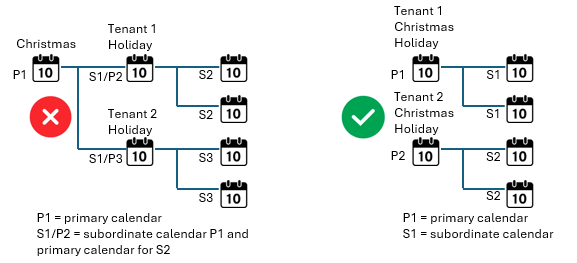
- Document and backup the calendar manger entries for later use.
Reporting of the global calendar objects
Engineering recommendations for ABT Site, Desigo control point and Desigo CC
- Desigo CC is available
- The primary calendar objects and subordinate calendars objects should be created with Desigo CC. It is recommended not to create a calendar manager object in the device created by ABT Site because a synchronization between Desigo CC and the calendar manager is not supported.
- Desigo CC is not available
This recommendation is for engineering and online operation with Desigo control point, ABT Site and Web interface in a Desigo network.
- The calendar manager should be located on one PXC4/5/7 device only, for example, on the same device where the time manager is defined. The device will have a calendar manager icon so that the device can easily be identified within a project.
- All primary calendars and subordinate calendars are defined (mapping) in the calendar manager object of this device.
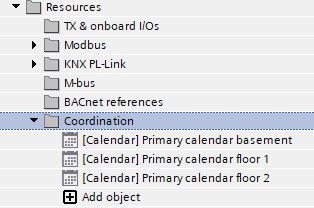
Note: Only online changes on primary calendars will be distributed, online changes on subordinate calendars will get overwritten (and lost) with next synchronization - Recommendation: The primary calendars should all be created in the calendar manager device. This is the only way of ensuring that the time changes in the online mode are made to a primary calendar object.
NOTICE

The calendar data is not synchronized
The plants are not switched on or off correctly if an exception is defined.
- Create only one global calendar manager object (GlblCalendarMgr) in the Desigo system. Check with a standard BACnet client “Who-Has” service if there is only one global manager object. This is also valid if you have more than one ABT Site project in a bigger customer project.
- Check whether multiple calendar nesting has been defined. Only one hierarchy level from primary manager to subordinate calendar is allowed.
- Check whether the device ID and object ID are entered correctly. These are not checked by default and checking them is the responsibility of the project engineer.
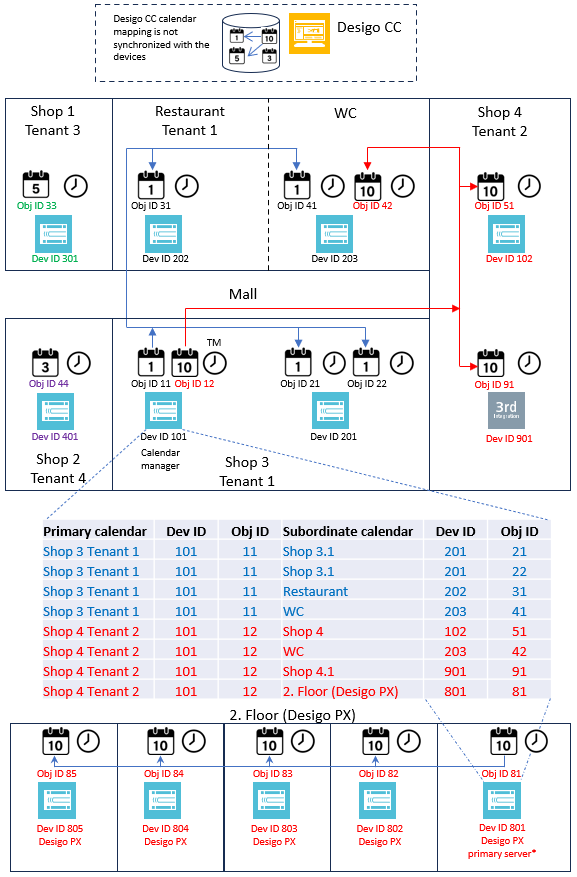
* The synchronization of the Desigo PX calendar objects is done with the standard mechanism to the subordinate Desigo PX devices. This means that only the Desigo PX primary server needs to be referenced in the calendar manager.

A 3rd party calendar can be integrated in the same way as a Desigo calendar by entering the device ID and object ID.
Where can I find the device ID and the object ID?
- Go to Building > Building structure.
- Select the desired device.
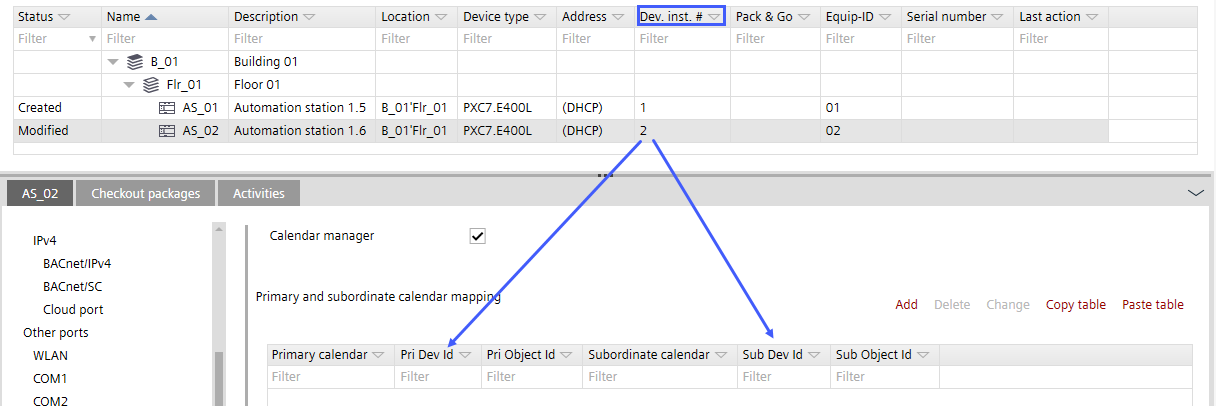
- Create a calendar report to collect all the information for the device ID and the object ID needed.
Export the calendar information of the entire project
Further information
- Workflow calendar manager
- Exporting the calendar information of the entire project
- Activating the calendar manager
- Configuring the calendar manager the first time (manually)
- Configuring the calendar manager the first time (with Excel)
- Synchronizing of the calendar objects
- Reporting of the global calendar objects
- Additional procedures