Device list
The Device list task lists all devices and its properties. You can change individual properties efficiently and perform uniqueness checks on a number of device properties.
Checking for duplicate device properties
Use this editor to make changes to default values for all devices associated with this template (export from ABT Site).
Devices can be added and or removed from the exported editor (i.e. Excel).
- Switching to the Device list task closes and reopens the current project in the background. Open Report or Configuration tabs will be closed.
- In the Device list task the component selector, the task selector, and the split buttons are disabled.
ABT Site user interface
1 | Toolbar | 2 | Device table |
3 | Details tab | 4 | Log tab |
① Toolbar
Command | Description |
|---|---|
Save | Saves the current changes. The number above the button indicates the number of changes made. |
Close | Closes the Device list task. If you close the Device list task without saving, all changes are lost. |
Load instance parameter | The instance parameters are hidden by default to save load time. To view instance parameters in the devices table, click Load instance parameter in the toolbar. |
Smart copy | Copies the table data to be pasted in Excel or other spreadsheet software. |
Smart paste | Pastes data from the clipboard into the table performing certain checks to work with changed data from Excel or other spreadsheet software. |
Load data for extended checks | Only the most important checks are done with the initially loaded data. Use this button to load data for extended checks, in order to perform all checks (takes more time). |
Check | Performs all mandatory checks and the optional checks selected in Configure checks. The results are indicated in the Details and Log tabs. |
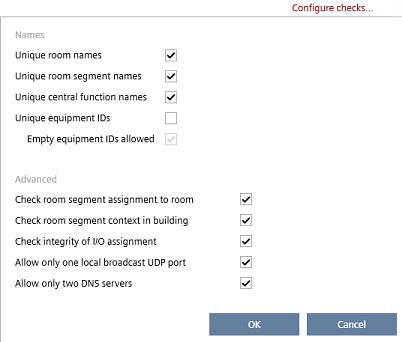
Configure checks | Allows you to set optional checks. Names
Advanced
|
② Device table
Common data | |
|---|---|
Column | Description |
Is changed | Indicates whether data has been changed. Read-only. |
Name | Name of the device. |
Location | Location information of the device. |
Description | Description of the device. |
Device instance number | Device serial number (device Instance Number) that is associated with the BACnet device. |
Equipment ID | Equipment designation of the device housing. |
Application template | Name of the application template. Read-only. |
Application number | Only if available, i.e., application number is > 0. Read-only. |
IP network information | |
|---|---|
Column | Description |
Hostname | Dedicated hostname for the device. |
UDP Port | Specifies the UDP port in hexadecimal format from BAC0 to BAD4. Default is BAC0. |
Local broadcast UDP port | UDP port for Local broadcast setting. |
DHCP | If selected DHCP is used to automatically configure the IP addresses. |
IP Address | IP address of the device. |
Subnet mask | Specifies the subnet within the larger network (IP). |
Gateway | Specifies a node on a TCP/IP network that serves as an access point to another network. |
Preferred DNS server | The address of the preferred domain name server. |
Alternative DNS server | The address of the alternative domain name server. |
Domain name | Name of the domain e.g. siemens.net. |
Ethernet MAC address | The MAC address of the device is a unique identifier that is assigned to the physical device. |
MS/TP network information | |
|---|---|
Column | Description |
Network | Number that identifies the network. |
Auto addressing | When activated the MAC address settings are obtained automatically. |
MAC address | First MAC address for the MS/TP port. |
Max. manager address | Set the Max manager address to prevent the passing of the token to unused MAC addresses situated after the manager. |
Baud rate | Specifies the rate at which data is sent to the bus. |
Instance parameters | |
|---|---|
Column | Description |
Object description | Note Each column contains one property. The caption is built from the object description, property description, and the unit. Example: Only instance parameters of pre-loaded devices are listed. |
You can only view and change parameter values in ABT Site if the Avail. on AS check box for the selected parameter is selected. The Avail. on AS check box is set in Configuration > Default values.
Configuring default values (template)
If selected, the corresponding object parameters are available in the following areas:
- Device details > Instance parameter page
- Application template details > Instance parameter tab
- Building > Device list > Load instance parameter
- Checkout report
Rooms, segments and central functions | |
|---|---|
Column | Description |
Room hierarchy | Building hierarchy of the room. |
Room name | Name of the room. |
Segment hierarchy | Building hierarchy of the segment. |
Segment name | Name of the segment. |
Plant name | Name of the plant. If there is a device with more than 1 plant, there will be 2 additional columns for the plant name and hierarchy. |
Plant hierarchy | Hierarchy of the plant. Field is editable, the plant can be moved. |
Central function hierarchy | Building hierarchy of the central function. Unplaced central functions is read-only i.e. you cannot change the hierarchy if the central functions are still in the Unplaced central functions folder. |
Central function name | Name of the central function. |
- If the hierarchy of an area is changed, the area will be moved automatically to the new location.
- If an element does not exist, e.g. if you enter a new room hierarchy, the element is created automatically.
- If under Settings > Naming defaults in the Object names tab Move rooms with automation station is selected, the rooms follow the automation station in the building structure.
Object names tab
③ Details tab
Column | Description |
|---|---|
Result | An icon symbolizing the event.
|
Category | Type of performed action. |
Message | Detailed information on the event. |
Error Code | Internal error number. |
 Information
 Warning
 Error
Error
④ Log tab
Column | Description |
|---|---|
State | An icon symbolizing the event.
|
Log text | Short description of the event. |
Date | Date and time stamp of the current task. |

To delete the log entries right-click and select Clear log.