Default values
The Default values task allows you to configure parameter settings in the application template. You can change default values and make parameters of the automation station visible.
1 | Task selector | 2 | Title and toolbar |
3 | Default values table |
| |
① Task selector
Task | Description |
|---|---|
Application configuration | |
Default values | Current task |
I/O assignment | |
Duplicating and programming |
② Title and toolbar
Command | Description |
|---|---|
Template name | Displays the name of the selected application template. |
Show/hide parameter | Opens a dialog box to add or remove parameters to the Default values table. |
Template properties | Opens a dialog box to modify the properties of the application template. |
Application help | Opens the help for the selected application template or application type. The command is only active if a help is available. |
| Displays the state of the locking function (optional). |


③ Default values table
The Default values table shows parameters with the default values for the application template. The parameters and values can be modified. Furthermore, parameters can be enabled for editing. Configuring default values (template)

The Avail. on AS column can be filtered by using T or True to show only the checked rows and F or False to show only the unchecked rows.
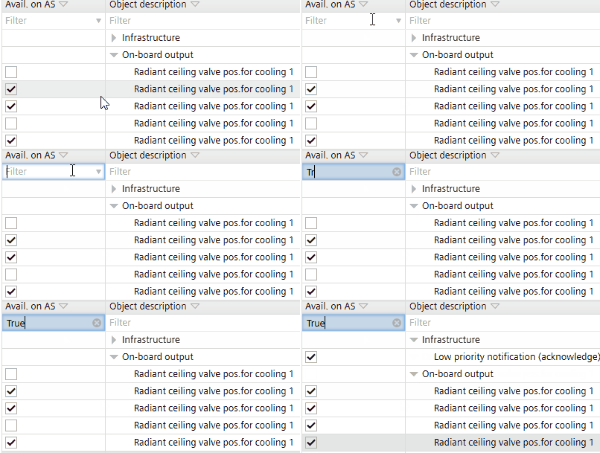
Parameters are pre-selected by default (application type library).
Column | Description |
|---|---|
Avail. on AS
|
|
Object description | Description of the object. |
Parameter description | Description of the parameter. |
Value | The entered value becomes the default value for all automation stations created with the application template. |
Unit | Parameter unit. |
Object name | Name of the object. |


 Expands the pre-selected parameters according to features.
You can only view and change parameter values in ABT Site if the Avail. on AS check box for the selected parameter is selected. The Avail. on AS check box is set in Configuration > Default values.
Configuring default values (template)
If selected, the corresponding object parameters are available in the following areas:
- Device details > Instance parameter page
- Application template details > Instance parameter tab
- Building > Device list > Load instance parameter
- Checkout report