Web interface
The Web interface component displays instances of configured devices for online commissioning and engineering.
To open an instance of a configured device, select Startup > Configure and download, and click Web interface.
Connecting to the web interface of the device

Note: Some pieces of information and restrictions that apply to the Web interface are:
- DXR2, PXC3, PXC4/5/7 devices open the internal Web Interface user interface within ABT Site
- PXG3.Wx00-1/-2, PXMx0.E or PXC7.A (Apogee) opens in an external browser (for example, Chrome)
- other devices like PXMx0-1 which provide Web Interface, can be opened directly with external browser, using direct IP (URL) address
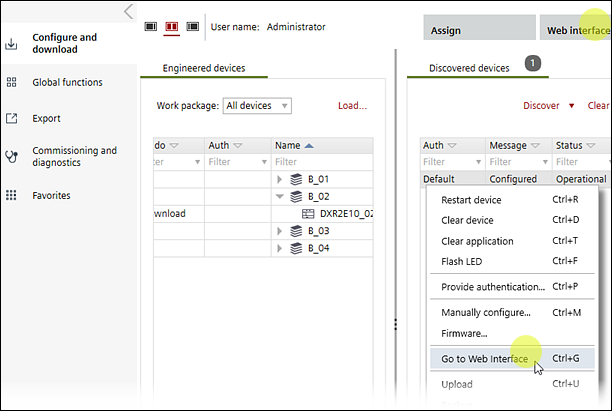
You can log into more than one device and switch between devices. Each device opens in a tab. If the session remains idle, it will time out and return to the login prompt where you must re-enter your password to log back in.
If no web page displays, and the connection to the device is over MS/TP or a room unit then the right "WPC_...zip" folder is missing. The WPC folder must correspond with the firmware version. All firmware versions are distributed in the official "Desigo Firmware Library".
The Web interface component is used in following workflows/tasks:
- Installing an ABT project (no subcontracting)
- Installing an ABT project (with subcontracting)
- Commissioning an ABT project
- Balancing air/water (with Pack & Go)
For help on mapping DXR2 connections to I/O addresses see the following topic.
DXR2.. Pins and addresses
To connect to the web interface of a device, your computer must use Google Chrome.
Access to the Web server on a device is password protected.
Web interface