BACnet references
The BACnet references task allows you to engineer BACnet reference objects. The task is available for all the programmable devices version 1.3 and above. BACnet reference can be used like any other data point/object in the programming editors or in the BACnet clients. See Creating a reference in the programming editor to see how to create a reference in the programming editor for programmable device versions lower than device version 1.3. Use the BACnet referencing report to get an overview of all used BACnet reference objects and their relation to their source objects. Go to Building > Building structure for reporting.
Video creating BACnet references
① Task selector
Task | Description |
|---|---|
I/O configuration | |
Modbus | |
M-bus | |
KNX PL-Link | |
BACnet references | |
BACnet objects | |
Programming |
② Plants navigation view
The Plants navigation view shows the plant hierarchy of the devices.
Command | Description |
|---|---|
Add data point | Opens the Add data point window where you can create a new BACnet reference object . |
Context menu for Plants navigation view
To display the context menu, right click on an element.
③ Toolbar
Command | Description |
|---|---|
State | Indicates the state of the application. The green color indicates that the application is online and running or paused.
|
Check | Checks for duplicate names. The check is automatically done before loading a device. |
(Play) | Only visible when the device is online. Activates an online session and loads changes for the selected device. |
(Pause) | Only visible when the device is online, and an online session is started. Deactivates an active online session. |
④ Overview
The overview tab shows the information about the BACnet reference object.
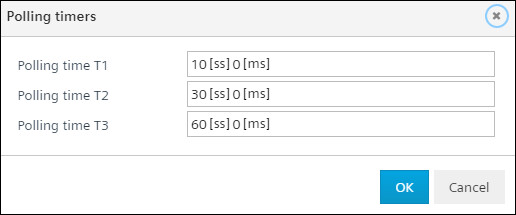
There are 3 polling timers T1, T2, T3 per device for each BACnet reference objects. Click Polling timer to modify the polling timings in the appearing window.
Command | Description |
|---|---|
Description | Description of the BACnet reference object. |
Unit/State text | Active/Inactive state of the BACnet reference object. |
Function | The function of the BACnet reference object. Read only – Read/Write – Read/Command. |
Device instance | The device instance number that is referenced (source) to the BACnet reference object . |
Object type | Object type that is referenced (source) to the BACnet reference object. |
Object instance | Object instance number that is referenced (source) to the BACnet reference object. |
Mode | Update mode of the BACnet reference object. Change to COV (Change Of Value) or use polling timers T1, T2, T3. |
(Alarming) | Enables intrinsic alarming for the BACnet reference object. Select True to filter for objects with activated alarming function. |
(Trending) | Creates trend for the selected BACnet reference object. Select True to filter for objects with activated trending function. |
Name | The name of the BACnet reference object. |
⑤ Projects
The Project tab is the source tab to create BACnet reference objects from any existing ABT Site project than can be found on the PC. Select any existing ABT Site project that you find on this PC to use as a source for BACnet reference objects. As default, the current project is selected.
In the upper part of the workspace, you can see the building structure which allows you to navigate through all available devices and building of the project.
Column | Description |
|---|---|
Name | Name of the building structure element of the selected ABT Site Project. |
Description | Description of the building structure element of the selected ABT Site Project. |
Location | Location of the device in the selected ABT Site project. |
Type | Device type, e.g DXR2.E.10 in the selected ABT Site project. |
Device instance | The device instance number that is associated with the BACnet device in the selected ABT Site project. |
In the lower part, you can see the available BACnet properties of the selected automation station.
Column | Description |
|---|---|
Description | Description of the object. |
Name | Name of the object. |
Device instance | The device instance number that is associated with the BACnet device. |
Object | Object as per BACnet standard. |
⑥ EDE import
This task allows the user to import EDE files from other BACnet devices for easier integration.
Column | Description |
|---|---|
Import EDE | Opens a generic explorer browser for the user to select the desired EDE file from his PC. |
Delete EDE | Deletes the currently selected file from the device folder. This is only possible if the EDE file belongs to the current controller. |
File dropdown menu | Shows the currently opened EDE file with the following naming string: Controller name where the file is saved > EDE file name. The drop-down list allows the user to select any of the previously used EDE files in the project, stored also in other controllers. |
Creation rules | Drop down menu with multiple-choice selection It will allow the user to select which parameters will be reused from the EDE file while creating the BACnet reference object.
|
On the completion of the EDE import task, the detailed information is listed in the EDE import window.
Column | Description |
|---|---|
Name | Name of the object from EDE file. |
Description | Description of the object from EDE file. |
Device instance | The device instance number that is associated with the object from EDE file. |
Object | Object as per BACnet standard. |
Unit/State text | Unit/State text properties. |
Min | Present minimum value. |
Max | Present maximum value. |
Value | Present value for configuration objects. |
⑦ Library and Properties
The Library and properties area is on the right side of the window. You can toggle Library and Properties tab.. The Library view contains the elements where you can be directly drag into the working area. You can store the BACnet reference objects into the custom library and reuse in other devices or projects.
The Property view shows the properties of the selected element. The items displayed in the Property view depend on the selected object type.
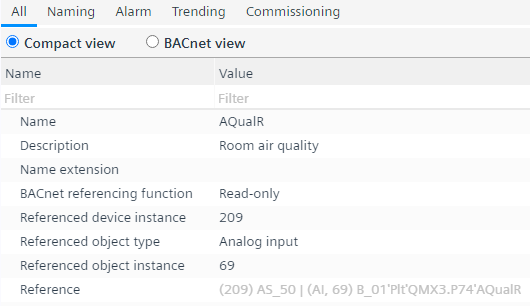
The user can see the referenced object’s name in property ‘Reference’. For external references, the device name and instance are also available.
Context menu
The content of the context menu varies in different parts of the editor.
Column | Description | Available in view/tap |
|---|---|---|
Add data point | Opens the Add data point window where you can manually create a new BACnet reference object. |
|
Delete | Deletes the selected object. |
|
Duplicate | Creates a copy of the selected object. |
|
Rename | Opens the Rename device window where you can change the name and description of the selected object. |
|
Show in plant | Opens the selected object in Plants navigation view. |
|
Show in program | Opens the selected object in program view. |
|
Open properties | Opens the properties of the selected object. |
|
Copy | Copy is support for the workflow in Creating a reference in the programming editor only. |
|
Create reference read-only | A BACnet referencing objects with read/write function will be created |
|
Create reference read/write | A BACnet referencing objects with read/write function will be created |
|
Create reference read/command | A BACnet referencing objects with read/command function will be created |
|

Some BACnet referencing functions are not available for all object types.