Engineering
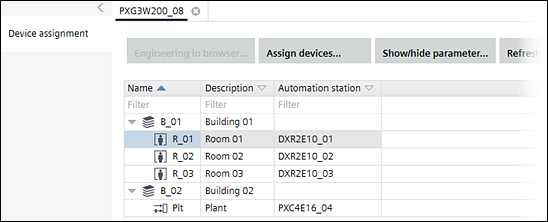
Use the engineering editor to assign automation stations to a device such as a web server, and to engineer graphics for the system.
The engineering editor is not applicable for Desigo Room Automation. For details on Desigo Room Automation, see:
Duplicating and programming

PXC4.E16.A and PXC7.E400.A do not support engineering, programming and simulation. For more information, check the corresponding hardware documentation of the device.
Forced upload and download of engineering data concept
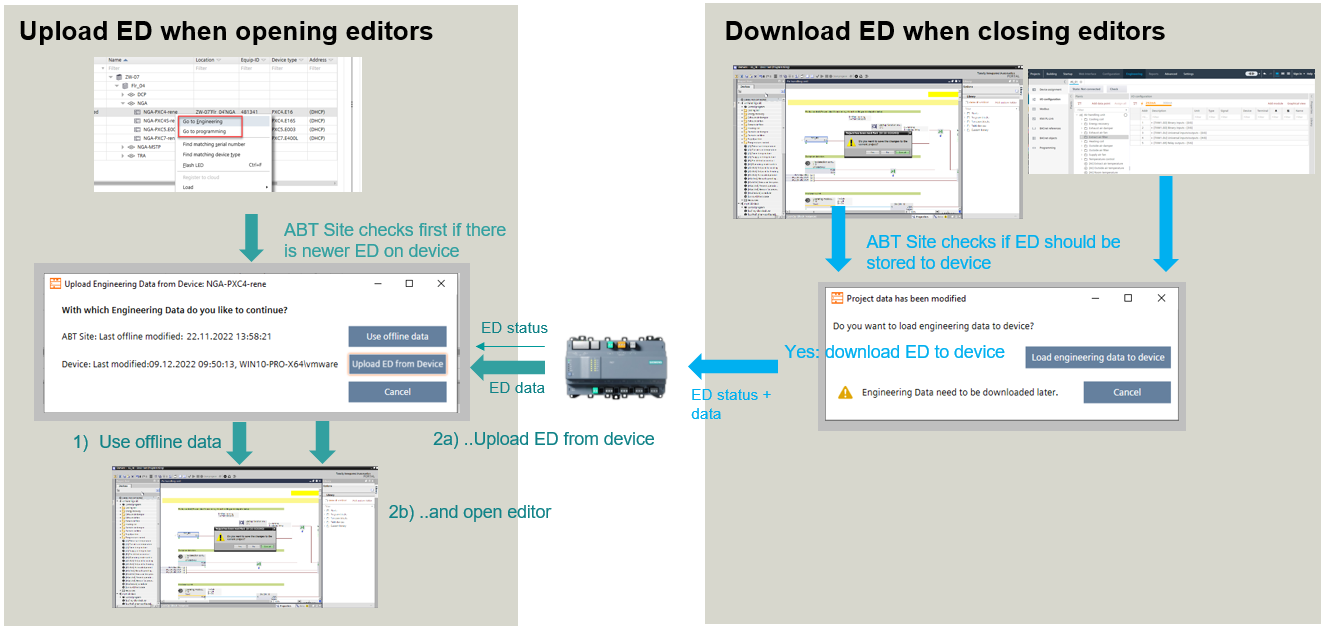
If Enable engineering data on device is activated and there is an online connection to the device. When you open an editor, then ABT Site checks the status of the device. If required, the user is informed that the engineering data has been updated. The picture shows the behavior of the application when opening or closing the editors.
Open an instance of the engineering editor
- A connection to the device is established.
- Go to Building > Building structure or Building > Application & device overview.
- Right-click a device, and select Go to engineering.
- If Enable engineering data on device is enabled, the status between the engineering data and the device is compared. If there are different data statuses, the user is prompted to upload the engineering data:
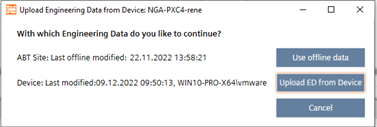
- Use offline data (Engineering data are taken from ABT Site. The engineering data are not uploaded from the device to ABT Site).
- Upload ED from device (Engineering data are uploaded from the device. ABT Site data will be overwritten by the device data. There is no data merge functionality).
- Cancel
- An instance of the engineering editor opens.
Close an instance of the engineering editor
- A connection to the device is established.
- An instance of the engineering editor is open.
- The Enable engineering data on device is enabled.
- Close the engineering editor.
- The status between the engineering data and the device is compared. If there are different data statuses, the user is prompted to download the engineering data:
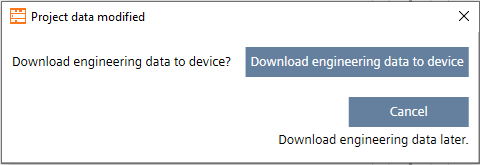
- Downoad engineering data to device (Engineering data are downloaded to the device and aligned with the ABT Site data).
Note: This message also appears when you have made changes to the control program after a full/delta load or play/pause but have not downloaded the changes yet. For comparison, only the Last offline change time stamp is taken, and only based on this change is a decision made as to whether the dialog appears.
Example of a project situation after a full load: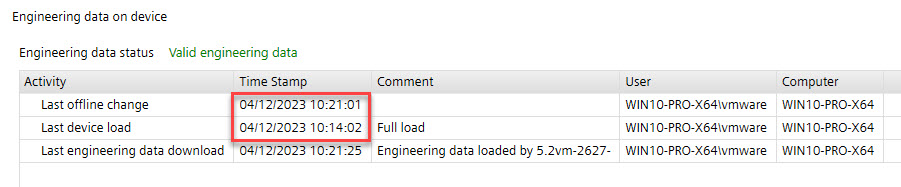
- Cancel (The download of the engineering data is skipped and not aligned with ABT Site data).
- An instance of the engineering editor is closed.
The Engineering component contains the following tasks.
Task | Description |
|---|---|
You can assign automation stations to an operating and monitoring device such as a web server. | |
Basic bus interface module workflow | |
Configuring KNX PL-Link devices | |
Assigning hierarchical descriptions for BACnet objects Assigning hierarchical descriptions for BACnet Trend log objects | |