Building structure
The Building structure task allows you to structure the content of a building according to your project. It offers a number of elements (buildings and building elements) to do so. The default names of building structure elements are set in Settings > Naming defaults > Object names.
Object names tab
1 | Task selector | 2 | Toolbar |
3 | Building structure table | 4 | Details pane |
5 | Context menu (Building structure table) |
| |
① Task selector
Task | Description |
|---|---|
|
Building structure | Current task |
Central functions | |
Device list | |
Application & device overview | |
Certificates management | |
Network check | |
BACnet/SC |
② Toolbar
Command | Description |
|---|---|
|
| Splits the work area vertically to get two views of the same building, allowing you to move elements from one view to another. |
| Resets the view to one work area. |
| Shows the rooms within the building structure. |
| Shows the devices within the building structure. |
Lock / Unlock | Locks / unlocks the device for editing. The device has to be locked before an online session can be started. |
Add building element
| Adds a new building element (e.g. floor) to the end of the list. Select Root in order to add the building element on the top level of the hierarchy. You can select the following building elements:
Click the arrow next to the button to enter the number of elements to be added. |
Add devices | Opens the Add devices window. |
Add application template | Opens Configuration > Application selection where a new application template can be added to the project. |
Delete | Deletes the selected element and its children. Note Deleting an automation station does not delete the corresponding room, because the automation station does not have to be in the same room. |
 Split view
 Remove split
 Show rooms
 Show devices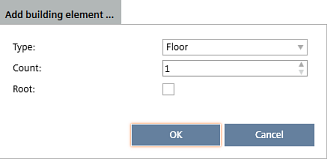
③ Building structure table
Column | Description |
|---|---|
|
Status | Status of the element. Read-only. |
Name | Names of building structure elements and folders:
Status information of a device
Unplaced rooms: Lists areas without a location. Unplaced rooms can be moved into the building structure. Unplaced devices: Lists devices without a location. Unplaced devices can be moved into the building structure. Unused devices: Lists devices, containing only unplaced areas. If an unused device is moved into the building structure, all containing areas are placed in the same building element. Unassigned room segments: Lists room segments without a present room. Freely programmable automation stations: Lists automation stations created in ABT Pro without a link into the building structure. To be visible in ABT Site, the automation stations must be saved and compiled in ABT Pro. |
Description | Description for the building structure element. The number of contained elements of special folders, e.g. Unplaced rooms, is also shown in the Description field. |
Location | Location of the device. |
Device Type | Device type designation, e.g. DXR2.E10. |
Address | IP address or MAC address. |
Dev. inst. # | The device instance number that is associated with the BACnet device. |
Pack & Go | Name of the Pack & Go package. The name corresponds to the name entered in the Work package name field during the export. |
Equip-ID | Equipment designation of the device housing. |
Serial number | Serial number of the device. Serial numbers of devices can be automatically added by using a barcode scanner or when data is read back after commissioning. |
Last action | Information on the online activity of the device. Only available for devices with online functionality. |
Segment usage | Usage of the room segment. |
Automation station | Only for areas. Name and type of the automation station the area is defined on. The controller type is indicated in brackets. The information is read-only. |
Template | Only for areas. The name of the application template the automation station is based on. |
 Building: The first structure element in a building structure.
 Floor: Structure elements for a building structure (e.g. floor).
 Area
Area Subarea
 Section
 Global area
 Plant
Plant Room defined in an ABT Pro project.
 Room segment.
 defined as BACnet MS/TP router
 Device update is required
 defined as BBMD device
 defined as time manager
 defined as supervision device
④ Details pane
The contents of the Details pane vary depending on the selected element.
Building element details
Details pane of the device version ≤ 1.5
Details pane of the device version ≥ 1.6
Room and segment details
Application template details
⑤ Context menu (Building structure table)
Command | Description |
|---|---|
|
Edit | Highlights the selected column value for renaming. |
Delete | Deletes the selected element and its children. Note Deleting an automation station does not delete the corresponding room, because the automation station does not have to be in the same room. |
Go to configuration | Opens Configuration > Application configuration where you can reconfigure the selected application template. Note |
Go to engineering | Opens the Engineering component. Note |
Go to programming | Opens the Programming editor. |
Start/stop simulation | Starts/stops simulation of the selected device to test its logical workflow. |
Go to Application & device overview | Displays the selected automation station in the Application & device overview task. When a room or automation station is selected that has been created in ABT Pro, the command opens the corresponding project in ABT Pro. |
Go to ABT Pro | Opens the ABT Pro project to which the free programmable automation station belongs. |
Add building | Adds a new building (new building structure) to the end of the list. |
Add building element | Adds a new building element (e.g. floor) to the end of the list. |
Add device | Opens the Add devices window |
Go to startup | Opens the Startup component. |
Import data | Opens a dialog box where you can specify an xml file to be imported. |
Create export | Opens the Create Exports dialog box to create a data package which can be used in the management stations Desigo CC, or for designing and assembling the control panel (CAD). |
Create Pack&Go | Opens the Create Pack&Go dialog box to create a Pack & Go file. |
Unlock from Pack&Go | Unlocks building elements or devices which have been locked by a Pack & Go process. When all devices in a building are unlocked, then the application template and the building are also unlocked. After unlocking the status field of the device is set from Pack & Go to Modified. |
Reports | Opens the Select report dialog box to select a report to be created in the selected context. |
Set commissioned | Set the status for the selected devices to Commissioning done. |
Export calendars in project | Creates an entire project report of calendar entries depending on the selected level building or floor. |
Application help | Opens the corresponding room help file. Not available for plants. |
Properties | Opens the Details pane. |
Further information
- Details pane
- Defining a building structure
- Adding devices
- Adding multiple devices
- Copying/duplicating devices
- Moving devices
- Moving room segments
- Deleting devices
- I/O assignment (Details pane)
- Changing the certificate authority (None/internal/external)
- Adding the serial number
- Working with the calendar manager
- Creating data exports
- Importing data
- Assigning touch panels to operating and monitoring devices
- Performing program simulation
- Customizing BACnet object instance numbers
- Pack & Go workflow